Language


 No results found

How to activate an eSIM on iPad
To activate an eSIM on iPad, first you need to install the eSIM and then turn it on from your device settings. The full process takes about five minutes and is done directly on the iPad, either by scanning a QR code or by entering the activation details manually.
This setup is especially important on the newer iPad models like the iPad Pro (M4 and M5) and iPad Air (M2 and M3), which no longer include a physical SIM tray and rely entirely on eSIM for cellular data. Below, you’ll find the exact steps to install and activate your eSIM and get connected.
Before adding an eSIM to your iPad
These quick checks help prepare your iPad for eSIM setup and only take a moment to review.
- Make sure your iPad is a Wi-Fi + Cellular model.
- Confirm that your iPad is eSIM compatible and carrier-unlocked.
- Connect to a stable Wi-Fi network to download the eSIM profile.
- Have your QR code or activation details ready.
- Keep your iPad charged or connected to power during setup.
iPad eSIM compatibility (Updated List – 2026)
To use an eSIM on an iPad, you must have a Wi-Fi + Cellular model. Wi-Fi–only iPads don’t include the hardware needed for mobile data, even if the software is up to date.
Important: iPad models released in 2024 and 2025, such as the iPad Pro (M4/M5) and iPad Air (M2/M3), are eSIM-only. They don’t have a physical SIM tray, so activating an eSIM is the only way to use mobile data.
iPad Pro
- iPad Pro 13-inch (M4)
- iPad Pro 11-inch (M4)
- Pad Pro 13‑inch (M5)
- iPad Pro 11‑inch (M5)
- iPad Pro 12.9-inch (3rd to 6th generation)
- iPad Pro 11-inch (1st to 4th generation)
iPad Air
- iPad Air 13-inch (M3)
- iPad Air 11-inch (M3)
- iPad Air 13-inch (M2)
- iPad Air 11-inch (M2)
- iPad Air (3rd to 5th generation)
iPad (standard models)
- iPad (A16)
- iPad (7th to 10th generation)
iPad mini
- iPad mini (A17 Pro)
- iPad mini (5th and 6th generation)

How to install an eSIM on iPad
There are three universal ways to install an eSIM on an iPad, depending on how your carrier provides it. You only need to follow one of these methods.
After completing any installation method, iPadOS will guide you through a short configuration flow. At this point, the eSIM is already installed, but it’s important to finish all on-screen steps so the line is correctly set for cellular data and preferences.
1. Install an eSIM for iPad using a carrier app
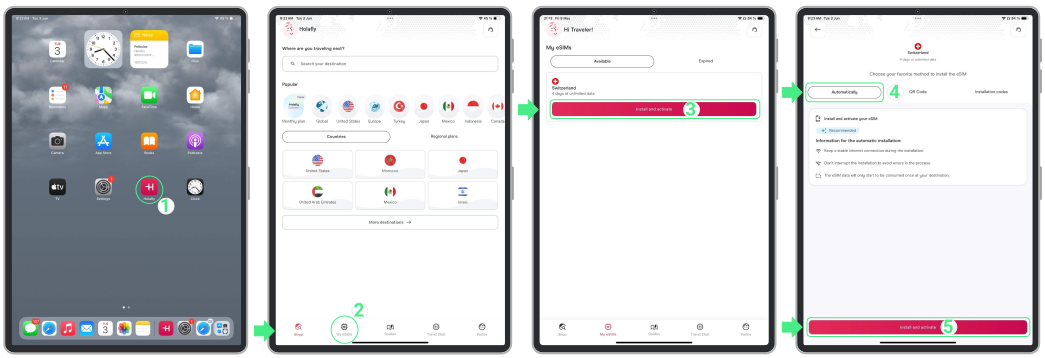
Most carrier apps (such as Holafly) allow you to install an eSIM directly from the app on iPads running iOS 17.5 or later. If your device meets this requirement, you can install the eSIM by following the steps below.
- Open your carrier’s app on your iPad (for example, Holafly) → Sign in with the email associated with your purchase → Go to My eSIMs → Select the eSIM you want to install → Tap Install and Activate → Choose Automatically → Tap Install and Activate again.
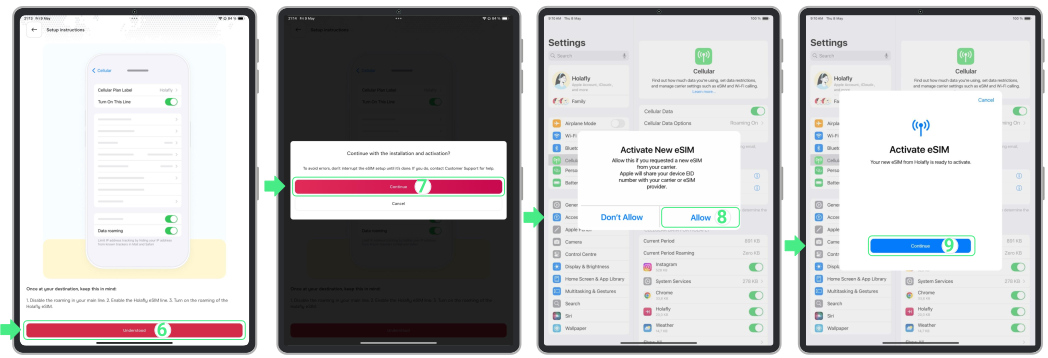
- Review the setup instructions and tap Understood → Tap Continue and Allow when prompted → Tap Continue when the Activate eSIM screen appears (this step continues the setup but does not activate the eSIM yet) → Follow the on-screen steps to complete the setup.
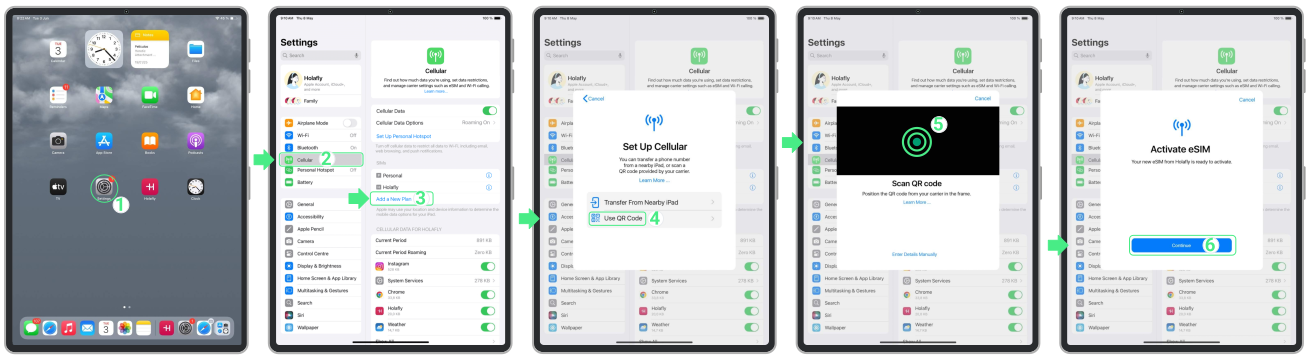
2. Install an eSIM on iPad by scanning a QR code
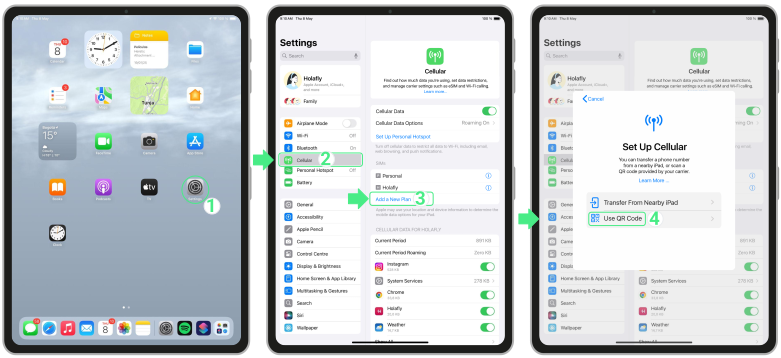
- Go to Settings → Open Cellular or Mobile Data → Tap Add a New Plan → Select Use QR Code → Scan the QR code → Tap Continue when the Activate eSIM screen appears (this step only advances the setup; the eSIM won’t activate yet) → Continue following the on-screen setup.
3. Install an eSIM on iPad by entering details manually
- Go to Settings → Open Cellular or Mobile Data → Tap Add a New Plan → Select Use QR Code
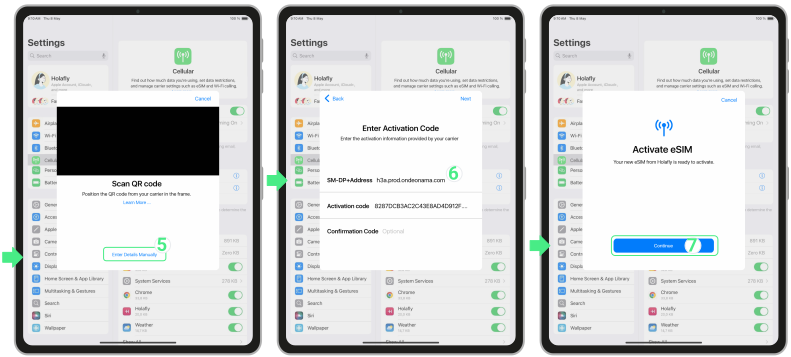
- Then select Enter Details Manually → Copy and paste the SM-DP Address and Activation Code from your purchase confirmation email → Tap Next → Tap Continue when the Activate eSIM screen appears (this step only moves the setup forward; the eSIM won’t activate yet) → Continue with the setup.
To complete the eSIM setup on your iPad
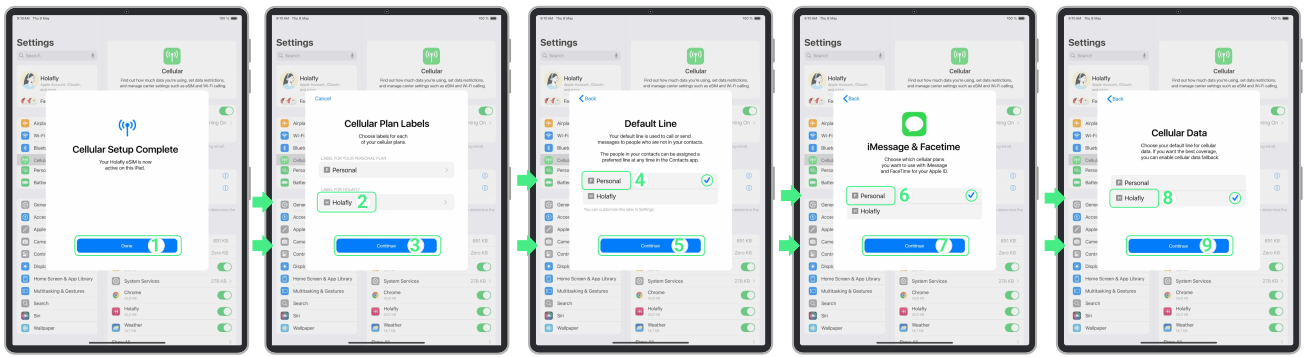
- Tap Done when the Cellular Setup Complete screen appears → Assign a name to your new line (for example, your provider name plus the destination) → Choose your default line for Messages and Calls → Select Personal to keep using your regular number for iMessage and FaceTime → Select the Travel eSIM as your line for Cellular Data.
How to activate an eSIM on iPad
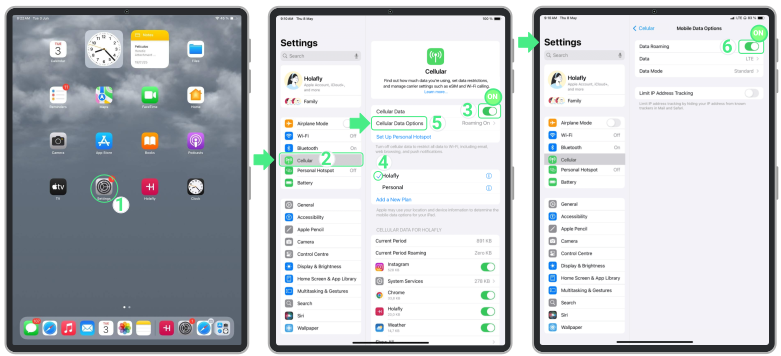
To start using cellular data, the line must be turned on and selected for mobile data. For local plans, activation happens as soon as the line is enabled. For travel plans, the connection completes only after you arrive at your destination and turn Data Roaming ON. To activate it on your iPad:
- Go to Settings → Tap on Cellular or Mobile Data → Turn Cellular Data ON → Select the newly added line and make sure it is checked (blue checkmark) as the active line for Cellular Data → Tap Cellular Data Options → Turn Data Roaming ON (travel plans only).
Troubleshooting tips
If your iPad shows the line as Active, but iPad cellular data isn’t working, this usually isn’t related to the installation. In most cases, the device is still completing a brief connection process to the local network. Restarting the iPad after activation often resolves this. If the connection still doesn’t come through, manually selecting a network can help the device connect to the correct carrier.
Important: Never delete your eSIM to fix a connection error. Removing the profile can permanently invalidate the plan and, in some cases, prevent reinstallation.
How to manually select a network on an iPad
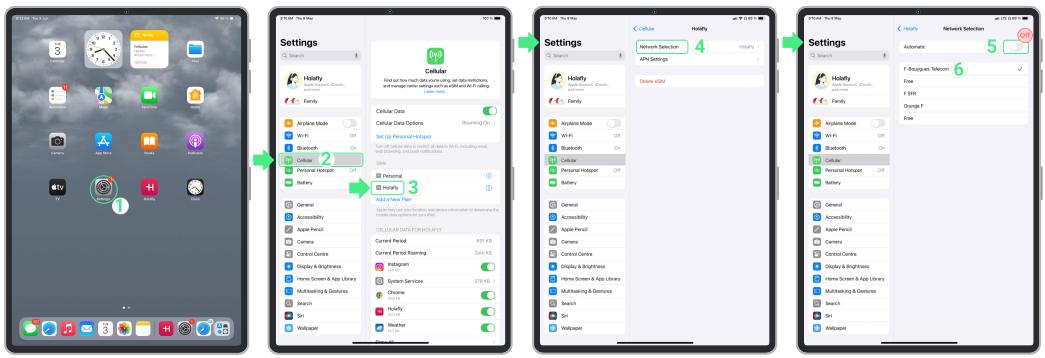
- Go to Settings → Open Cellular → Select the eSIM you just activated → Tap Network Selection → Turn Automatic network selection OFF and wait for available carriers to load → Test the carriers listed on your screen one by one → Choose the one with the strongest signal → Try browsing again.