




 Language

How to Install and Activate an eSIM on an Honor Device?
Most modern Honor smartphones support eSIM technology, specifically across new releases like the Honor 600e, the flagship Magic series, and the Number series (including the Honor 90, 200, and 400 lines). This technology allows you to connect to a cellular network digitally without using a physical SIM card.
You can install the eSIM automatically if your provider has an official app. Otherwise, you can use the two universal methods that work for any line: scanning a QR code or entering the details manually. Below, you’ll find the step-by-step instructions to get your data up and running in just a few minutes.
Before you install your Honor eSIM
- Ensure that your Honor device is compatible with eSIM and not locked by any carrier. This means your phone must be unlocked to work with other networks.
- Make sure you’re connected to a stable and secure Wi-Fi network.
- Keep in mind that an eSIM can only be installed once. Never delete the profile from your settings later, or you may lose your plan.
- For Global or Regional (Europe, Asia, South America, Africa, etc.) plans, install it no earlier than 1 day before your trip to ensure your data starts when you need it. For single-country plans, install it at any time.

How to Install an eSIM on your Honor device?
There are three methods to set up your eSIM. Choose the option that best suits your needs below and follow the step-by-step instructions:
1. Install an eSIM on Honor using the app
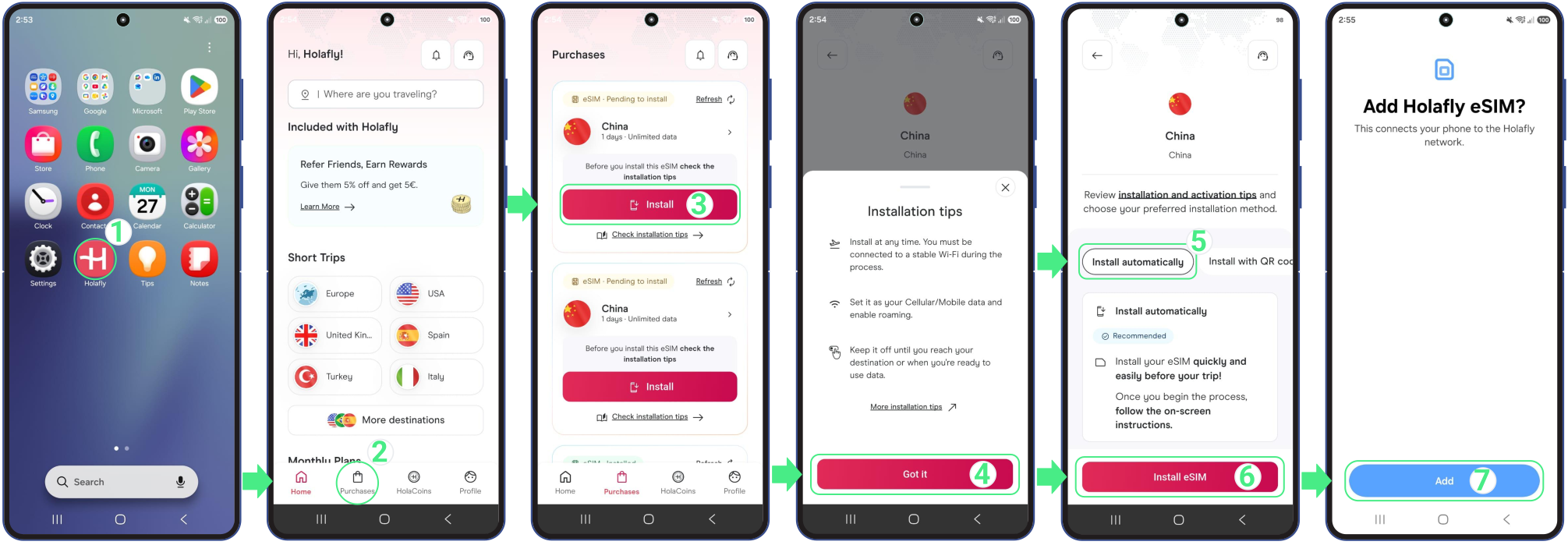
Using the Holafly app is usually the fastest and easiest way to set up your line. Simply download or open the app here and follow the steps below:
- Go to the app on your phone → Log in with the email associated with your purchase → Go to Purchases → TapInstall on the eSIM you want to add → Read the Installation tips and tapGot it to continue → Choose Install Automatically → Tap Install eSIM → Then, tapAdd and Continue to save your new line inside the SIM management menu in settings.
2. Install an eSIM on Honor with a QR Code
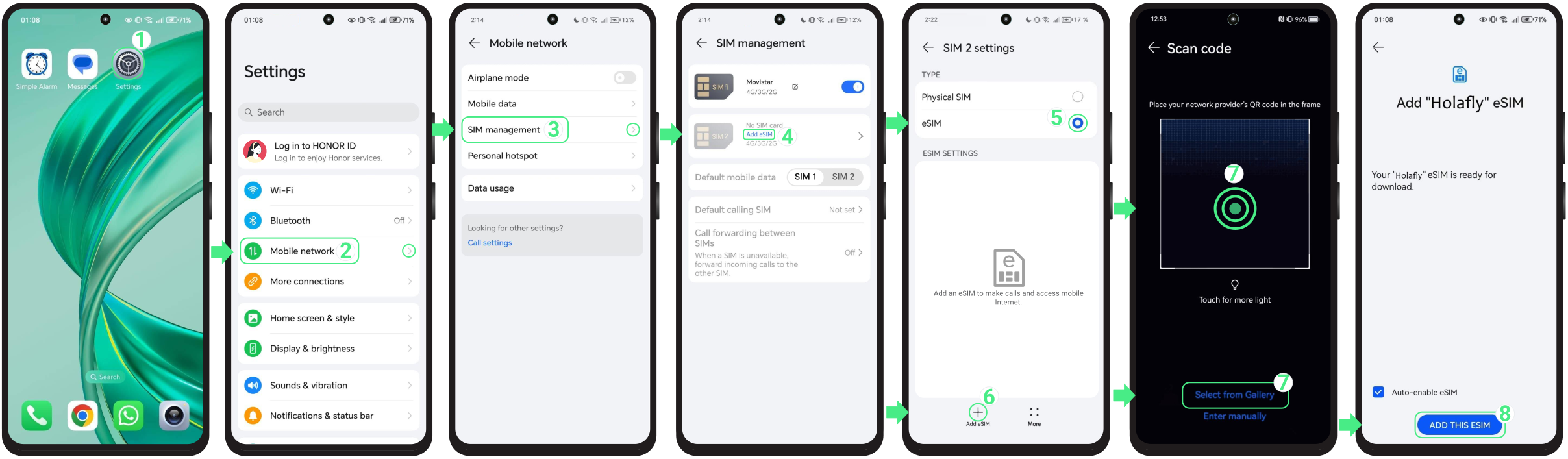
You can also install your eSIM by scanning the QR code directly from your Honor settings. Before you begin, make sure the QR code is displayed on another screen or saved to your gallery if you’re using only one device.
- Go to Settings → Select Mobile network → Tap on SIM management → Select Add eSIM → Enable the eSIM option → Press the Add eSIM button in the bottom left corner of the screen → Scan the QR code or tap the “Scan from Gallery” text link below to choose it from your photos → Tap on Add this eSIM (Don’t close this window, or the installation will stop).
3. Install an eSIM on Honor using manual details
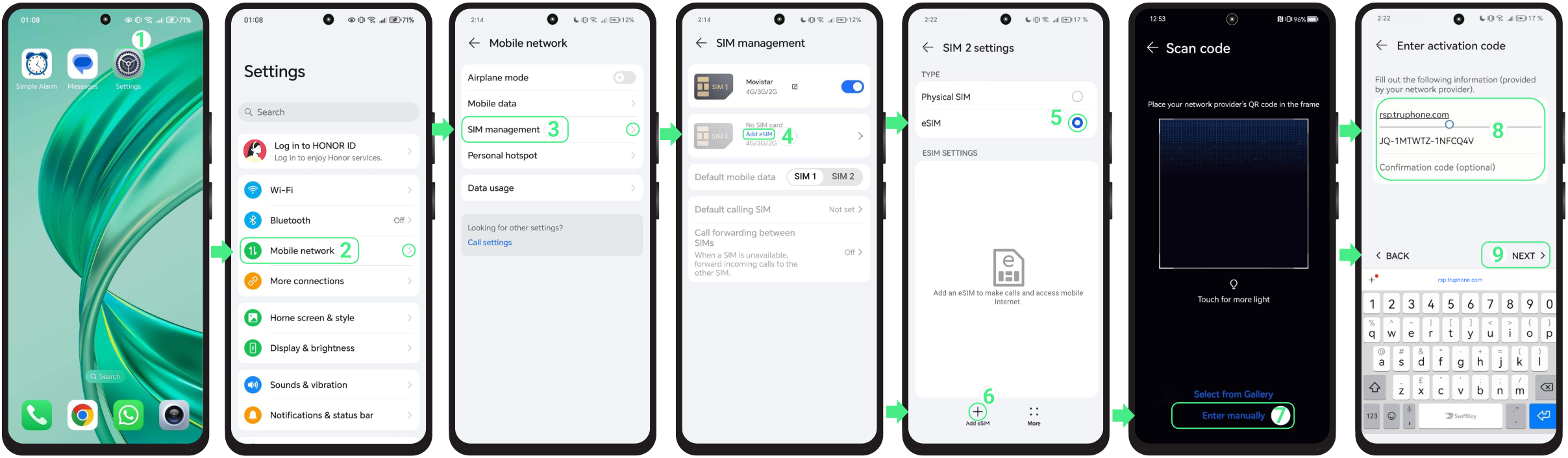
If you can’t scan the QR code, you can install your eSIM by manually entering the activation details received with your purchase.
- Go to Settings → Select Mobile network → Tap on SIM management → Select Add eSIM → Enable the eSIM option → Press the Add eSIM button in the bottom left corner of the screen → Tap on Enter Manually → Copy the two manual codes from the iOS section in your eSIM confirmation email (Honor uses the same two-field format as iOS, not Android) and paste the SM-DP+ Address and the Activation Code into their respective fields → Tap on NEXT → To finalize, tap on Add this eSIM (Do not close the window, as this could cancel the installation).
Note: Please keep in mind that these are manual text codes, not clickable links.
How to activate an eSIM on your Honor device:
After installing your eSIM, you just need to turn on the new line and select it for mobile data to activate it. You don’t need any connection to do this, simply follow the steps below directly from your phone’s settings:
Note: If you’re using a travel eSIM, it’s recommended to enable the line only after you arrive at your destination to avoid activating it too early.
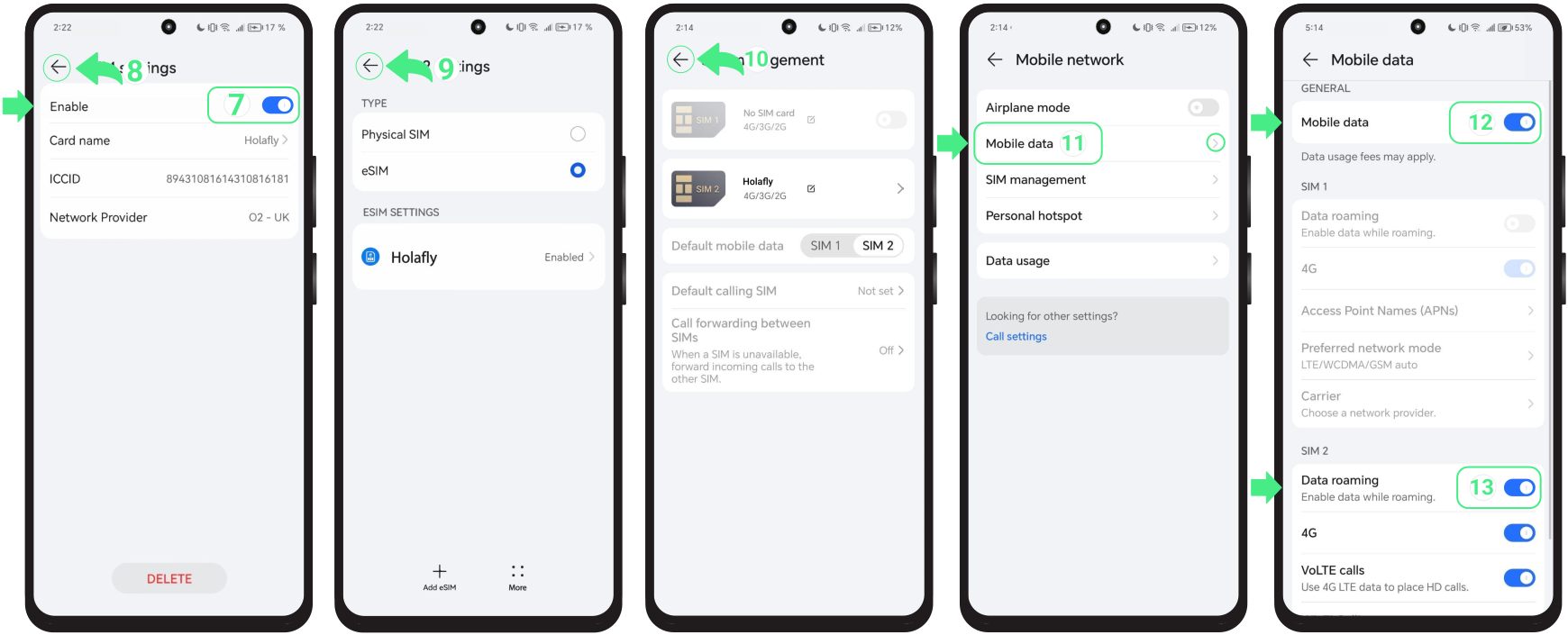
- Go to Settings → Select Mobile network → Tap on SIM management → Set up your new eSIM as Default mobile data → Deactivate your Personal SIM/eSIM (this prevents unexpected charges from your home carrier) → Tap on the recently installed eSIM → Check that the eSIM option is selected → Tap on your New eSIM line again.
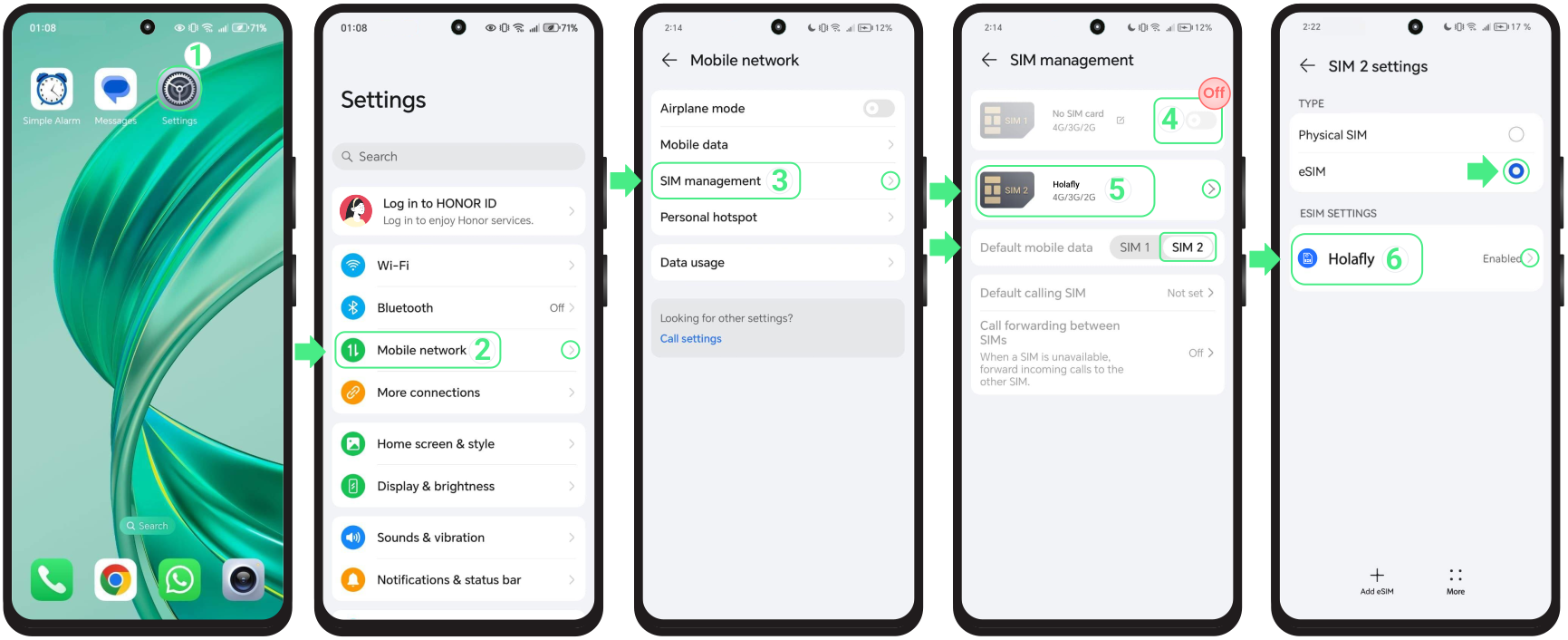
- Then, turn on the Enable switch → Go back three times until you reach the Mobile networks menu → Choose Mobile data → Then, choose Mobile data → Turn on Mobile Data and also Data roaming if you are using a travel eSIM.
To keep in mind
- On Honor devices with eSIM and Dual SIM support, like the Honor 90, you can use both a physical SIM and the eSIM at the same time, but only one can be active for mobile data.
- Remember that the Honor Magic 6 Lite, Honor X9C, and Honor 70 are not compatible with eSIM,
- When using a travel or international eSIM, disable your personal SIM once you reach your destination to avoid unexpected roaming charges from your domestic carrier.

Troubleshooting tips
During Installation
If your Honor displays a message during installation, there’s no need to start over right away. In many cases, the eSIM has already been added to your device. Before trying again, take a quick look:
- On your phone: Go to Settings → Mobile network → SIM management. Your new eSIM should appear there, usually with the name assigned during setup or the provider name.
- In the App: Check your eSIM status. If it says “eSIM Installed – Ready to use,” everything is ready for activation.

Using your mobile data
If you already turned on your eSIM and enabled Data Roaming but still have no internet, you can manually select a network by going to your Settings, Mobile networks, Mobile data, and Carrier. There, just turn off the Automatic switch, tap OK, and once the available networks load, test the operators one by one until you find the one with the best signal to start browsing again.
⚠️ Important: Don’t remove your eSIM. If you remove it, you most likely won’t be able to reinstall it.