Language


 No results found

How to activate eSIM on iPhone (iOS 26)
To activate an eSIM on iPhone, you only need to use your device settings to complete a digital process that takes less than five minutes. While the core installation steps remain consistent across all modern iOS versions, iOS 26 introduces a more intuitive guided setup, making it even easier, especially for international travelers.
Whether you are using the latest update or a previous version, you can install your line instantly using a QR code, manual details, or a carrier app. Below, we cover the universal installation methods and the new configuration prompts, providing a step-by-step guide on how to activate eSIM on iPhone with the latest Apple updates.
What you need before activating an eSIM on iPhone
Before turning on your eSIM, check these basic requirements to ensure a smooth setup.
- An iPhone compatible with eSIM.
- An unlocked device. Your iPhone must be unlocked to add an eSIM from another carrier.
- A stable Wi-Fi connection. Required to add the eSIM to your device.
- Your installation details are ready. This can be a QR code, manual activation details, or access to a carrier app.
- If you’re using a travel eSIM, install it shortly before your trip and activate it once you arrive. Local eSIMs activate as soon as you turn them on.

How to install an eSIM on iPhone
Before you can activate an eSIM on iPhone, you need to add it to your device. There are three universal ways to install an eSIM, depending on the details provided by your carrier.
On iOS 17.4 and later, there is also an additional option that lets you install the eSIM by long-pressing the QR code directly from the email, without using a second device.
Install an eSIM on iPhone using a carrier app
This method lets you install the eSIM directly through your provider's app without a QR code or a second device. You just tap the install button and follow the on-screen steps. For example, the Holafly app offers this feature, though it is only available for users on iOS 17.4 or later. After downloading your carrier’s app, follow these steps:
- Open the APP → Log in using the email associated with your purchase → Go to My eSIMs → Select the eSIM you want to install → Tap Install and activate → Choose Automatic → Tap Install and activate again.
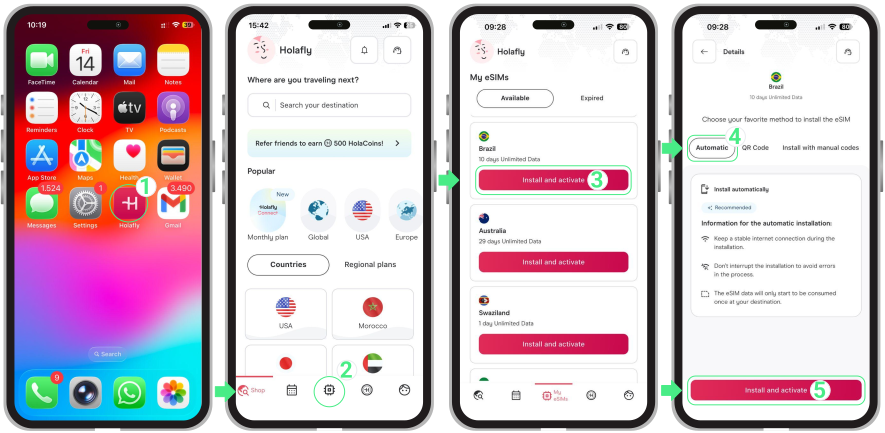
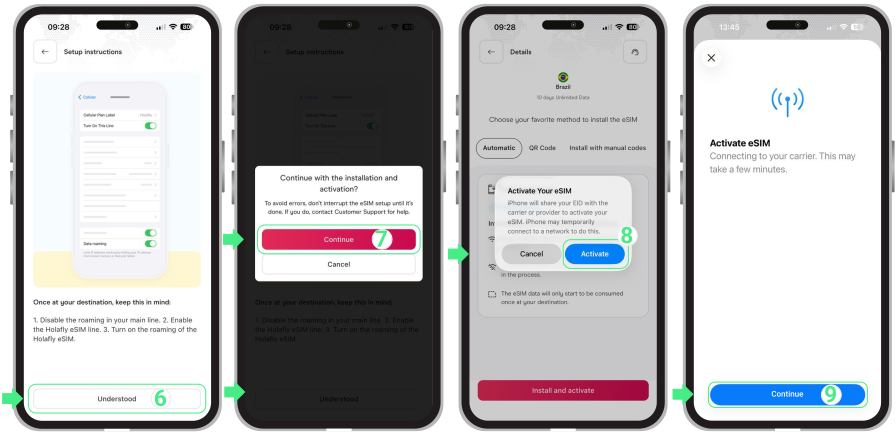
- Review the setup instructions and tap Understood → Tap Continue to start the installation → Tap Activate → Tap Continue again when the Activate eSIM screen appears (this step only continues the setup; the eSIM is not activated yet).
Add an eSIM to iPhone using a QR code
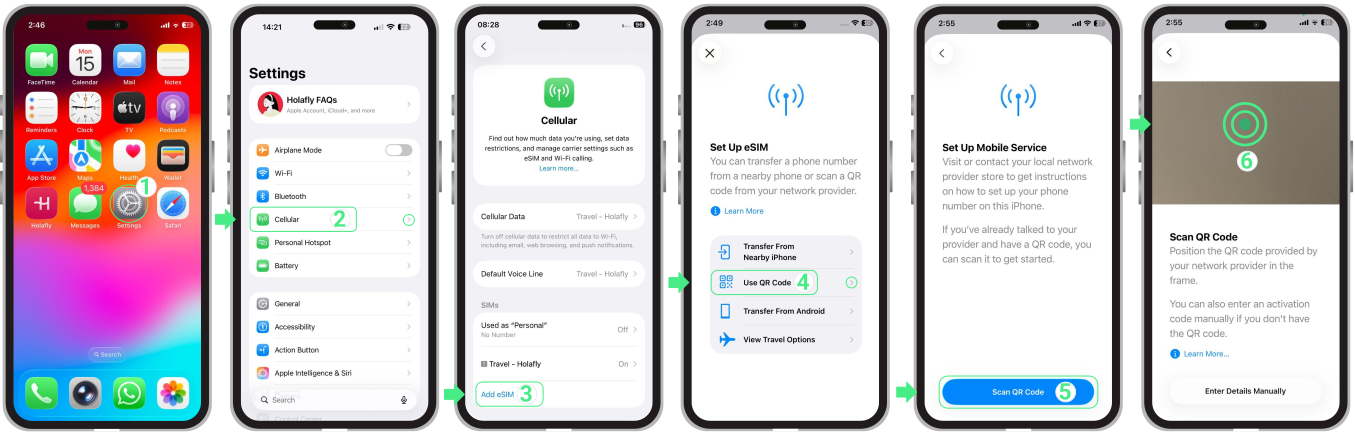
This is the most common way to add an eSIM on an iPhone and works on all eSIM-compatible models. It’s ideal if you have the QR code available on another device or printed.
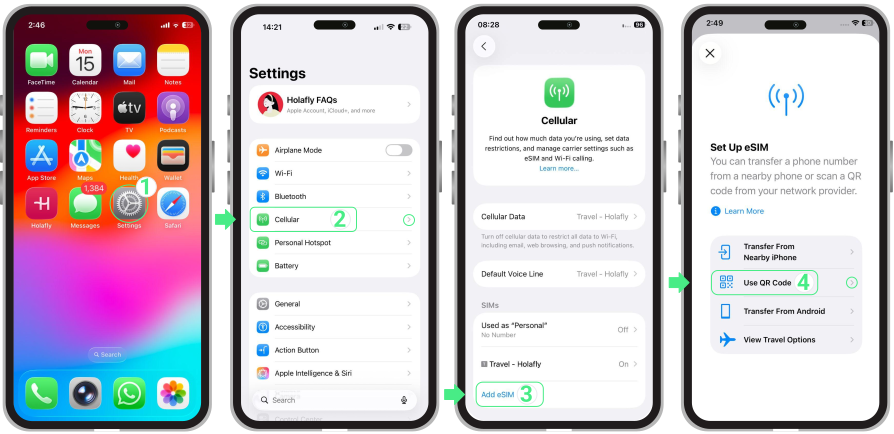
- Go to Settings → Tap Cellular or Mobile Service → Select Add eSIM → Use QR Code → Scan QR code → Point your camera at the QR code to begin installation → Tap Continue when the Activate eSIM screen appears (this moves the setup forward but doesn’t activate the eSIM yet) → Continue with the setup.
Install an eSIM on iPhone by entering the details manually
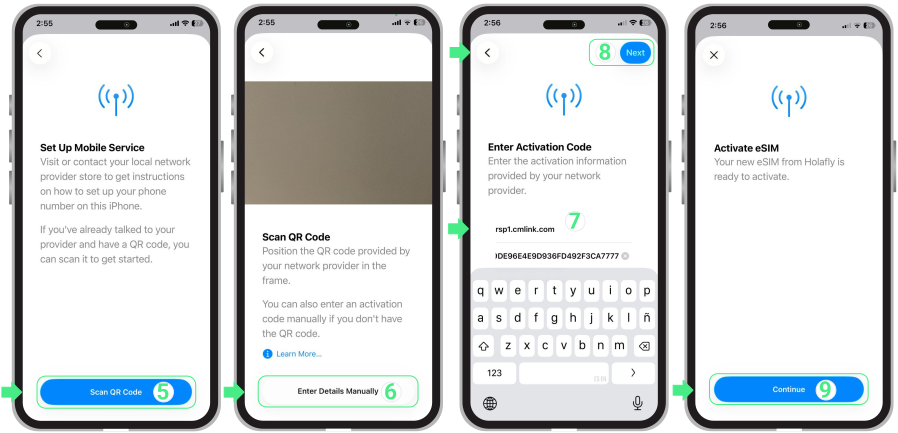
Manual installation is useful if you can’t scan a QR code or if the camera isn’t working. This method lets you enter the activation details directly in your iPhone settings.
- Go to Settings → Tap Cellular or Mobile Service → Select Add eSIM → Use QR Code.
- Tap Scan QR code → Tap Enter Details Manually → Copy and paste the SM-DP address and Activation Code provided by your carrier (these are codes, not links) → Next → Tap Continue → Follow the on-screen steps to complete the setup.
Install an eSIM by long-pressing the QR code (iOS 17.4 or later)
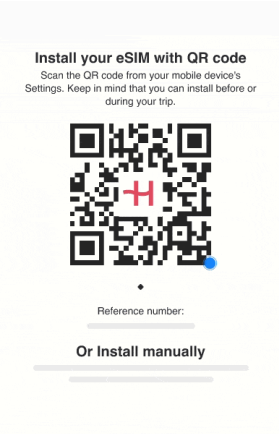
Some carriers, such as Holafly, offer a faster installation option directly from the confirmation email sent after purchasing the eSIM. On iPhones running iOS 17.4 or later, you can start the installation by long-pressing the QR code in the Mail app, without using a second device.
This short gif shows exactly how this process works. Just follow the on-screen prompts until the eSIM is added.
Configure your eSIM on iPhone (iOS 26)
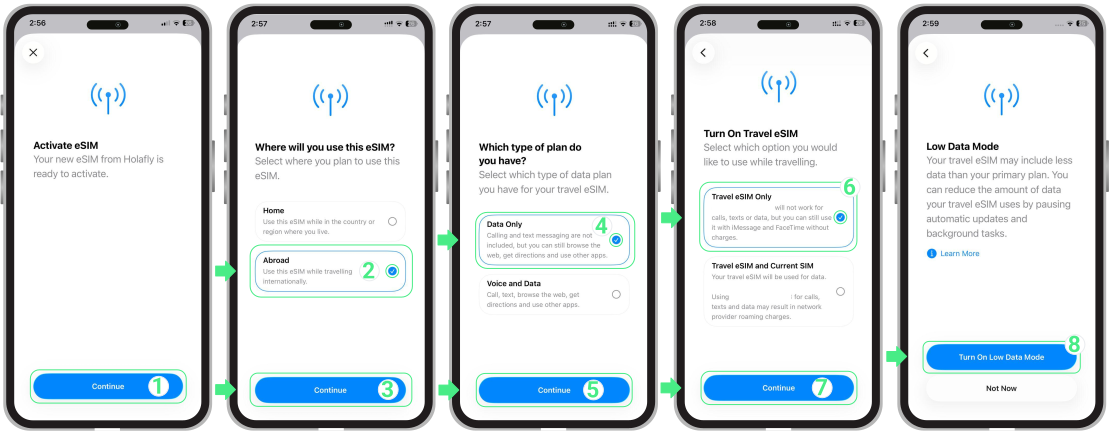
After installation, iOS 26 guides you through a short setup to define how your device handles the new line, especially if it's a travel eSIM. Keep in mind that models like iPhone XS, XS Max, and XR do not receive these latest updates, so they will follow the classic manual labeling process instead. The following steps are specifically designed for travel eSIMs:
- On the Activate eSIM screen, tap Continue → On the screen Where will you use this eSIM?, select Abroad to indicate the eSIM will be used internationally and avoid early activation → Tap Continue → On the screen Which type of plan do you have?, choose Data Only to use mobile data without calls or SMS → Tap Continue → On the screen Turn On Travel eSIM, select Travel eSIM Only to use the eSIM during your trip → Tap Continue → To finish the setup, tap Turn On Low Data Mode.
How to activate an eSIM on iPhone
Once the eSIM is installed and configured, activation is done by turning the line on and selecting it for mobile data. For travel or international eSIMs, you’ll also need to enable Data Roaming and turn off your personal SIM to avoid charges. This step is completed directly from your iPhone settings and doesn’t require an internet connection.
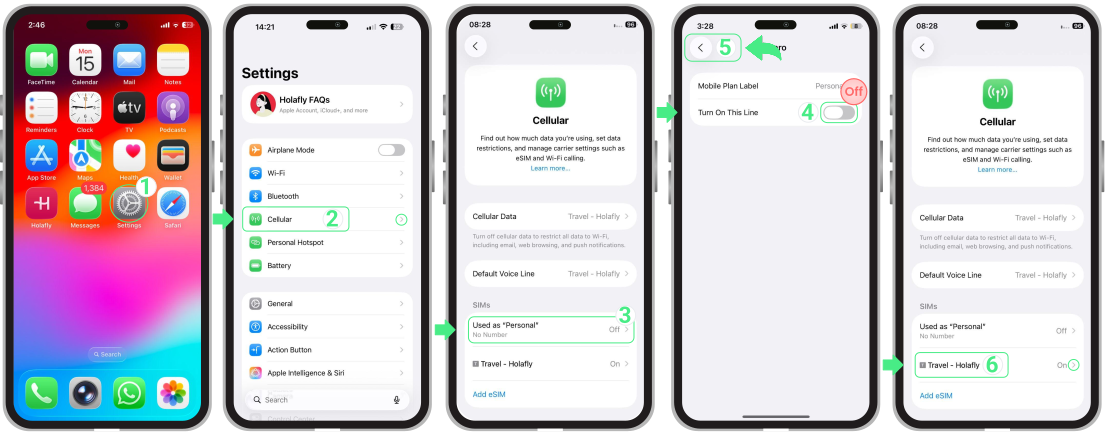
- Go to Settings → Cellular or Mobile Service → Turn off your personal SIMs or other eSIMs by switching off Turn On This Line → Go back to Cellular or Mobile Service → Select the eSIM you want to activate (your new Travel eSIM, which may appear with a custom name).
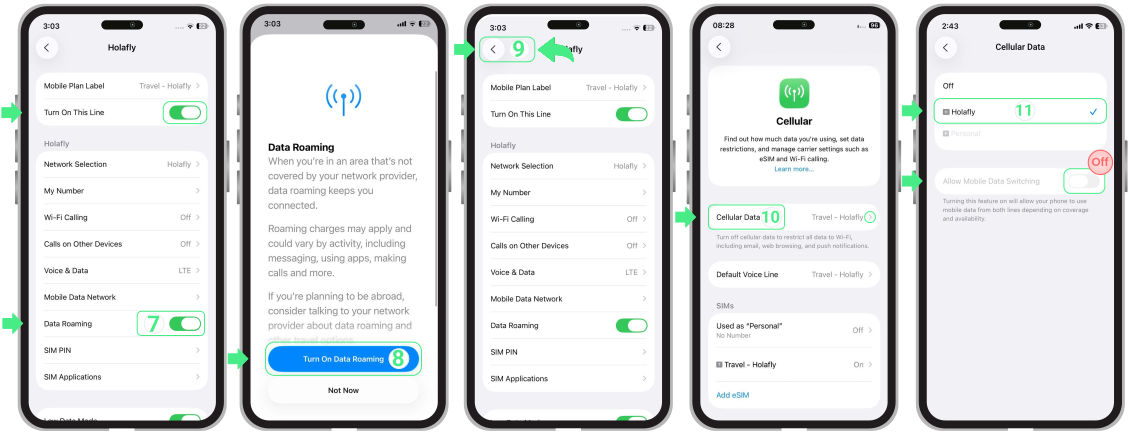
- Make sure the Turn On This Line button is enabled → Turn on Data Roaming → If prompted, tap Turn On Data Roaming to confirm → Return to Cellular or Mobile Service → Tap Cellular Data or Mobile Data and select the Travel eSIM as your data line → Check that Allow Mobile Data Switching is turned off to prevent the iPhone from switching between lines automatically.
Troubleshooting tips
If your iPhone shows the eSIM as Active but mobile data isn’t available yet, this usually happens right after you activate an eSIM on iPhone, while the device completes a short network handshake. In some cases, the device may also need help connecting to the correct local network.
Important: Never delete your eSIM to fix a connection issue. Removing the eSIM profile can permanently invalidate the plan, and some providers don’t allow it to be installed again.
Manually select a network on iPhone
Manually selecting a network allows your iPhone to connect directly to the best available signal.
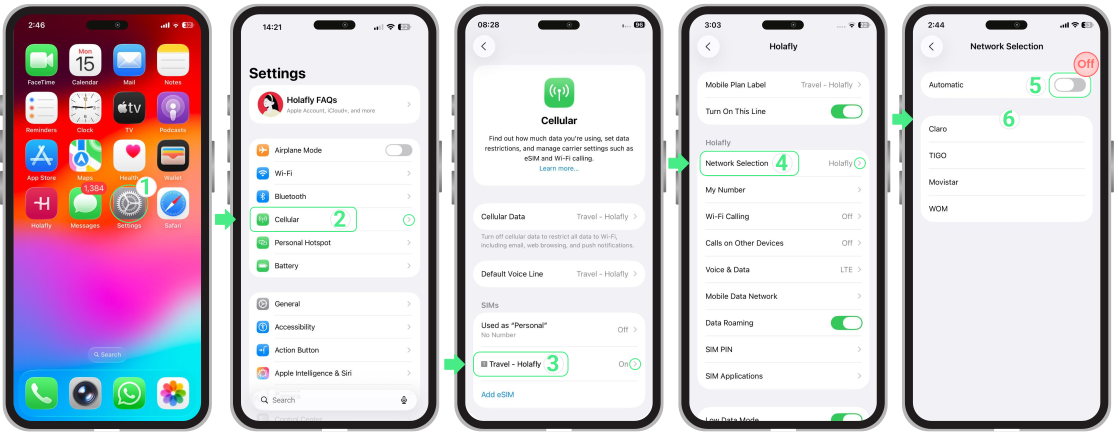
- Go to Settings → Cellular or Mobile Service → Select the eSIM that is not connecting → Tap Network Selection → Turn off Automatic → Wait for the available networks to load → Then try one by one all the operators listed (each time you select one, wait 30 seconds while it connects to the network) → Select the operator with the strongest signal → Try browsing again.