Language


 No results found
amaysim eSIM not working? Here’s how to fix it
Your amaysim eSIM not working could be due to setup errors, missing APN settings, or device issues. This quick guide shows how to fix it.

Is your amaysim eSIM not working? Whether it’s not activating, showing a signal, or connecting to mobile data, you can resolve most issues in a few minutes.
This guide explains why your amaysim eSIM isn’t working and shows you how to fix it on both iPhone and Android devices.
You’ll also find Holafly international eSIM, a simple, stress-free alternative to amaysim with transparent pricing and coverage in over 200 destinations.
Get connected from anywhere
Buy your eSIM no matter where you are. All you need is an internet connection.
Why is your amaysim eSIM not working?
Your amaysim eSIM error could be due to setup issues, device compatibility, or network settings that you can modify quickly.
Here are some other reasons why your amaysim eSIM isn’t working:
- Your phone doesn’t support eSIM.
- The amaysim eSIM activation process failed.
- Your amaysim eSIM QR code is already used or expired.
- Your eSIM is installed but not fully activated.
- Your phone’s Mobile data and/or data roaming is turned off.
- Your device isn’t connecting to the network.
- The Access Point Name (APN) settings on your device are missing or incorrect.
- You accidentally deleted your eSIM profile.
- If you have a Samsung device, a SIM manager conflict could be blocking your eSIM.
How to fix amaysim eSIM issues
You can solve most amaysim eSIM issues on both iPhone and Android devices by identifying the cause and following the step-by-step fixes below.
1. Check if your device supports amaysim eSIM
amaysim only works on eSIM compatible phones that are unlocked to use with another carrier.
Here is how to check if your phone supports eSIM:
On iPhone:
- Go to Settings > Mobile > Add Mobile Plan. If you see this option, your device supports eSIM.
On Android:
- Go to Settings > Network & Internet > SIMs or Mobile Network. If you have the option to add an eSIM or scan a QR code, your phone is compatible.
Note: Most newer iPhones, XR and later, and Android models like Pixel 4+, Samsung Galaxy S20+, and Motorola Edge support eSIM.
2. Check if your amaysim eSIM QR code has expired
amaysim eSIM QR codes are single-use only. If you’ve already scanned it or it’s been too long since activation, it may be the reason why your eSIM is not working.
If you see an error while scanning or the eSIM won’t install, request a replacement QR code by contacting amaysim support via their website or app.
3. Reinstall the amaysim eSIM profile
If your amaysim eSIM isn’t working, try removing and reinstalling the eSIM profile.
On iPhone:
- Go to Settings > Mobile Data
- Tap your amaysim eSIM > Remove Mobile Plan
- Restart your phone
- Scan a new amaysim QR code to reinstall your eSIM profile
On Android:
- Go to Settings > Network & Internet or Connections
- Tap SIMs or Mobile network
- Select and delete the amaysim eSIM
- Restart your phone and scan a new QR code
4. Restart your phone after installation
After installing the amaysim eSIM, restarting your phone helps finalise the setup. Power off your device, wait a few seconds, then turn it back on.
This simple step often fixes temporary glitches like missing signal, delayed activation, or poor data connection.
5. Turn on mobile data and data roaming
You need to enable mobile data and/or data roaming in your device settings for your eSIM to connect.
If you’re travelling overseas, make sure to purchase an amaysim international roaming pack and enable roaming in both the amaysim app and your phone settings.
On iPhone:
- Go to Settings > Mobile Data > Mobile Data Options > Toggle on Mobile Data and Data Roaming
On Android:
- Go to Settings > Network & Internet > Mobile network > Turn on Mobile Data and Roaming

6. Enable and disable Airplane Mode
Turn on airplane mode on your device for 10–15 seconds, then turn it off to reset your network connection.
Switching on and off the flight mode refresh forces your device and can fix amaysim eSIM signal or connectivity issues.
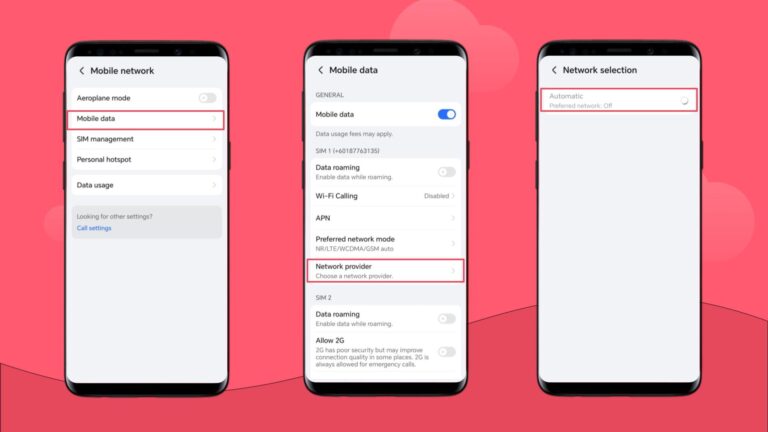
7. Manually select a local network
Your eSIM carrier might not automatically connect to a local network, so you need to do it manually.
On iPhone:
- Go to Settings > Mobile Data > Network Selection > Turn off Automatic > Choose a network from the list.
On Android:
- Go to Settings > Network & Internet > Mobile network > Network operators > Turn off Select automatically > Select a network manually.
8. Update or reset your APN settings
Incorrect or missing APN settings can stop your eSIM from connecting to mobile data. Updating or resetting them can fix the issue.
On iPhone:
- Go to Settings > Mobile Data > Mobile Data Network > Double-check or update the APN details according to amaysim’s support page > Restart your phone.
On Android:
- Go to Settings > Network & Internet > Mobile Network > Access Point Names > Tap amaysim APN or add a new one with correct settings > Save and restart.
9. Reset your network settings
Resetting your network settings often resolves persistent amaysim eSIM issues.
On iPhone:
- Go to Settings > General > Transfer or Reset iPhone > Reset > Reset Network Settings
On Android:
- Go to Settings > System > Reset options > Reset Wi-Fi, Mobile & Bluetooth
Once reset, your phone will restart. You may need to re-enter Wi-Fi passwords, but mobile data and eSIM connectivity will be freshly configured.
If your amaysim eSIM still isn’t working after all these steps, you can reach out to amaysim support or switch to a more travel-friendly alternative, the Holafly eSIM.
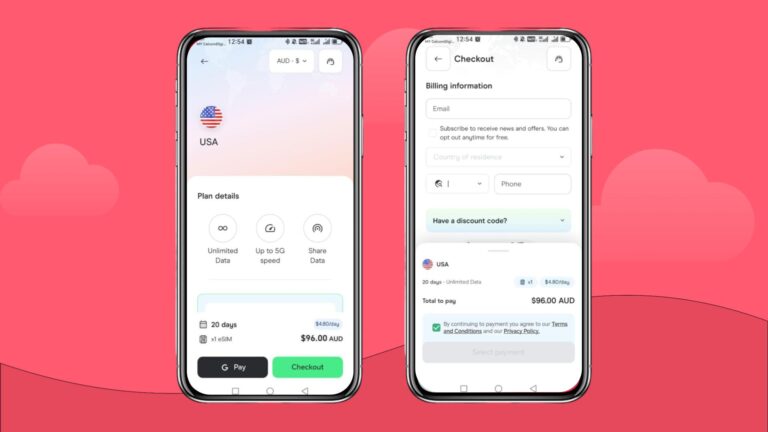
Still not working? Try a hassle-free alternative like Holafly
With Holafly eSIM for international travel, you get instant connectivity and unlimited data in over 200 destinations, including Australia.
You can choose a daily plan starting at just AUD $5.90, or go for a monthly Holafly Plans if you’re travelling longer and want better value.
Every Holafly eSIM comes with:
- Transparent pricing and unlimited data
- Coverage in 200+ destinations
- Instant activation via QR code with no SIM swap or delivery required
- Hotspot and tethering support
- 24/7 multilingual customer support
Check out Holafly’s eSIM store to find a travel plan that keeps you online wherever you go.

Unlimited data. Peace of mind.
Make sure you have travel data that's there when you need it most.
Disclaimer: The data in this article is accurate as of January 29th, 2026, and is subject to change.
Plans that may interest you


Formerly a travel journalist turned marketing copywriter, I found my way back to the travel world with Holafly—my dream company that made remote work possible. My motto? “Dream big and make it happen.” I’m passionate about writing, exploring the world, and staying active through walking, running, swimming, and hiking. I also love learning, reflecting, and connecting with inspiring minds.