







 Language


 No results found
Frewie eSIM not working? Here’s how to fix it fast
Frewie eSIM not working? Check out common causes why your Frewie eSIM isn’t working and simple troubleshooting steps to fix your Frewie eSIM.

Whether you’re having trouble installing your Frewie eSIM, or your Frewie eSIM’s not working all of a sudden, you’re in the right place. This guide walks you through the most common Frewie eSIM issues and the quick fixes you can try to get connected.
If you’ve tried everything to no avail, you can also consider a travel eSIM alternative like Holafly, which offers unlimited data, flexible usage periods, and coverage in over 200 destinations.

Unlimited data. Peace of mind.
Make sure you have travel data that's there when you need it most.
Why is your Frewie eSIM not working?
If your Frewie eSIM’s not working, it’s usually due to setup, compatibility, or network issues. Check out some of the main causes below before trying the fixes in the next section.
- Your device isn’t fully compatible with Frewie eSIM
- Mobile data or data roaming is turned off
- Incorrect or missing APN settings
- The eSIM QR code was scanned incorrectly or has expired
- Your device is network locked to another carrier
- Your phone isn’t connected to a supported network
- The eSIM plan hasn’t been activated or turned on in your phone settings
How to fix Frewie eSIM not working issues
Most issues with your Frewie eSIM can be resolved quickly. Below are easy fixes for both iPhone and Android devices.
1. Confirm if your device supports eSIM
Some phones may not support eSIM or may have limited compatibility with Frewie. Check out our list of eSIM-compatible devices, or follow the steps below to check your device’s eSIM compatibility.
- iPhone: Go to Settings > Cellular. If you see an option to Add Cellular Plan, your device supports eSIM.
- Android: Go to Settings > Connections > SIM card manager or Settings > Network & Internet > Mobile Network. If you see an option to add a Mobile plan or eSIM, your device supports eSIM.
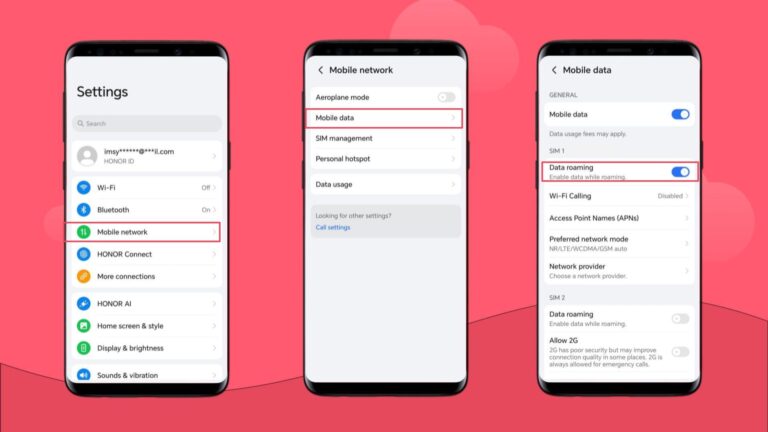
2. Turn on mobile data and data roaming
Your eSIM cannot send or receive data unless mobile data is enabled. If you are travelling internationally, data roaming must also be on for your eSIM to connect to local networks.
- iPhone: Go to Settings > Cellular > Cellular Data and turn it on. Then, go to Settings > Cellular > Cellular Data Options > Data Roaming and enable it if needed.
- Android: Swipe down to open the quick settings panel and make sure Mobile Data is turned on. Then, go to Settings > Mobile networks > Mobile data > and enable Data Roaming if needed.
3. Update or reset APN settings
Change your APN settings by entering the APN information provided by Frewie in the APN field and leaving all the other fields blank. Make sure to use lowercase letters and remove any spaces.
- iPhone: Go to Settings > Cellular > Cellular Data Network and enter the APN.
- Android: Go to Settings > Connections > Mobile networks > Access Point Names and enter the APN.
4. Toggle airplane mode
Switching airplane mode on and off can refresh your device’s network connections and help your eSIM attach to the network. Simply swipe down to open the quick settings panel, enable airplane mode, wait a few seconds, and then turn it off.
5. Manually select a network
If your phone isn’t connecting automatically, selecting a supported network manually can help your eSIM establish a stable connection.
- iPhone: Go to Settings > Cellular > Network Selection, turn off Automatic, and choose a supported network.
- Android: Go to Settings > Connections > Mobile networks > Network operators and select a supported network.
6. Restart your device and connect to WiFi
Frewie advises against deleting or reinstalling your eSIM. Instead, restart your phone and connect to a stable WiFi network before checking your eSIM connection. This often resolves activation or connection issues without affecting your eSIM profile.
7. Check if your device is unlocked
A carrier-locked phone can prevent the eSIM from connecting. Make sure your device is unlocked to use eSIMs from other carriers. Contact your carrier to confirm.
8. Activate your eSIM plan in phone settings
Even if the eSIM is installed, it must be turned on in your phone settings to work properly.
- iPhone: Go to Settings > Cellular and ensure the eSIM plan is active.
- Android: Go to Settings > Connections > SIM card manager and confirm the eSIM is enabled.
If the fixes above don’t work, visit Frewie’s Help Center for step-by-step troubleshooting guides or contact a Frewie support agent through the Frewie homepage. Keep in mind that you’ll need an order or booking ID to speak with an agent.
You can also consider switching to Holafly. Visit Holafly’s eSIM store to explore unlimited data plans in more than 200 destinations and 15 regions.
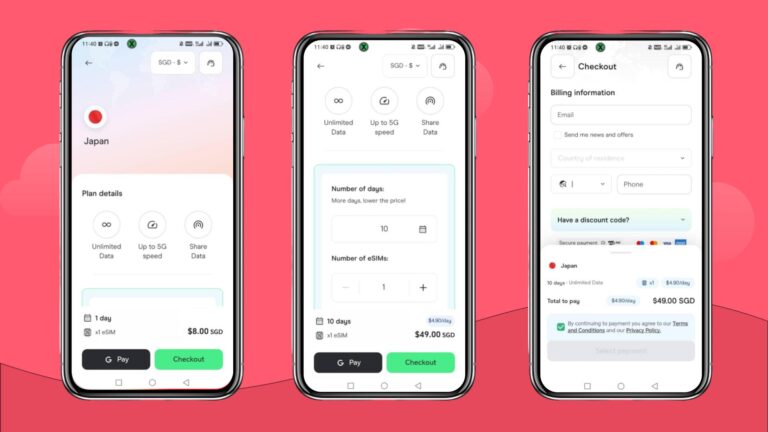
Still not working? Travel with peace of mind using Holafly eSIM
If none of the above quick fixes work and your Frewie eSIM is still not working, consider switching to Holafly. Holafly is a straightforward eSIM for international travel that provides unlimited data for any plan, flexible validity periods from 1 to 90 days, 24/7 live chat customer support, and reliable 4G/5G coverage in over 200 destinations.
Frequent travellers in need of long-term connectivity can also try Holafly Plans — a pay-monthly global eSIM plan that offers unlimited data, unlimited hotspot, and a local number to receive SMS, plus other travel perks. Price starts at $49.90 USD per month.

Connect to the fastest networks
International eSIMs, local networks. Enjoy the best of both worlds with Holafly.
Disclaimer: The data in this article is accurate as of Dec 30th 2025, and is subject to change.
Plans that may interest you


Formerly a travel journalist turned marketing copywriter, I found my way back to the travel world with Holafly—my dream company that made remote work possible. My motto? “Dream big and make it happen.” I’m passionate about writing, exploring the world, and staying active through walking, running, swimming, and hiking. I also love learning, reflecting, and connecting with inspiring minds.


