Language


 No results found
Three eSIM not working? Reasons and how to fix it
Three eSIM not working? See the key reasons and the steps to get it connecting again.

A Three eSIM can fail to connect, whether you’re in the UK or abroad, and most cases come down to simple setup issues.
This guide provides fixes to resolve these problems on both iPhone and Android.
If nothing works, Holafly offers an easy installation process and unlimited data as a dependable fallback.

eSIMs for every destination
Get eSIMs for 200+ destinations with Holafly, keeping you connected wherever you go.
Why is my Three eSIM not working?
There are a few common technical hiccups that can cause issues with a Three eSIM on iPhone and Android devices.
Here are the usual suspects:
- Activation delays caused by weak WiFi, incomplete setup, or leftover SIM profiles.
- The phone doesn’t support eSIM or is carrier-locked.
- Mobile data or data roaming is turned off, which prevents the eSIM from connecting abroad.
- The device fails to connect to a local network automatically and needs manual network selection.
- APN settings are incorrect or outdated, preventing mobile data access.
These problems are usually solvable with a few targeted checks. The following section guides you through the exact steps to resolve each issue.
How to fix a Three eSIM
Use the steps below to address the most common activation and connection issues.
Ensure a strong WiFi connection
Activation requires downloading the eSIM profile, and a weak WiFi can lead to a stalled or incomplete setup.
iPhone & Android:
- Connect to a strong WiFi network.
- Avoid public hotspots.
- Keep WiFi on throughout the installation.
Give activation time to complete
Three states that activation is usually quick, but it can take seven hours or even longer during busy periods.
Hence, avoid deleting or reinstalling the eSIM too early, as this resets the process.
Restart your phone after installing the eSIM
A restart can force the phone to register the new profile on the network.
iPhone:
- Press and hold the side button + volume button.
- Slide to power off.
- Turn the phone back on.
Android:
- Press and hold the power button.
- Tap Restart.
Check if your device supports eSIM and isn’t locked
Suppose the phone doesn’t support eSIM or is restricted to another carrier. In that case, the Three eSIM won’t be able to download its profile or register on the network. Verifying both compatibility and unlock status early removes a major source of activation failures.
Confirm compatibility
- iPhone: Models from XS/XR onward support eSIM.
- Android: Depends on the manufacturer. That’s why you may want to consult our list of devices that support eSIM.
Check if the phone is unlocked
- iPhone: Go to Settings > General > About. Under ‘Carrier Lock’, it should state ‘No SIM restrictions.’
- Android: Settings > Connections > Mobile Networks. If you can add new eSIMs, the device is likely unlocked.
Remove old eSIM profiles
Having multiple, disused profiles can cause network conflicts and prevent a new eSIM from connecting properly.
iPhone:
- Go to Settings > Mobile Data.
- Select the old plan.
- Tap Remove.
- Restart the device.
Android:
- Go to Settings > Connections > SIM manager.
- Select the old eSIM.
- Tap Remove.
- Restart the device.
Toggle Airplane mode on and off
Airplane mode forces the phone to drop all active network connections and re-establish them from scratch. This can resolve temporary registration issues that stop the Three eSIM from connecting.
iPhone & Android:
- Turn on Airplane mode.
- Wait 5–10 seconds.
- Turn it off again.
Manually select the local network
If the phone can’t connect automatically, selecting the network manually forces it to register with an available local partner.
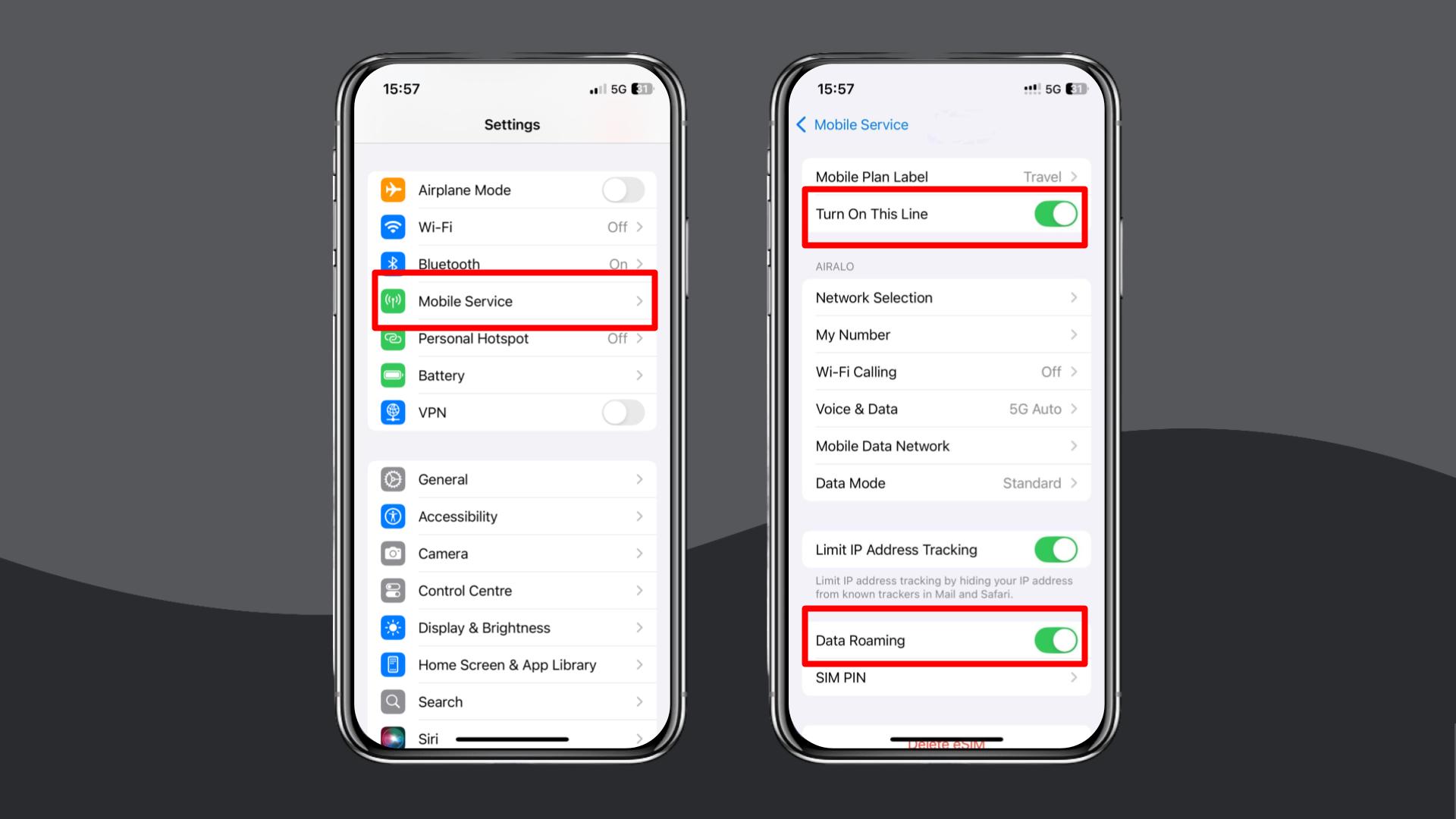
- iPhone: Settings > Mobile Service > Network Selection > Turn off ‘Automatic’ and choose an available network.
- Android: Settings > Connections > Mobile Networks > Network Operators > Turn off ‘Automatic’ and choose an available network.
Turn on data roaming
Roaming must be enabled for the Three eSIM to work abroad. Otherwise, the phone won’t connect to partner networks, even if the eSIM is installed correctly and has an active plan.
- iPhone: Settings > Mobile Data > Your Three eSIM > Turn on Data Roaming.
- Android: Settings > Network & Internet > Your Three eSIM > Data Roaming > Turn on Data Roaming.
Update or reset your APN settings
Updating or resetting the APN (Access Point Name) ensures that the phone uses the correct access point for Three’s network, which is necessary for mobile data to function correctly.
Three APN settings
| Setting | Value |
|---|---|
| Name | Any name you prefer |
| APN | three.co.uk |
| User name | Leave blank |
| Password | Leave blank |
| MMSC | http://mms.um.three.co.uk:10021/mmsc |
| MMS proxy | mms.three.co.uk |
| MMS port | 8799 |
| APN type | internet + mms (or default,mms,supl on Android) |
iPhone:
- Settings > Mobile Service > Mobile Data Network.
- Enter the APN details above.
Android:
- Settings > Connections > Mobile Networks > Access Point Names.
- Enter the APN details above.
Reset your network settings
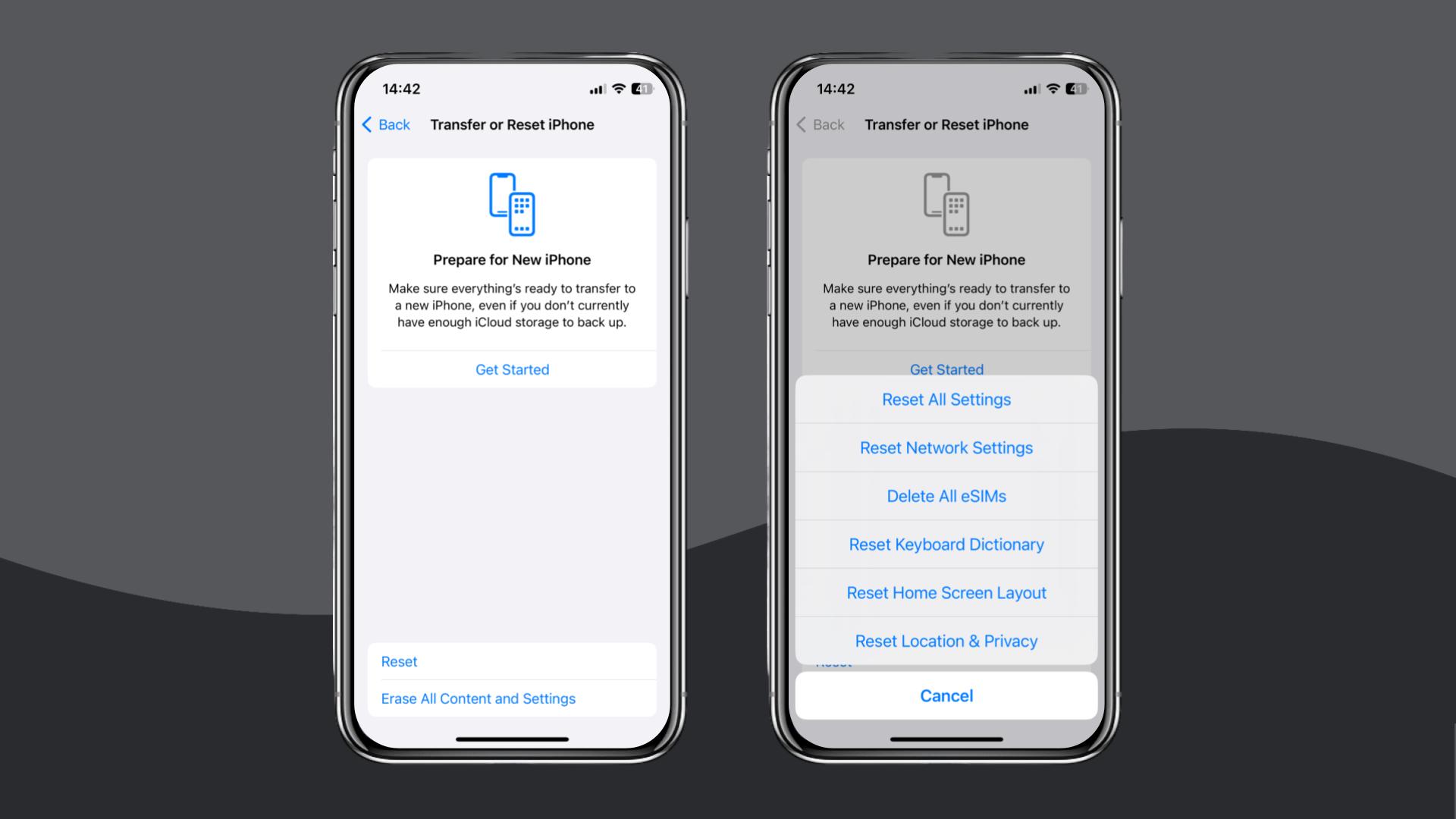
This step enables the device to establish a new connection with the network. However, resetting network settings clears all saved cellular, WiFi, Bluetooth, and VPN configurations. Therefore, proceed with caution.
- iPhone: Settings > General > Transfer or Reset iPhone > Reset > Reset Network Settings.
- Android: Settings > General Management > Reset > Reset Network Settings.
If your eSIM still won’t activate or connect after trying all of these steps, contact Three support through live chat, phone, or a store visit. They may need to re-provision your line or issue a replacement QR code.
Alternatively, you can switch to another eSIM provider; Holafly’s eSIM store has a wide selection for any location (available on iOS and Android).
Choose Holafly for peace of mind
Suppose your Three eSIM still refuses to activate or connect after every fix. In that case, you may want an option that eliminates the need for repeated troubleshooting.

24/7 support, no matter what
When you're traveling, every question can be an urgent one. That's why we work around the clock.
Holafly offers a straightforward setup, whether you’re in the UK and need a temporary backup while sorting out issues with Three, or you’re already abroad.
Installation takes only a few minutes using a QR code, and iPhones can install the eSIM directly through the app.
We also offer Holafly Plans that cater to a variety of needs. The Always On plan is good for occasional use, the Light Plan covers moderate everyday data needs, and the Unlimited Plan is perfect if you plan on using large amounts of data. All plans come with 24/7 customer support, allowing you to get help at any time.
Disclaimer: The data in this article is accurate as of November 28, 2025, and is subject to change.
Plans that may interest you


I am a Liverpool-based SEO content specialist with years of experience crafting content that connects. I combine my love for clear communication with a passion for travel and languages (currently diving into Japanese!). At Holafly, I'm here to help you understand everything about staying connected abroad, turning technical jargon into straightforward advice you can actually use.