







 Language


 No results found
Superloop eSIM not working? Quick fixes to get connected again
If your Superloop eSIM is not working, this guide shows how to fix activation errors, signal issues, and other common problems on your device.

If your Superloop eSIM is not working, you’re likely stuck during setup or struggling to connect to mobile data. Maybe the QR code won’t scan, your phone shows “No Service”, or nothing happens after activation.
This guide walks you through Superloop eSIM’s most common issues on both iPhone and Samsung and shows you how to fix them step by step.
And if troubleshooting doesn’t work out, you’ll also find Holafly international eSIM, a seamless superloop alternative to stay connected across Australia and beyond.

Unlimited data. Peace of mind.
Make sure you have travel data that's there when you need it most.
Why is your Superloop eSIM not working?
If your Superloop eSIM isn’t working as expected, it might be an activation issue, a QR code error, or incorrect mobile settings.
Here are some other possible reasons why your eSIM is not working:
- Your phone isn’t eSIM compatible: Not all devices support eSIM, and some are still carrier-locked.
- eSIM activation is failing: You might have scanned the QR code, but network or app errors can prevent full activation.
- The eSIM QR code has expired or was already used: Superloop eSIM QR codes are single-use and can’t be reused once installed or transferred.
- The eSIM is installed but inactive: You might have installed the eSIM on your phone, but forgotten to select it for data use.
- Your Mobile data or roaming is turned off: These settings need to be manually enabled to have a connection.
- The network isn’t connecting automatically: your phone may not find the right signal without manual setup.
- Your device’s Access Point Name (APN) settings are missing or incorrect: Without the right APN setting, your data connection simply won’t work.
- Your eSIM was deleted accidentally: Removing your eSIM means you’ll need to request a QR code.
How to fix Superloop eSIM issues
Start with the basics and work through each step; most Superloop eSIM problems can be fixed in just a few minutes. Instructions may vary slightly between iPhone and Samsung devices, and we’ll note those where needed.
If you reach the end and your eSIM still isn’t working, contact Superloop support, or consider a travel eSIM like Holafly for a smoother setup experience.
Check if your device supports Superloop eSIM
Make sure your phone is eSIM-compatible and unlocked from any other carrier. To check if your phone supports eSIM, follow these steps:
- iPhone: Settings > Mobile > Add eSIM
- Samsung: Settings > Connections > SIM manager
Check if your Superloop eSIM QR code has expired and request a replacement if needed
QR codes can expire or become invalid after first use. If you see an error when scanning, contact Superloop support to issue a new one.
Restart your phone after installation
Once the eSIM is installed, restart your device to finalise setup. This can resolve connection delays or signal dropouts.
Turn on mobile data and data roaming
Your eSIM won’t connect unless both mobile data and Superloop’s international roaming are enabled. Here is how to do it:
- iPhone: Go to Settings > Mobile Data > Data Roaming
- Samsung: Go to Settings > Network & Internet > Roaming
Enable and disable Airplane Mode
Turn on the Airplane Mode, wait for 10 seconds, and turn it off again. This resets your connection and can help the eSIM find a network.
Manually select a local network
If the automatic connection fails, you need to choose a network manually.
- iPhone: Settings > Mobile > Network Selection > disable Automatic
- Samsung: Settings > Connections > Mobile Networks > Network Operators
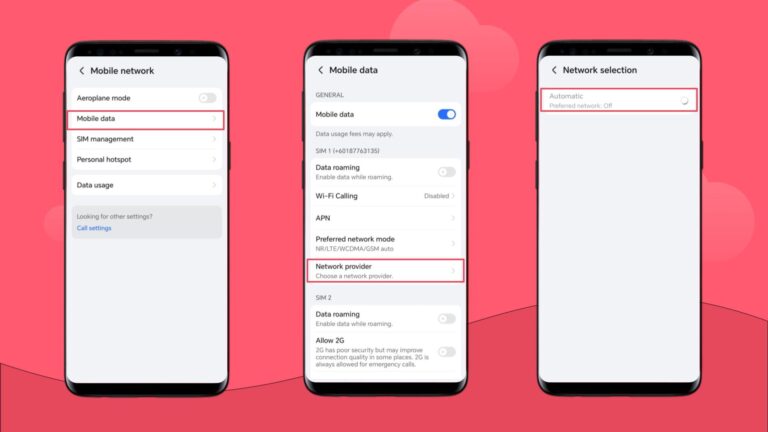
Update or reset your APN settings
Incorrect APN settings can block your data.
- iPhone: Settings > Mobile Data > Mobile Data Network > Reset Settings
- Samsung: Settings > Mobile Network > Access Point Names > Reset to default
Check Superloop’s support site for their recommended APN if needed.
Reset your network settings
This clears out old connection errors or configuration issues.
- iPhone: Settings > General > Transfer or Reset > Reset > Reset Network Settings
- Samsung: Settings > General Management > Reset > Reset Network Settings
Contact Superloop customer support
If none of the above help, there may be an issue on the provider’s end, not an issue with your device. Contact Superloop’s customer support to see if they can solve your issue.
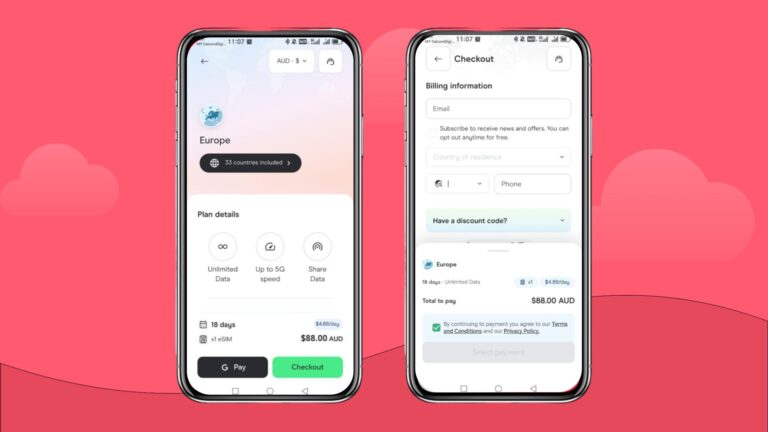
Stay connected hassle-free with Holafly eSIM
If your Superloop eSIM still is not working, Holafly eSIM offers a simpler way forward.
With no roaming fees and clear, upfront pricing, Holafly’s travel eSIM lets you choose daily or monthly plans that fit your needs.
You’ll get coverage in over 200 destinations, unlimited data, and the freedom to set it up in minutes.
And if anything ever goes wrong, multilingual support is available 24/7 to get you back on track.

Connect to the fastest networks
International eSIMs, local networks. Enjoy the best of both worlds with Holafly.
Disclaimer: The data in this article is accurate as of February 4th, 2026, and is subject to change.
Plans that may interest you


Formerly a travel journalist turned marketing copywriter, I found my way back to the travel world with Holafly—my dream company that made remote work possible. My motto? “Dream big and make it happen.” I’m passionate about writing, exploring the world, and staying active through walking, running, swimming, and hiking. I also love learning, reflecting, and connecting with inspiring minds.


