Language


 No results found
Maya eSIM not working: Causes and how to fix it
Is your Maya eSIM not working? Find the common issues and how to solve them and discover hassle-free alternatives to stay connected abroad.

Is your Maya eSIM not working? Yours could be one of a number of common issues that stem from either Maya’s service or your phone.
The good news is that some of these problems are easy to fix. Below, we cover the potential reasons why your Maya eSIM is not working and provide steps on how to solve them. Consider an alternative solution, such as a Holafly eSIM, for hassle-free connectivity and 24/7 support when required!
Disclaimer: The data in this comparison is accurate as of February 10, 2025, and is subject to change.
Unable to activate the Maya eSIM
Some users may experience issues when activating a Maya Mobile eSIM, particularly during first-time setup. These issues are often related to device settings, network selection, or activation steps.
Below are some common activation problems and how to resolve them.
Data plan can’t be added
If you see the message “Try again or contact your carrier for assistance” while activating your Maya eSIM the plan may not have been fully added to your device. This can happen due to connectivity issues or incomplete activation.
Before trying again, check the following:
- Internet connection: Make sure your device is connected to Wi-Fi or mobile data, as an internet connection is required to install and activate your Maya Mobile eSIM.
- eSIM already installed: Go to Settings > Cellular (or Mobile Data) and check whether the Maya eSIM appears in the list of SIMs. If it’s listed, tap it, turn the line on, and enable Data Roaming if required.
Note: If you receive a different error message or your activation code is no longer valid, reinstalling the eSIM may not resolve the issue. In this case, contact Maya customer support for assistance.
9/ Error Code on Google Pixel
If you see the message “There’s an issue with your SIM profile. To fix the issue, contact your carrier” on a Google Pixel, the eSIM installation may not have completed correctly. In some cases, manually adding the eSIM can resolve the issue.
If you were provided with manual activation details, follow these steps:
- Go to Settings.
- Tap Network & Internet.
- Select SIMs and tap the + icon.
- Tap Download a SIM instead?
- Tap Yes, then Next.
- Select Need help?
- Tap Help adding a network, then Having trouble scanning your QR code?
- Choose Enter it manually, enter the activation details for your Maya Mobile eSIM, and follow the on-screen instructions.
Unsupported eSIM
When installing your Maya eSIM, the message “Unsupported eSIM” can show up. This can mean that your phone is carrier-locked – in other words, it won’t support SIM cards from other providers.
If you want to verify if your phone is locked, here’s what you need to do:
- Go to “Settings” and then “General.”
- Press “About” and check the “Carrier Lock” information.
- If the message “No SIM restrictions” shows up, your phone is unlocked.
- If another message shows up, your device is locked.
If your device is locked, you’ll need to contact your carrier to request an unlock. This can usually be done through the carrier’s website, customer support, or a carrier store.
Maya eSIM stopped working
Not all Maya eSIM issues occur during activation. In some cases, an eSIM that was working correctly may stop working due to device settings or network selection.
Some common issues include:
iMessage not working
After installing a data-only eSIM, iMessage may stop working if the eSIM is set as the Default Voice Line. Since Maya eSIMs don’t support voice or SMS, your primary line must remain selected for calls and messaging.
To solve this issue, here’s what you need to do:
- Go to Settings > Cellular (or Mobile Data).
- Tap Default Voice Line.
- Select your primary line (your regular phone number).
To ensure iMessage continues to work correctly:
- Go to Settings > Messages.
- Tap Send & Receive.
- Make sure your primary phone number and Apple ID are selected.
- Ensure the Maya eSIM is not selected for sending or receiving messages.
Connected to the wrong local network
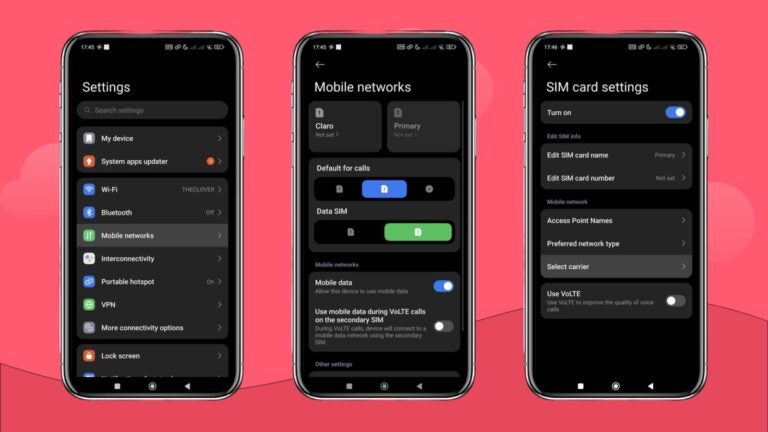
If you’re in an area with poor coverage or recently changed networks, your device may be connected to a network that isn’t providing service for your Maya Mobile eSIM. Manually selecting a different local network can sometimes resolve this.
Fixing this takes a few steps; here’s how you do it:
- Go to Settings.
- Tap Mobile networks.
- Select your Maya eSIM
- Tap Select carrier or Find network.
- Wait for the scan to complete, then try another available local network from the list.
- Allow a few seconds for the connection to update.
If the issue persists, switch back to automatic network selection or contact Maya support for assistance.
Common fixes if still not working
If you’re still wondering why your Maya eSIM is not working and none of the issues listed above cover your case, there are a handful of common fixes to try:
- Check device compatibility: To use an eSIM, you have to ensure your phone is eSIM-compatible. Most eSIM providers have similar device compatibility lists, but it’s important to double-check which devices are compatible with the Maya eSIM.
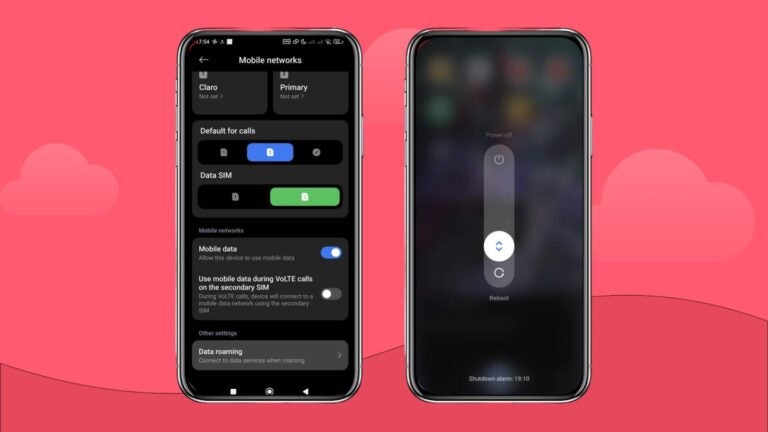
- Restart your device: Sometimes, your phone might be glitching or losing its mobile connection. Simply restart it, and everything may go back to normal.
- Reset data connection: You can do this in two ways: activate and deactivate the airplane mode on your phone, or turn your mobile data off and on.
- Activate data roaming: To use your eSIM, you’ll need to activate the data roaming option. To do this, go to “Settings,” go to “Cellular/Mobile Data,” choose your eSIM, and finally, activate the data roaming option.
Get a reliable eSIM provider with 24/7 support
If you want to avoid connectivity issues and get help 24/7 if something happens with your eSIM, your best call is to use a Holafly eSIM.
When it comes to Maya Mobile vs. Holafly, the latter ensures there’ll be fewer connectivity issues, but if there’s one, the 24/7 customer support in 19 languages will promptly help you through different channels.

Additionally, you’ll find data plans starting at $6.90, but these get cheaper the more days you purchase, so you’ll find plans for as low as $1.55/day with unlimited data.
Plus, you can customize your eSIM by choosing the exact amount of days you plan to use it. No need to overpay for a service you won’t use!

Consider using a reliable eSIM provider
Get 5% off using the code MYESIMNOW5.
Plans that may interest you

I first started my content creation journey as a freelancer in 2019, before connecting with Holafly in 2021. At Holafly, my travel and tech interests come together in one place as I craft high-quality articles about the eSIM and related markets. My content aims to help travelers stay connected, wherever they are.