Language


 No results found
EE eSIM not working? Reasons and how to fix it
EE eSIM not working? This guide explains the common causes, the exact settings to check, and the steps to restore your connection.

An EE eSIM may run into connection problems for several reasons, whether you’re in the UK or travelling abroad. Most issues, however, are due to simple configuration problems.
This guide explains the most typical causes and shows you how to fix them.
If the eSIM still won’t connect after troubleshooting, Holafly can offer a viable alternative, with unlimited data plans and quick installation.

Holafly is highly rated
With a Trustpilot rating of 4.6/5 from 50,000+ reviews, our eSIMs come with a seal of approval.
Why is my EE eSIM not working?
An EE eSIM can fail to connect for several technical reasons, whether you experience your EE eSIM not working on an iPhone, Android, or Windows laptop.
1. Your device does not support eSIM or is carrier-locked
The phone must support eSIM technology and be unlocked.
2. Mobile data or data roaming is turned off
International data roaming is essential when using the eSIM abroad. If roaming is disabled, the eSIM may install but fail to connect to a local network.
3. The local network is not connecting automatically
If the phone cannot register on a local network, the eSIM will appear active but stay offline.
4. Incorrect or outdated APN settings
EE usually applies APN settings automatically. Still, imported devices, older phones, or mobile broadband routers may require manual configuration.
5. EE eSIM download not working
The profile may fail to install due to weak WiFi, a bad QR code, or outdated device software.
6. EE eSIM not activating
Sometimes the eSIM installs but doesn’t activate on the EE network. This can occur if activation must take place within the UK, if additional verification is required, or if there are temporary delays in EE’s provisioning system.
7. Incorrect eSIM transfer
Moving an EE eSIM from an old device to a new one can fail if the devices aren’t updated, not connected correctly, or if the old line is deactivated too early.
The next section walks you through the step-by-step fixes for each issue.
How to fix your EE eSIM
The steps below address the most common causes of an EE eSIM not working.
Check that your device supports eSIM and is unlocked
Confirm eSIM support
iPhones from the XS and XR onwards include eSIM support. Android compatibility varies, so check our list of devices that work with eSIM.
Check if the phone is unlocked
- iPhone: Settings > General > About > Carrier Lock. It should say ‘No SIM restrictions.’
- Android: Settings > Connections > Mobile Networks > Network Operators. If you’re allowed to add new SIMs, your phone is likely unlocked.
Connect to a strong WiFi network
A weak connection can stop the eSIM profile from downloading.
In this case, you may want to:
- Move closer to your router.
- Restart the router if the signal is unstable.
- Avoid using a mobile hotspot from the same device you’re trying to set up.
Scan the QR code in clear lighting
If the QR code is blurry, scratched, or printed poorly, your device may not be able to scan it.
- Hold the phone steady and ensure good lighting.
- Enter the SM-DP+ address and Activation Code manually or request a new QR code via the My EE app.
Update your device to the latest software
Outdated software may not support the current eSIM standard.
- iPhone: Settings > General > Software Update.
- Android: Settings > Software Update or System > System update.
Install any available updates, then restart the device.
Complete the eSIM activation in settings
Sometimes the eSIM installs but remains inactive.
- Check for a notification banner such as ‘Mobile plan ready to be installed’.
- Tap it and follow the prompts.
- If asked for a PIN sent by SMS, ensure your physical SIM is still active to receive it.
How long does eSIM take to activate EE? Activation usually completes within a few minutes to an hour; however, in some cases, it may take up to 24 hours.
Activate the eSIM within the UK if required
Some EE plans require initial activation to be completed while the device is within the UK coverage area. If you installed the eSIM while abroad and it won’t activate, you may need to wait until you return to complete this step.
Restart your phone after installing the eSIM
A reboot forces the device to reload network settings.
- Power the phone off.
- Turn it back on and wait for the network to initialise.
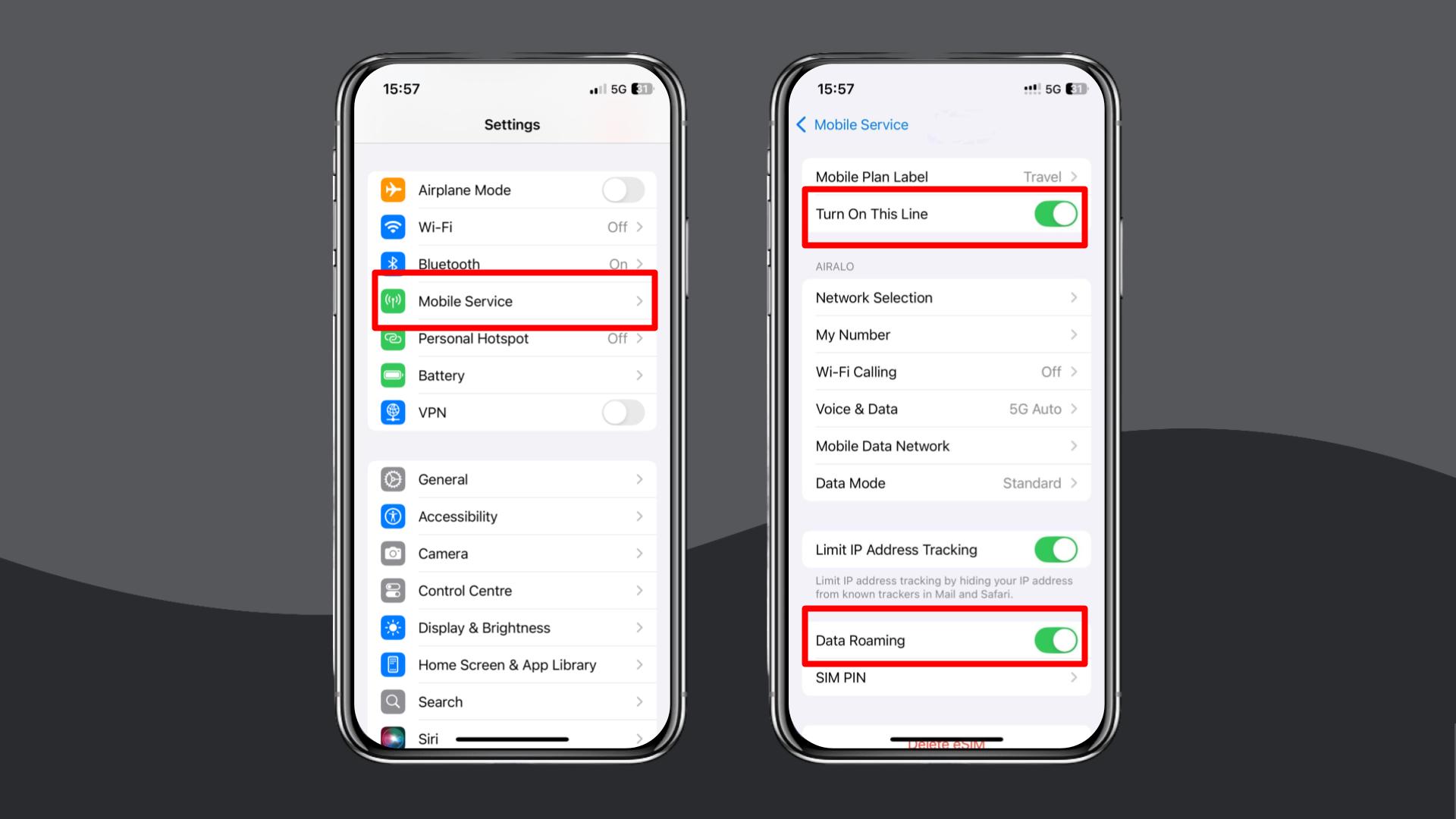
Turn on data roaming
Roaming must be enabled for the eSIM to connect abroad.
- iPhone: Settings > Mobile Data > Your EE eSIM > Turn on Data Roaming.
- Android: Settings > Network & Internet > Your EE eSIM > Data Roaming > Turn on Data Roaming.
Toggle Airplane Mode
This refreshes your connection to the network.
- Turn Airplane Mode on for ten seconds.
- Turn it off and wait for the phone to search for networks.
Manually select a local network
Automatic selection can fail if the device struggles to register with the preferred network, the signal is weak, or the phone holds onto an outdated network profile.
In these cases, choosing a network manually forces the device to reconnect using fresh settings.
- iPhone: Settings > Mobile Service > Network Selection > Toggle off Automatic and choose an available network.
- Android: Settings > Connections > Mobile Networks > Network Operators > Toggle off Automatic and choose an available network.
Update or reset your APN settings
If mobile data remains offline, you may need to update APN details.
Official EE APN:
- Name: EE internet
- APN: everywhere
- Username: eesecure
- Password: secure
- APN type: default,supl
iPhone:
- Settings > Mobile Service > Mobile Data Network.
- Enter the APN details above.
Android:
- Settings > Connections > Mobile Networks > Access Point Names.
- Enter the APN details above.
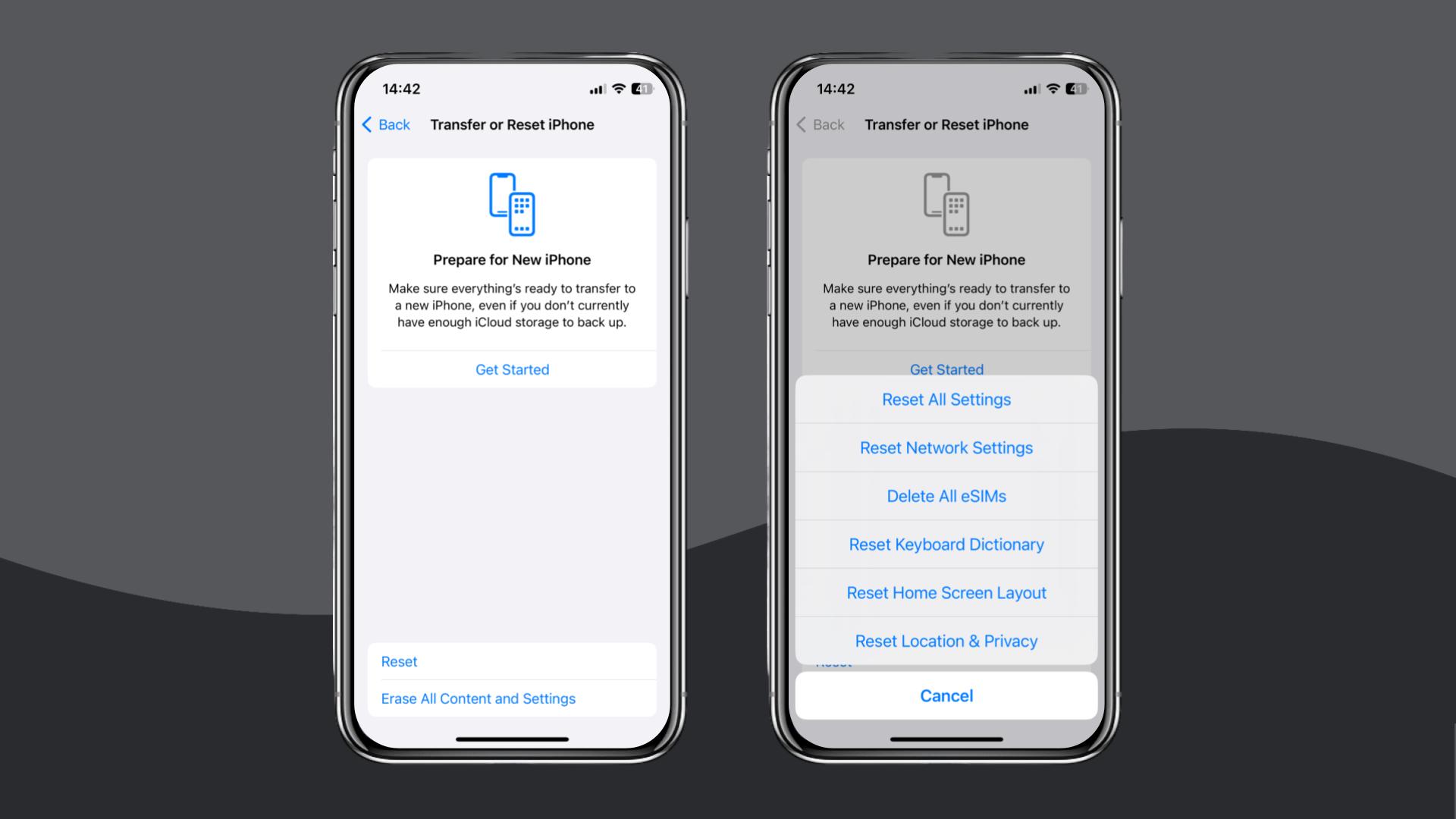
Reset your network settings
Resetting your network settings clears all stored network data, including WiFi passwords, Bluetooth connections, VPN profiles, and mobile network configurations. If a corrupt or outdated setting is blocking the EE eSIM from connecting, this reset forces the device to rebuild its network setup from scratch.
- iPhone: Settings > General > Transfer or Reset iPhone > Reset > Reset Network Settings.
- Android: Settings > General Management > Reset > Reset Network Settings.
Transfer your EE eSIM correctly between devices
If you’re moving the eSIM to a new phone, keep the old phone and the new phone close together during the transfer. This might help address the issue of EE eSIM transfer not working.
Recover from a failed eSIM transfer
If the old eSIM is deactivated before the new one goes live, both devices may lose service. In this case, you’ll want to contact EE support to request a new eSIM. EE can provision a fresh profile remotely or in-store for immediate use.
Retry the activation through the My EE app on another device
If the transfer failed silently (meaning you didn’t get an error message):
- Log in to the My EE web version on a different device.
- Look for an ‘eSIM ready for activation’ prompt.
- Follow the on-screen steps to reinstall or activate the profile.
If you still face the problem of EE eSIM activation not working, contact EE support via live chat or email. They can check the line, issue a replacement eSIM, or arrange a refund.
If you need a reliable alternative, Holafly offers quick installation and unlimited data in many destinations.
Choose Holafly for peace of mind
If you have gone through every EE fix and you’re still saying ‘my EE eSIM is not working’, it may be time to consider an alternative.
With us, installation takes a minute using a QR code, and iPhone users can complete the entire process directly through the Holafly app (on both Android and iOS). Once installed, the eSIM activates automatically, eliminating the need for manual network configuration.
If you’re travelling, Holafly’s destination-based eSIMs provide reliable data in over 200 countries, with Holafly Plans offering unlimited data.
An eSIM you can rely on
Join over 10 million Holafly customers and get connected with our trusted, global services.
For those of you in the UK who need a temporary backup, Holafly’s eSIM store has the eSIM for you. Our plans include generous or unlimited data allowances and can be cancelled at any time.
Support is available 24/7 through live chat, so if something does go wrong, you have help immediately.
Disclaimer: The data in this article is accurate as of November 28, 2025, and is subject to change.
Plans that may interest you


I am a Liverpool-based SEO content specialist with years of experience crafting content that connects. I combine my love for clear communication with a passion for travel and languages (currently diving into Japanese!). At Holafly, I'm here to help you understand everything about staying connected abroad, turning technical jargon into straightforward advice you can actually use.