Language


 No results found

How to Get Fast Russia Internet Access with Your eSIM
The key to a reliable connection lies in adhering to current local regulations. This requires a brief Russia internet authentication for all devices connecting via international data, including eSIMs, physical SIMs, and standard roaming. This verification is a standard security measure required before mobile data access is enabled. To ensure your data works the moment you land, first ensure your eSIM is installed (ideally, one day before your trip), and then follow the 5-step protocol detailed below. Following these steps ensures your service remains uninterrupted throughout your stay. We’ll walk you through the entire process!
Before You Start: Key Points for Russia Internet Verification
In Russia, international data connections are verified through a government-approved local operator, typically MTS. To ensure you are prepared to complete the verification, here is crucial information about the authentication before you begin the 5-step process and get internet in Russia smoothly:
- The process requires completing a brief verification step, which you access by tapping the link sent to you by the local operator (MTS) in the incoming SMS.
- While you will receive a single SMS from MTS for verification, this does not mean your eSIM supports calling or texting. This is a data-only eSIM.
- This step validates you are a human user and confirms your presence in the country; you will simply need to follow the prompts on the screen (such as solving a CAPTCHA).
- The verification is tied exclusively to the recommended operator (MTS). If your device switches networks, you may lose data access and be required to re-verify.

Quick Tips While You Activate Your Internet in Russia
These optional tips will help you manage your digital needs while you complete the eSIM activation protocol:
- Use airport/hotel Wi-Fi for initial needs.
- Download maps (e.g., Yandex or 2GIS), public transport routes, and translation language packs now. Local apps are more reliable than Google Maps in Russia.
- Save key documents (tickets, reservations) locally to your phone; cloud access may be unstable without mobile data.
- Carry physical payment options (cash or credit cards) as backup.
- For long stays, create an account on VKontakte (VK), Russia's main social network. This can be useful for local communication, as Western apps like Snapchat, iMessage, and Messenger can face restrictions.
The 5-Step eSIM Activation Protocol in Russia
To comply with the new regulation and gain reliable internet access in Russia, follow these 5 mandatory steps upon arrival:
1. Go to your device Settings, turn on your international eSIM, and enable Mobile Data Roaming for that line.
2. Navigate to Cellular/Network Selection (or Mobile Networks), disable Automatic Selection, and select MTS as your network carrier.
3. Open the SMS from the local operator, tap the link, and solve the CAPTCHA (security check) to confirm you’re not a robot. This will enable your data access.
4. Once you see the confirmation page, restart your phone to refresh the network settings.
5. Confirm you are connected! You should now have full internet access on the MTS network.

How to manually select the MTS network (Step 2)
Registering with the correct network is a non-negotiable step to receive the mandatory verification message (SMS). Since the process varies slightly by operating system, find the precise instructions for your device below.
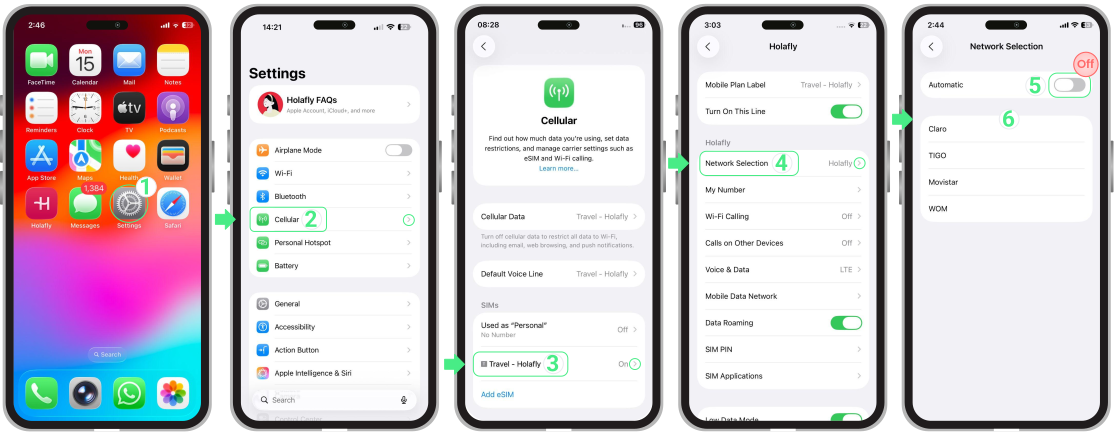
Manually selecting MTS on iOS:
- Go to Settings → Tap on Mobile service (or Mobile Data) → Select your eSIM travel line → Tap on Network Selection → Disable the Automatic toggle → Wait on this screen for the available operators to appear → Select the MTS operator → Wait 30 seconds for the registration process to complete. This registers your device on the MTS network so you can receive the verification SMS→Proceed to Step 3 (SMS verification) to finalize access.
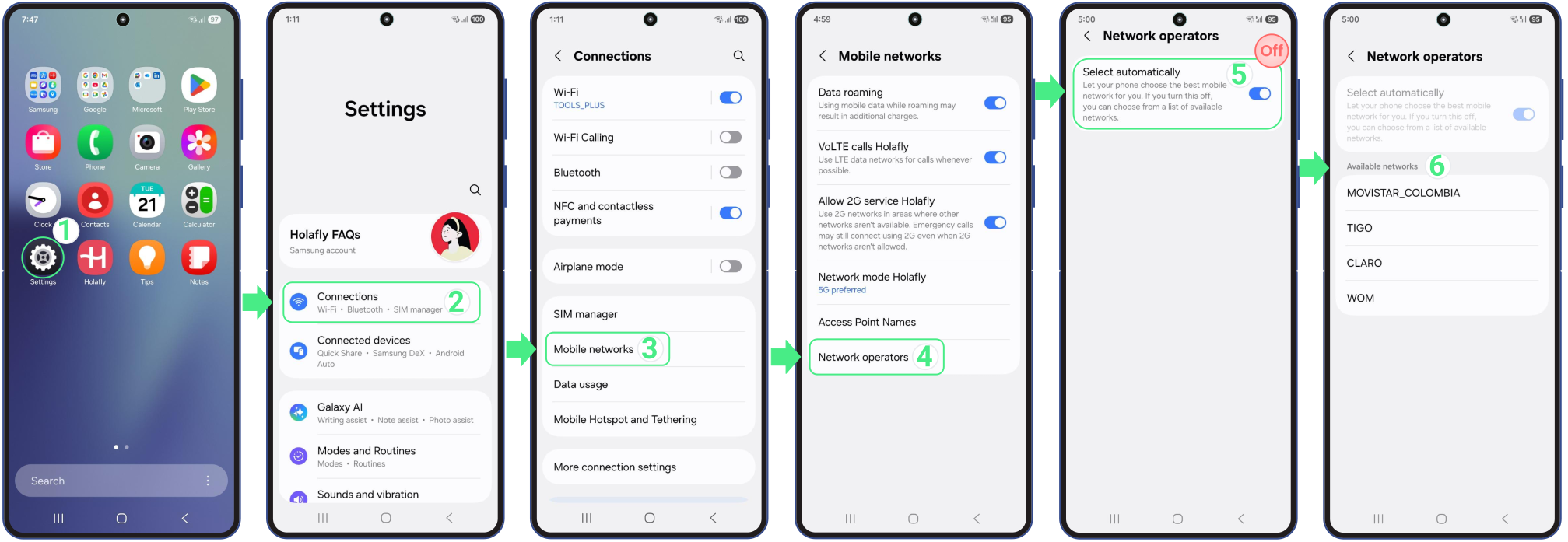
Manually selecting MTS on Android:
- Go to Settings → Tap on Connections → Select Mobile Networks → Choose Network operators → Disable the automatic selection toggle → Wait on this screen for the list of available operators to appear → Select MTS and wait 30 seconds → This establishes the connection necessary to receive the verification SMS → Now move on to Step 3 (SMS verification) to finalize your data access.
Troubleshooting Tips
If you have completed the 5 activation steps but cannot connect on your iOS or Android device, run through this quick checklist:
- Restart your device to force a fresh link with the local networks.
- Double-check that your carrier is manually set to MTS in your network settings.
- Ensure your Holafly eSIM is selected as the primary source for Mobile Data.
- Temporarily disable any active VPN. Many VPN services are restricted inside Russia and can interfere with the initial connection.
- Turn off your primary personal SIM entirely, as it can sometimes override the international line.