



 Language

How to fix mobile data not working on Android
If your mobile data isn’t working on Android, turn Airplane Mode ON, wait 10 to 15 seconds, and turn it back OFF. This can help refresh your network connection. If you’re traveling internationally, make sure Data Roaming is turned on. Below, you’ll find key settings to review and step-by-step solutions to help you get back online.
Common reasons mobile data isn’t working on Android
- Your phone may simply need a few minutes to connect to the new network after you activate your eSIM.
- A lock from your original phone company might prevent you from using mobile data on other networks, even if your device supports eSIMs.
- Having two SIM lines active at the same time can affect your mobile data connection when your phone tries to choose a data line.
- An incorrect setting, an outdated Android version, or an incomplete eSIM activation may prevent your phone from connecting to the internet.
- A data usage limit enabled on your phone can stop mobile data from working, even if your eSIM plan is active.
- A weak signal in remote areas (like deserts, mountains, or open waters) or a crowded network in places like concerts, stadiums, and festivals can temporarily slow down your connection.

Quick fixes to restore service on Android
These basic checks often bring mobile data back on your Android device without requiring bigger changes.
- Check your eSIM settings. Make sure your eSIM is turned on and selected for mobile data. If you are traveling, also turn on Data Roaming for that line.
- Turn Airplane Mode on for 15 seconds, then turn it off. This prompts your phone to reconnect to the nearest network.
- Turn off any other SIM lines. Keep only the eSIM you want to use for mobile data turned on.
- Restart your phone. Turning it off and back on can help refresh your connection.
Troubleshooting tips
If mobile data still isn’t working after the basic checks, don’t delete your eSIM, as you might not be able to reinstall it, and try these settings to get your Android back online.
Note: Verify your eSIM is installed and activated correctly before troubleshooting your mobile data. If you’re unsure how to set up your eSIM on your Samsung, Google Pixel,Huawei, Xiaomi, Honor, Vivo, Motorola,Nokia,Sony, or OnePlus, check the activation steps for your specific model.
1. Set your eSIM for mobile data
To get online, make sure your eSIM is selected for mobile data. If your primary SIM is still selected, your phone may use that line instead.
Follow these steps to set it up correctly:
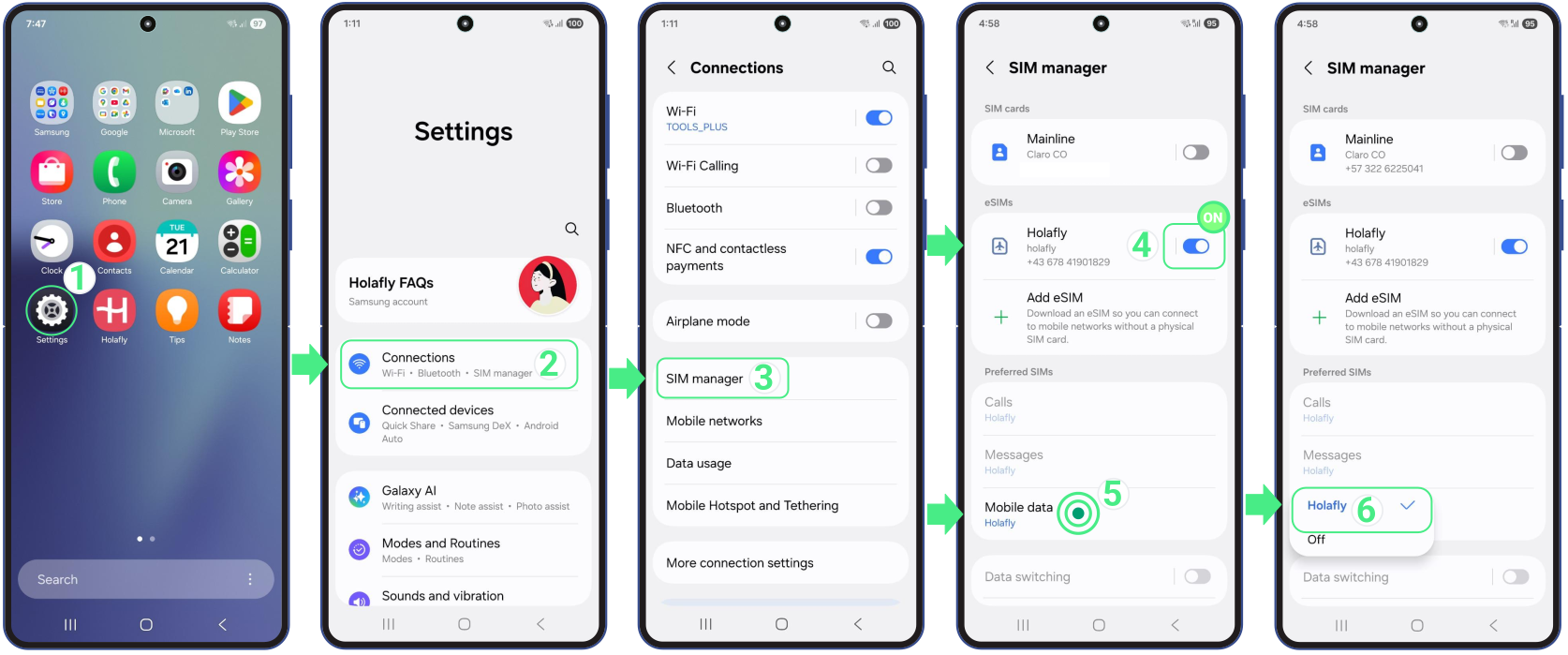
- Go to Settings → Tap Connections → Select SIM manager → Turn on your new eSIM →Tap on Mobile data and select your data-only eSIM.
Important: If you are traveling and using an international eSIM, we recommend turning off your personal SIM line to avoid unexpected roaming charges from your home carrier.
2. Enable data roaming on Android
This setting is needed only for your travel eSIM, not for your personal line. Because your international eSIM connects to networks outside your home country, you need to turn on Data Roaming to get mobile data while traveling.
Once your eSIM is turned on and selected for mobile data, follow these steps:
- Go to Settings → Tap Connections → Tap Mobile networks → Turn Data roaming ON (Make sure you are enabling it specifically for the Travel eSIM).
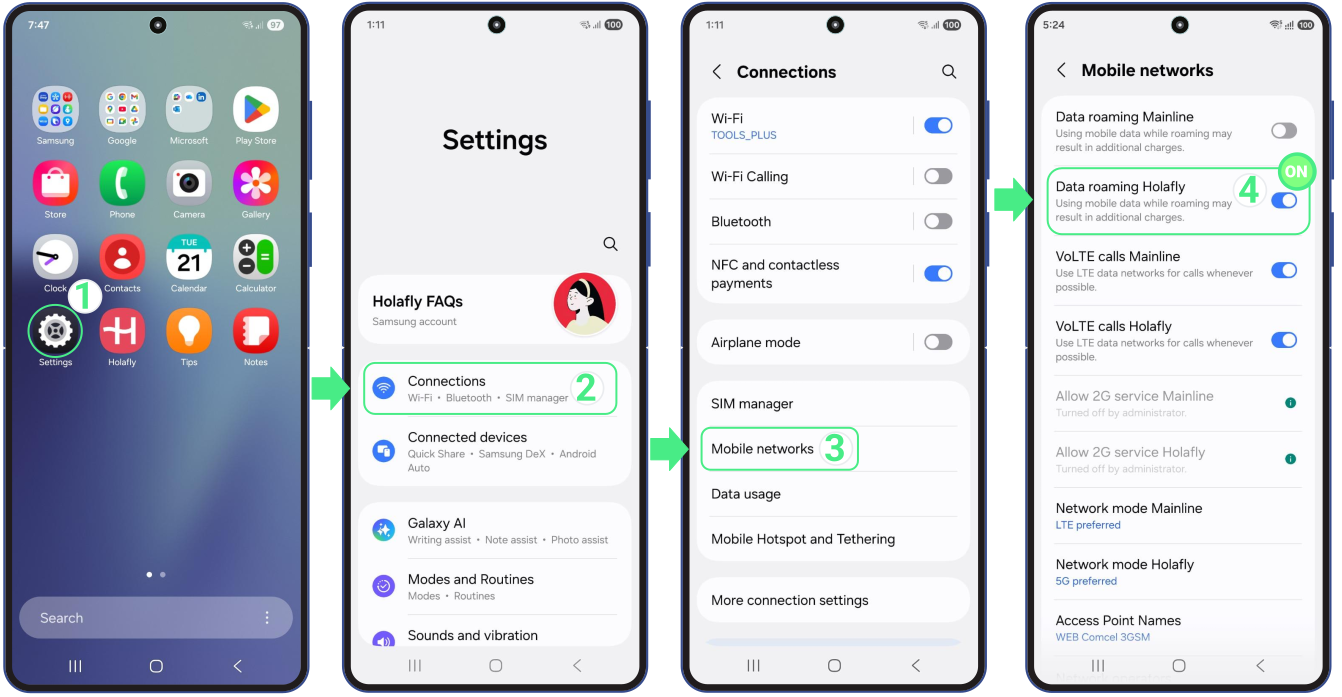
Note: Menu names may vary slightly depending on your phone brand. If you don’t see “Connections”, look for Mobile Network, Mobile Data or Network and Internet in your Settings to find the Roaming switch.
3. Manually select a network operator
If your mobile data isn’t working on your Android, you can also manually choose a local network for your eSIM instead of letting your phone select one automatically.
- Go to Settings → Tap on Connections → Select Mobile networks → Choose Network operators → Disable the Select automatically option and wait a moment while the available networks load on your screen → Then try one by one all the operators listed (each time you select one, wait 30 seconds while it connects to the network) → Choose the operator with the best signal for you → Test your network.
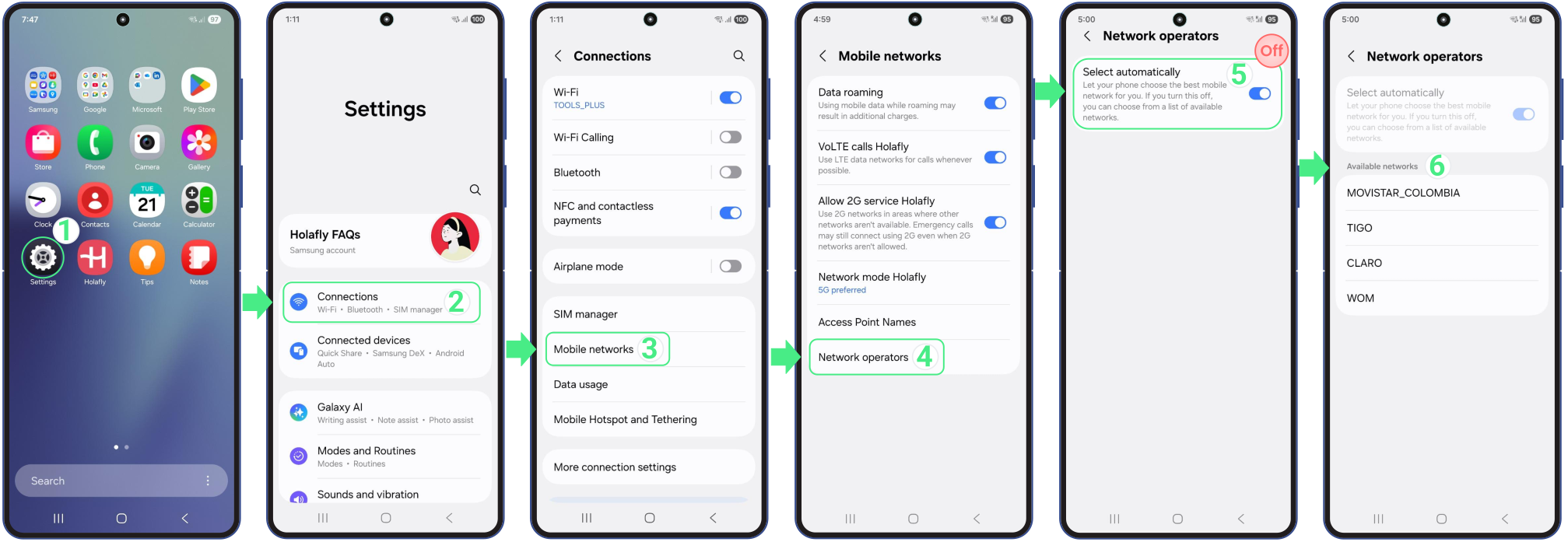
Note: If you want to know which specific operator to connect to, go to our website, search for the country you are in, and check the Coverage and Network sections to see all compatible networks for your mobile plan.
4. Reset network settings
Use this option to clear connection errors that may be blocking your internet. It only resets your network settings, such as Wi-Fi and Bluetooth and won’t delete your photos, contacts, apps, or eSIM.
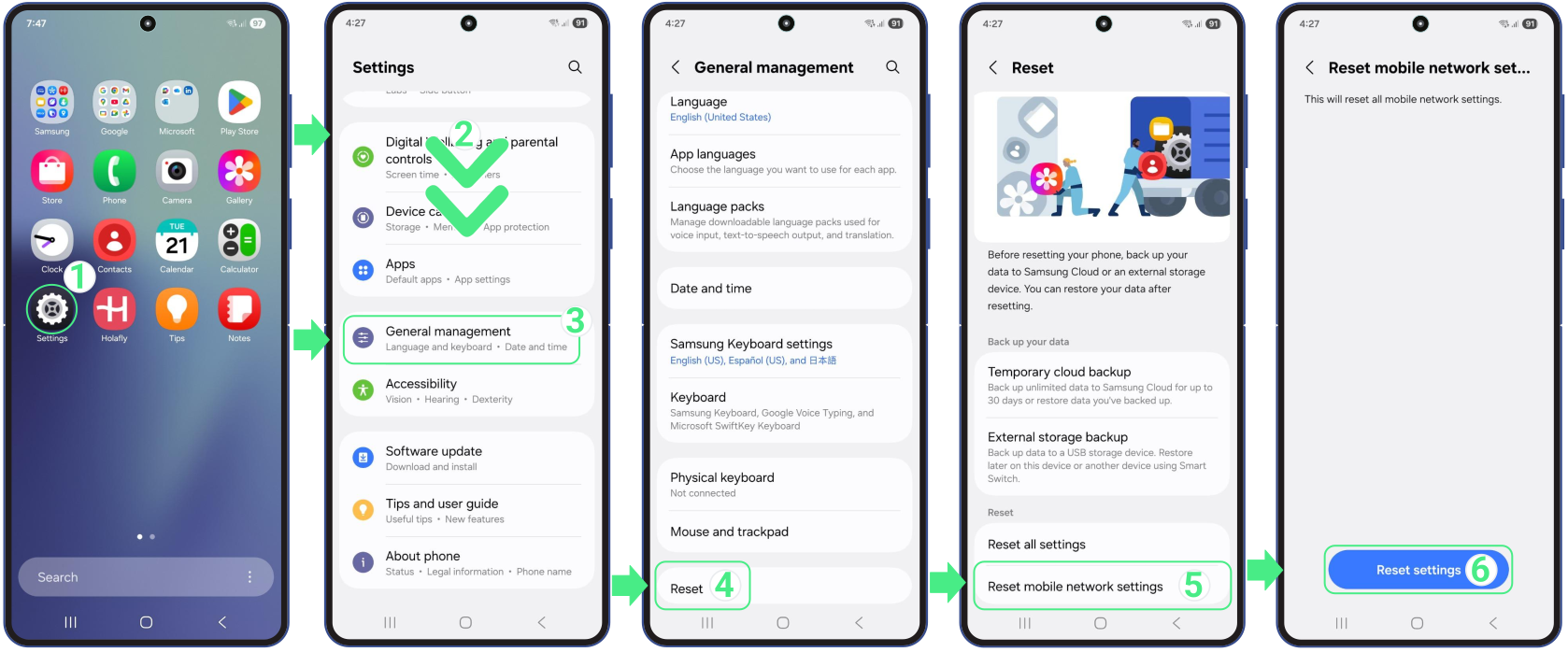
- Go to Settings → Scroll down → Select General Management → Then on Reset → Choose Reset mobile network settings (if you’re prompted to enter a PIN, enter the code you use to unlock your screen and then tap Next) → Confirm your selection with the Reset settings Button.