Language


 No results found
Vodafone UK eSIM not working? Reasons and how to fix it
Find out why your Vodafone UK eSIM isn’t connecting and how to resolve it.

A Vodafone UK eSIM may fail to connect at home or abroad due to simple configuration errors. This guide explains the common causes and the steps to fix them. For a complete overview of Vodafone UK’s tourist eSIM plans and coverage, see our Vodafone UK eSIM review.
If nothing else works, a travel eSIM, such as Holafly, offers a quick and low-effort fallback with unlimited data in many destinations.

Holafly is highly rated
With a Trustpilot rating of 4.6/5 from 50,000+ reviews, our eSIMs come with a seal of approval.
Why is my Vodafone UK eSIM not working?
Whether you’re seeing your eSIM not working on iPhone or Android, most problems stem from basic settings or an incomplete activation process.
The most common causes include:
- Unsupported or locked device. Your phone must support eSIM and be fully unlocked.
- Data or roaming switched off. An eSIM cannot connect abroad unless mobile data and data roaming are enabled for that line.
- Network not switching automatically. Some devices fail to pick up a local network after installation.
- Incorrect or outdated APN settings. Vodafone requires specific APN details. If these fields are false or incomplete, the eSIM may be installed, but it won’t connect.
- Activation interruptions: Weak WiFi signals, delays on Vodafone’s end, expired QR codes, and outdated software can all stand in the way of getting your eSIM up and running.
- Transfer issues on the iPhone Air: Users switching to the iPhone Air often report the Vodafone eSIM not working because the old device didn’t fully release the profile.
Next, we’ll walk through clear, step-by-step fixes for each of these problems to get your connection working again.
Related:
How to fix a Vodafone UK eSIM
The steps below will guide you through the process of restoring your Vodafone UK eSIM connection.
Connect to a stable WiFi network
A Vodafone eSIM cannot activate without a strong internet connection. To address it, connect to a strong WiFi network (avoid hotspots) and retry the eSIM activation.
Allow time for activation
Vodafone eSIM activation can take up to 24 hours. If the profile is pending, delay further troubleshooting until this period has passed.
Fix transfer issues on the iPhone Air
When transferring to an iPhone Air, the old device might still retain the eSIM profile, blocking activation on the new phone.
On the old iPhone:
- Settings > Mobile Data.
- Select the Vodafone plan.
- Tap Remove.
Check if your device supports eSIMs and isn’t carrier-locked
Check eSIM support
- iPhone: All models from iPhone XS and XR onwards support eSIM.
- Android: Support varies by brand. You can look up your model in our list of eSIM-compatible devices.
Check carrier lock status
- iPhone: Settings > General > About. Under ‘Carrier Lock’, it should say, ‘No SIM restrictions.’
- Android: Settings > Connections > Mobile Networks. The device is likely unlocked if you can add new eSIMs.
Fix QR code or setup issues
If you can’t seem to scan the QR code or the setup stalls, you may want to try deleting old profiles and starting over.
iPhone:
- Settings > Mobile Data.
- Select old eSIM profiles.
- Tap Remove
- Restart the device.
- Scan the QR code again.
Android:
- Settings > Connections > SIM manager.
- Select old eSIM profiles.
- Tap Remove.
- Restart the phone.
- Scan the QR code again.
Update your device software
Outdated software can block eSIM activation or create connection problems.
iPhone:
- Settings > General > Software Update.
- Tap Download and Install if an update is available.
Android:
- Settings > System
- Select System update or Software update.
- Tap Check for updates.
- Download and install any available update.
Restart your phone after installation
Restarting the device reloads the new eSIM profile and clears temporary issues that can stop activation or network registration.
iPhone:
- Press and hold the power button.
- Slide to power off.
- Turn the phone back on.
Android:
- Press and hold the power button.
- Tap Restart.
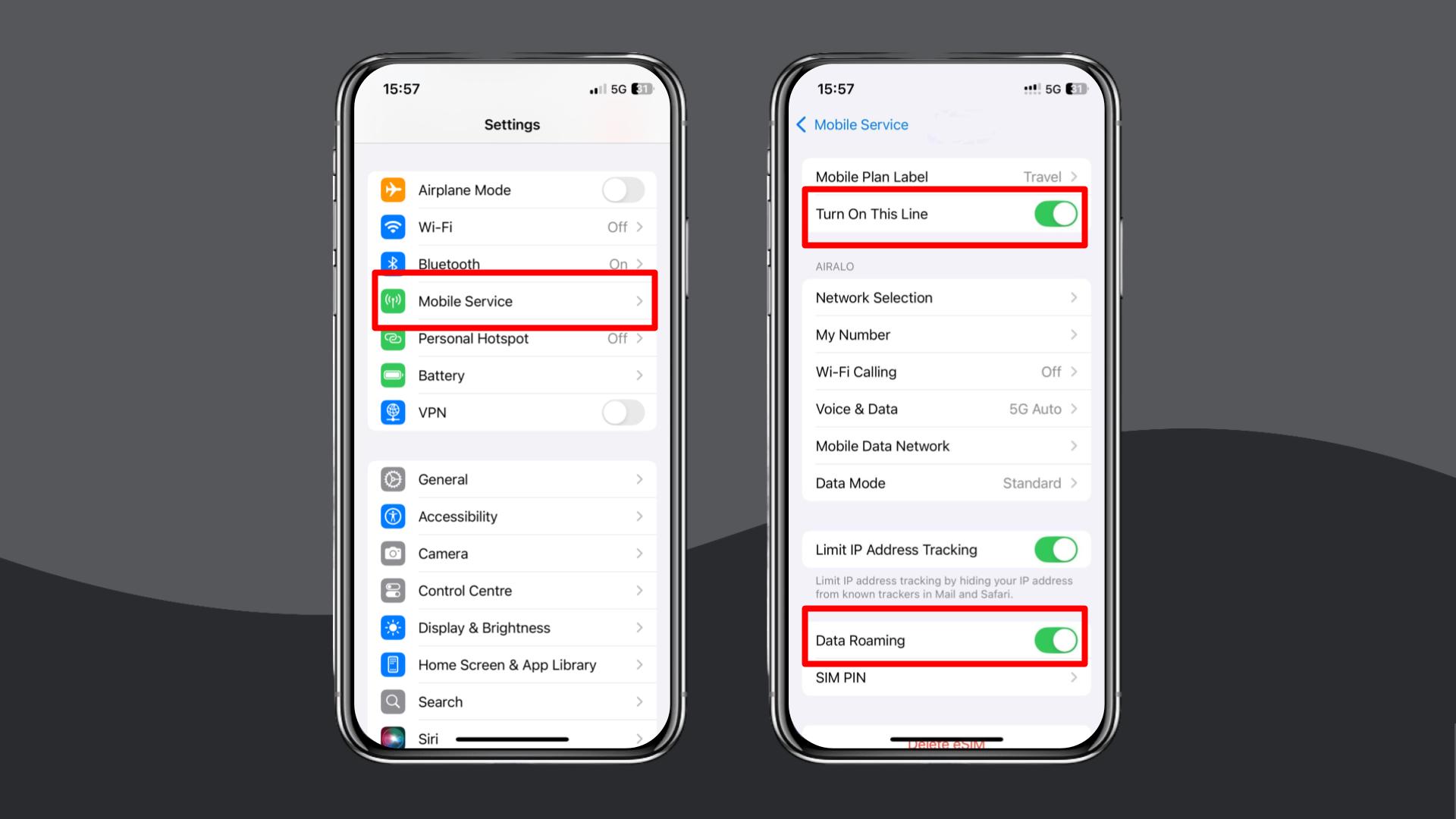
Turn on data roaming
Data roaming must be enabled for a Vodafone UK eSIM to connect when you’re outside the UK. For details on Vodafone’s international roaming coverage and costs, check out our Vodafone travel eSIM guide.
- iPhone: Settings > Mobile Data > Your Vodafone eSIM > Turn on Data Roaming.
- Android: Settings > Network & Internet > Your Vodafone eSIM > Data Roaming > Turn on Data Roaming.
Toggle Airplane Mode
This forces the phone to reconnect to available networks.
iPhone and Android:
- Turn on Airplane Mode for 5–10 seconds.
- Turn it off and allow the device to reconnect.
Manually select a local network
Suppose your Vodafone UK eSIM doesn’t connect automatically. In that case, the phone may be failing to register on the preferred local partner network. Selecting a network manually forces the device to scan nearby carriers and choose one that accepts the eSIM.
- iPhone: Settings > Mobile Service > Network Selection > Turn off ‘Automatic’ and choose an available network.
- Android: Settings > Connections > Mobile Networks > Network Operators > Turn off ‘Automatic’ and choose an available network.
Update or reset your APN settings
Vodafone eSIMs usually configure APN settings automatically. If the APN is missing, outdated, or incorrectly applied, the eSIM may install but fail to load mobile data. Checking these fields ensures your phone knows how to route data through Vodafone’s network.
| Vodafone UK APN setting | Pay Monthly / Contract | Pay As You Go (PAYG) |
|---|---|---|
| Name | Vodafone internet | Vodafone internet |
| APN | wap.vodafone.co.uk | pp.vodafone.co.uk |
| Username | wap | wap |
| Password | wap | wap |
| MMSC | http://mms.vodafone.co.uk/servlets/mms | same |
| MMS Proxy | 212.183.137.12 | same |
| MMS Port | 8799 | 8799 |
| Authentication Type | None or PAP | None or PAP |
| APN Type | default,mms,supl | default,mms,supl |
iPhone:
- Settings > Mobile Service > Mobile Data Network.
- Enter the APN details above.
Android:
- Settings > Connections > Mobile Networks > Access Point Names.
- Enter the APN details above.
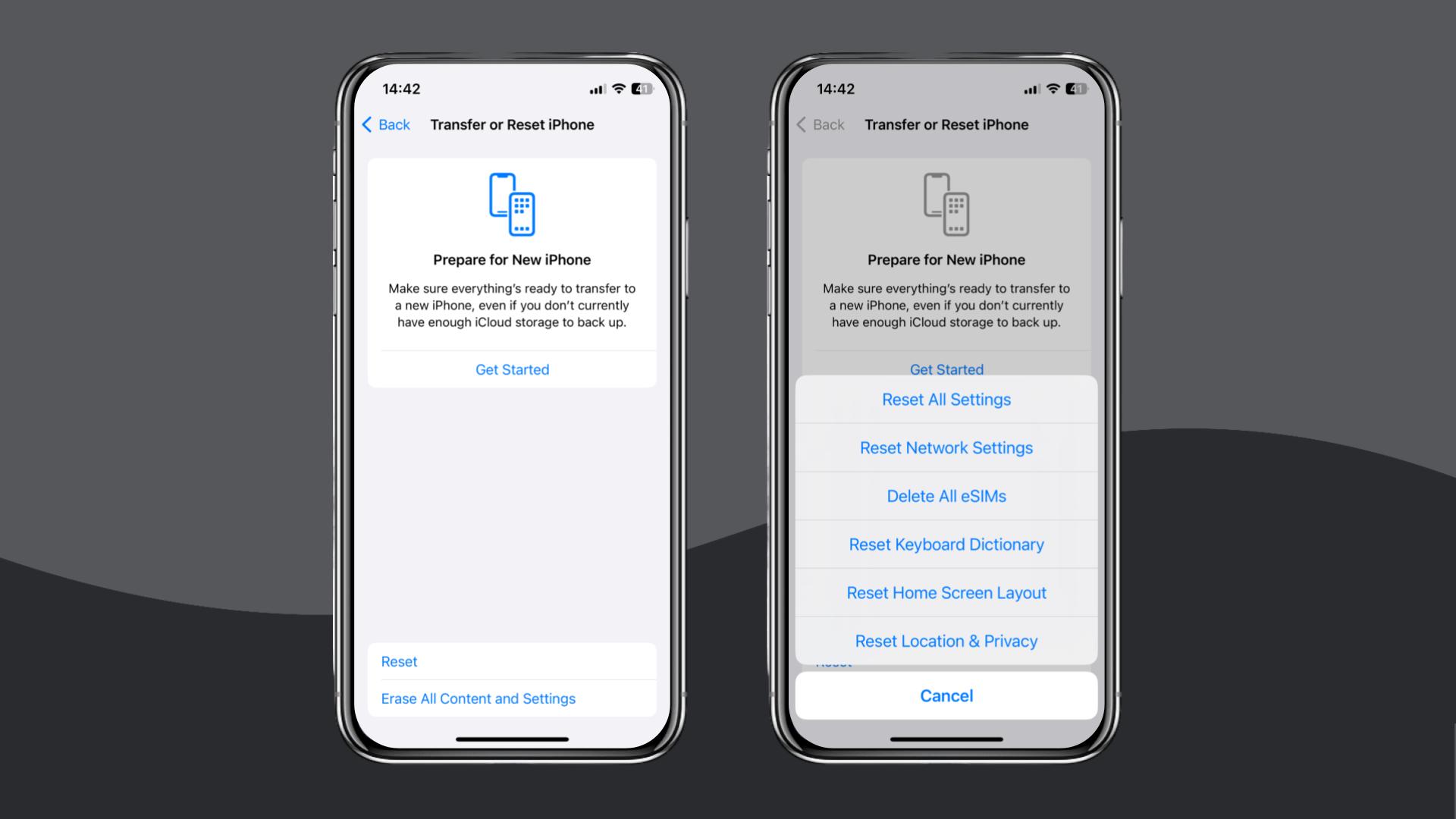
Reset your network settings
Resetting network settings clears all saved WiFi networks, Bluetooth pairings, VPN configurations, and mobile settings. It also removes any conflicting configurations that might prevent your Vodafone eSIM from registering on the network.
- iPhone: Settings > General > Transfer or Reset iPhone > Reset > Reset Network Settings.
- Android: Settings > General Management > Reset > Reset Network Settings.
If these steps don’t fix the problem, contact Vodafone UK support by live chat or email to get more help or request a refund.
If you need a quick and reliable alternative, consider using a travel eSIM provider like Holafly (available on iOS and Android).
Choose Holafly for peace of mind
If your Vodafone UK eSIM still won’t activate after all the fixes above, check the Holafly eSIM store. We offer a quick and easy setup at home or abroad, with installation that takes only a few minutes using a QR code or the in-app setup on iOS.
An eSIM you can rely on
Join over 10 million Holafly customers and get connected with our trusted, global services.
Our Holafly Plans cover a wide range of situations: The Always On plan is suitable for lighter data needs, the Light Plan offers 25 GB of data, and the Unlimited Plan is ideal for those who require high-volumes of data.
All plans include 24/7 customer support, giving you the ultimate peace of mind.
Disclaimer: The data in this article is accurate as of December 02, 2025, and is subject to change.
Plans that may interest you


I am a Liverpool-based SEO content specialist with years of experience crafting content that connects. I combine my love for clear communication with a passion for travel and languages (currently diving into Japanese!). At Holafly, I'm here to help you understand everything about staying connected abroad, turning technical jargon into straightforward advice you can actually use.