Language


 No results found
Holiday eSIM not working? Reasons and how to fix it
Learn the common causes and troubleshoot a Holiday eSIM not working.

When a Holiday eSIM fails to connect, the issue typically stems from a few misconfigured settings.
The good news?
These problems can be fixed with simple adjustments.
If the eSIM still fails to activate after troubleshooting, switching to a provider that offers more straightforward setup, unlimited data, and consistent support (such as Holafly) can save you time and frustration.
Get connected from anywhere
Buy your eSIM no matter where you are. All you need is an internet connection.
Why is my Holiday eSIM not working?
A Holiday eSIM can fail to connect for several reasons, most of which relate to the device or network’s configuration. This applies whether you see your Holiday eSIM not working on an iPhone or an Android device.
One thing to keep in mind is that Holiday eSIM is an authorized reseller of Orange’s travel eSIM. Because of this, they don’t control the underlying network, which can prolong troubleshooting.
Still, the most common causes include:
- Incompatible or locked devices. The phone must support eSIM and be unlocked for use outside of its original country of manufacture.
- Data roaming turned off. Every Holiday eSIM requires roaming to be enabled for connection abroad.
- Automatic network selection failing. Some devices don’t latch automatically onto the local carrier.
- Incorrect APN settings. If the APN (Access Point Name) wasn’t installed correctly, the device won’t establish a data connection.
Next, I’ll walk you through each fix.
How to fix a Holiday eSIM
The steps below resolve the most common issues when a Holiday eSIM fails to connect. Follow them in order, starting with basic checks and ending with advanced resets.
1. Check if your device supports eSIMs and isn’t carrier-locked
First, you’ll want to confirm two essentials:
eSIM compatibility
All iPhones from the XS/XR onward support eSIM. For Android users, you can refer to our list of eSIM-compatible phones.
Unlocked status
A carrier-locked phone won’t activate a Holiday eSIM.
- iPhone: Settings > General > About > Carrier Lock. It should say “No SIM restrictions.”
- Android: Settings > Connections > Mobile Networks > Network Operators. If the phone allows adding new SIMs, it’s likely unlocked.
2. Verify plan and coverage
Log in to your Holiday eSIM account. Then, confirm the plan is active, includes data, and covers your destination.
3. Connect to a good WiFi
You must be on a strong WiFi network during setup or reinstallation attempts.
4. Restart your phone after eSIM installation
Restarting clears temporary software issues and forces the device to load the newly installed Holiday eSIM profile.
- iPhone: Press and hold the side + volume button. Then, slide to power off, and turn it back on after about ten seconds.
- Android: Press and hold the power button, then tap Restart.
5. Turn on data roaming
Holiday eSIM plans depend on roaming to register on foreign networks.
iPhone: Settings > Mobile Data > Your Holiday eSIM > Turn on Data Roaming.
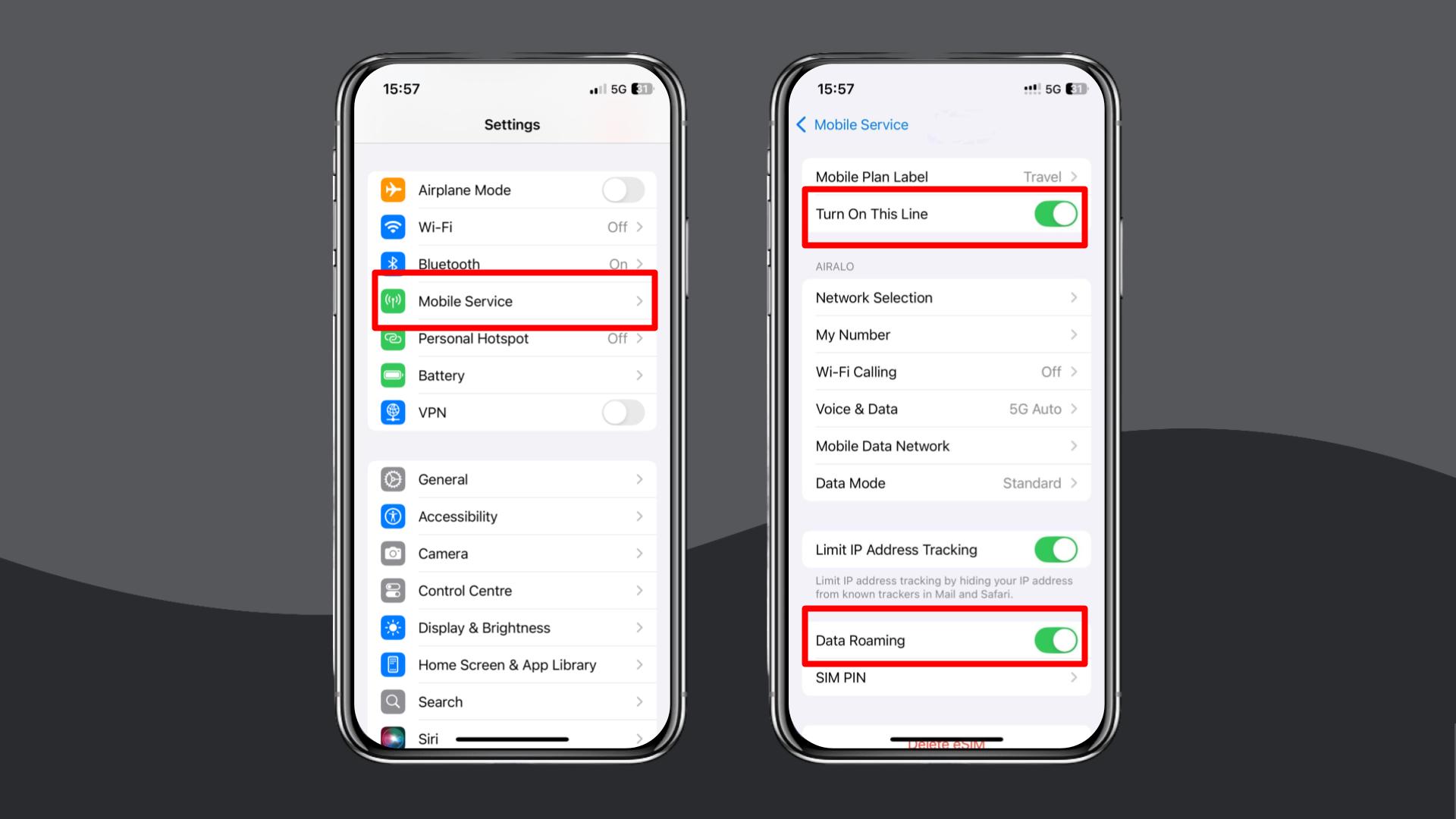
Android: Settings > Network & Internet > Your Holiday eSIM > Data Roaming > Turn on Data Roaming.
6. Enable and disable Airplane Mode
Airplane Mode forces the phone to drop all radios and reconnect to the nearest supported network.
iPhone and Android:
- Turn on Airplane Mode.
- Wait 5–10 seconds.
- Turn it off.
- Wait up to one minute for the device to register on a network.
7. Manually select a local network in settings
If your device doesn’t automatically connect to a supported carrier, choose one manually.
iPhone: Settings > Mobile Service > Network Selection > Turn off Automatic > Wait for the list to load > Choose a supported carrier.
Android: Settings > Connections > Mobile Networks > Network Operators > Turn off automatic selection > Choose a supported local network.
8. Update or reset your APN settings
APN settings define how your device connects to mobile data. Incorrect or missing APN details will prevent connectivity.
iPhone:
- Settings > Mobile Service > Mobile Data Network.
- Enter the APN details provided by your Holiday eSIM plan (often “globaldata”).
- Leave the other fields (e.g., username, password) blank unless otherwise instructed.
Android:
- Settings > Connections > Mobile Networks > Access Point Names.
- Under the APN field, type “globaldata” or what’s shown in your Holiday eSIM instructions.
- Leave the other fields blank.
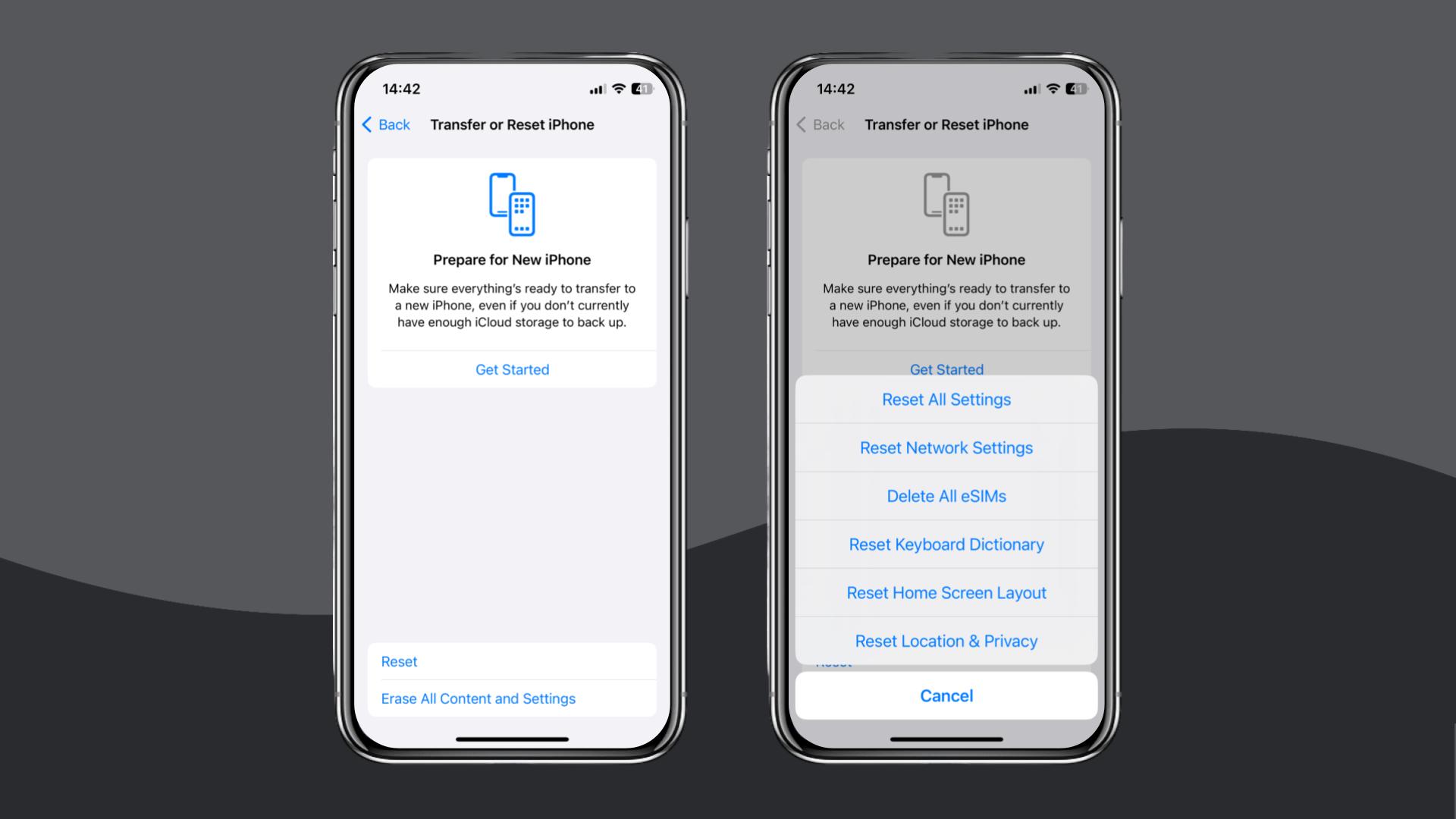
9. Reset your network settings
If configuration files are corrupted, a network reset can restore defaults. This, however, clears WiFi passwords and VPN profiles.
iPhone:
Settings > General > Transfer or Reset iPhone > Reset > Reset Network Settings.
Android:
Settings > General Management > Reset > Reset Network Settings.
If your eSIM is still not working after completing all steps, reach out to Holiday eSIM support.
Note: Holiday eSIM operates as a reseller and doesn’t control the underlying mobile network; fixes may require intervention from the original carrier powering your plan.
If the issue persists, switching to an alternative provider, such as Holafly (available on iOS and Android), can help.
Choose Holafly for peace of mind as you travel
For a hassle-free business travel experience, explore Holafly’s eSIM store designed with enterprises in mind.
All Holafly eSIMs come with unlimited data, 24/7 customer support, and daily hotspot allowance to keep you covered wherever you go. Installation takes just a few minutes using a QR code, and iPhone users can install their eSIM directly through the Holafly app.

eSIMs for every destination
Get eSIMs for 200+ destinations with Holafly, keeping you connected wherever you go.
For long-term travelers and digital nomads, Holafly Plans is a dedicated eSIM service that gives you up to unlimited data in 160+ destinations, all under one eSIM. This eliminates the need to switch between providers as you move across countries.
Disclaimer: The data in this article is accurate as of November 28, 2025, and is subject to change.
Plans that may interest you


I am a Liverpool-based SEO content specialist with years of experience crafting content that connects. I combine my love for clear communication with a passion for travel and languages (currently diving into Japanese!). At Holafly, I'm here to help you understand everything about staying connected abroad, turning technical jargon into straightforward advice you can actually use.