







 Language


 No results found
Vodafone (AU) eSIM not working? Reasons and how to fix it
Vodafone AU eSIM not working? Learn why your eSIM won’t activate or connect and how to fix the issue.

A Vodafone (AU) eSIM may fail to establish a connection for several reasons, and most of these issues stem from simple setup errors.
The good news is that these issues are usually fixable once you adjust the correct settings.
Still, if the problem persists after troubleshooting, Holafly can serve as a reliable fallback. We offer easy installation through a QR code or the app, unlimited data options, and 24/7 support.

eSIMs for every destination
Get eSIMs for 200+ destinations with Holafly, keeping you connected wherever you go.
Why is my Vodafone (AU) eSIM not working?
A Vodafone AU eSIM may fail to activate or connect due to a handful of technical reasons, regardless of whether you’re an iPhone or Android user.
The table below outlines the most frequent causes.
| Issue | Explanation |
|---|---|
| Device doesn’t support eSIM or is carrier-locked | Some phones don’t support eSIM, and others are carrier-locked, preventing the Vodafone profile from activating. |
| Mobile data or data roaming disabled | International data roaming must be enabled when using an eSIM abroad, and mobile data must be activated for the plan to connect. |
| Network not selected automatically | The phone may fail to attach to a local partner network, which can leave the eSIM stuck without service. |
| Incorrect or outdated APN settings | Vodafone requires specific APN details. If these are incorrect or outdated, the eSIM may show no data connection. |
| Activation failures | A Vodafone eSIM can fail to activate if the QR code has expired or already been used, if WiFi is unstable during setup, or if there are account-level issues on Vodafone’s side. |
In the following section, I’ll explain what you can do to restore your connection.
How to fix a Vodafone (AU) eSIM
The following section provides a step-by-step walkthrough of the process, with each step outlined below in the order they should be completed.
Ensure a stable internet connection
To activate a Vodafone (AU) eSIM, you’ll need a solid internet connection.
iPhone and Android:
- Make sure you’re connected to a dependable WiFi network.
- Steer clear of public WiFi networks.
- Keep your WiFi on until the activation is completed.
Restart your phone
A simple reboot can often fix temporary network or activation hiccups.
- iPhone: Settings > General > Shut Down. Wait a few seconds and turn the device back on.
- Android: Press and hold the power button and tap Restart.
Verify activation steps
Activation varies depending on how you set up the eSIM.
- If you ordered a new plan or replacement: You may have received a push notification to set up the plan. Tap the notification and follow the on-screen prompts.
- If you’re using the My Vodafone app: Log in to the My Vodafone app, go to ‘Your plans’ and select ‘Activate a new eSIM’, and follow the instructions.
If you’re using a QR code:
- iPhone: Settings > Mobile > Add eSIM > Use the QR code from your confirmation email.
- Android: Settings > Connections > SIM Manager > Add Mobile Plan > Scan the QR code from your confirmation email.
Check for delays
Vodafone eSIM activation can take up to 24 hours. This is normal, especially during peak periods or after a SIM swap request.
Check if your device supports eSIMs and isn’t carrier-locked
A Vodafone AU eSIM won’t activate on a device that lacks eSIM support or is locked to another carrier.
eSIM support
- iPhone: Models from XS (released in 2018) onward support eSIM.
- Android: Many Samsung, Google Pixel, and recent devices support eSIM, but not all do. Therefore, it’s best to check out our list of phones that support eSIM technology.
Carrier lock
- iPhone: Settings > General > About. If it says ‘No SIM restrictions,’ the phone is unlocked.
- Android: Insert a SIM card from another provider. If calls and data work, the device is likely unlocked.
Remove and reinstall the eSIM profile
If you’re having trouble with your eSIM activation, a good fix is to remove and then reinstall the eSIM profile.
- iPhone: Settings > Mobile Data > Select the Vodafone eSIM > Tap Remove eSIM > Reinstall using the QR code.
- Android: Settings > Connections > SIM manager > Select the Vodafone eSIM > Tap Delete > Add the eSIM again.
Check for software updates
Updating the software ensures the phone has the most recent network compatibility patches and bug fixes.
- iPhone: Settings > General > Software Update.
- Android: Settings > Software Update.
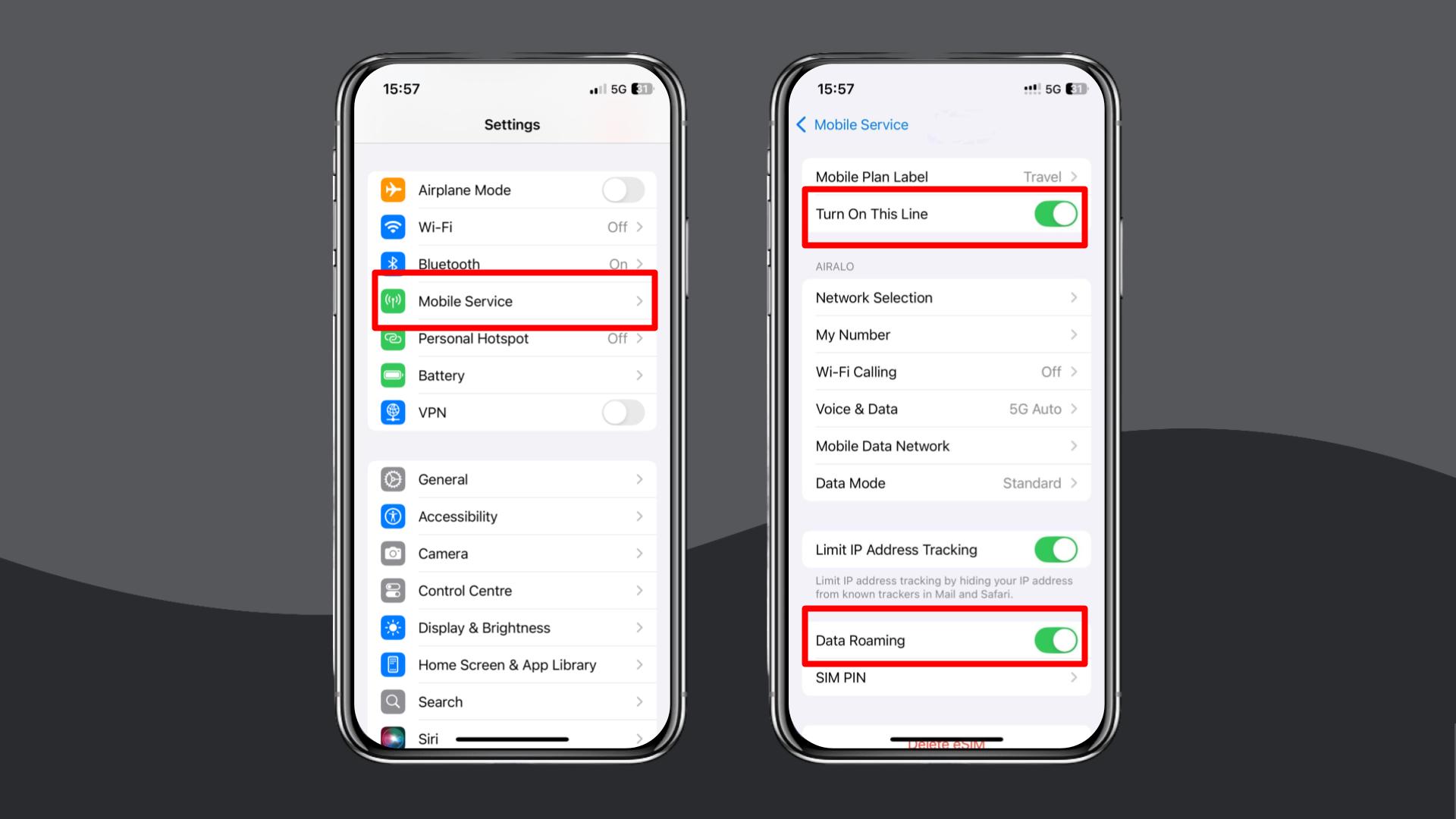
Turn on data roaming
International data roaming must be enabled for the eSIM to connect abroad.
- iPhone: Settings > Mobile Data > Your Vodafone eSIM > Turn on Data Roaming.
- Android: Settings > Network & Internet > Your Vodafone eSIM > Data Roaming > Turn on Data Roaming.
For more details on Vodafone’s international roaming policies and charges, see our guide to Vodafone (AU) international roaming.
Enable and disable Airplane Mode
This forces a refresh of your network registration.
iPhone and Android
- Turn Airplane Mode on.
- Wait five to ten seconds.
- Turn it off again.
Manually select a local network
If the device doesn’t connect automatically, select a network manually.
- iPhone: Settings > Mobile Service > Network Selection > Turn off ‘Automatic’ and choose an available network.
- Android: Settings > Connections > Mobile Networks > Network Operators > Turn off ‘Automatic’ and choose an available network.
Update or reset your APN settings
Vodafone APN (Access Point Name) settings should be configured automatically, but you can check or adjust them if needed.
Vodafone AU APN settings
| Field | Setting |
|---|---|
| APN | live.vodafone.com or vfinternet.au |
| Username | (Leave blank) |
| Password | (Leave blank) |
| Proxy | 10.202.2.60 (older WAP/MMS only; usually blank) |
| Port | 8080 (older WAP/MMS only; usually blank) |
| MMSC | http://pxt.vodafone.net.au/pxtsend (MMS only) |
| Authentication type | PAP (if required) |
Here’s how to check/change APN:
- iPhone: Settings > Mobile Service > Mobile Data Network > Enter the APN details above.
- Android: Settings > Connections > Mobile Networks > Access Point Names > Enter the APN details above.
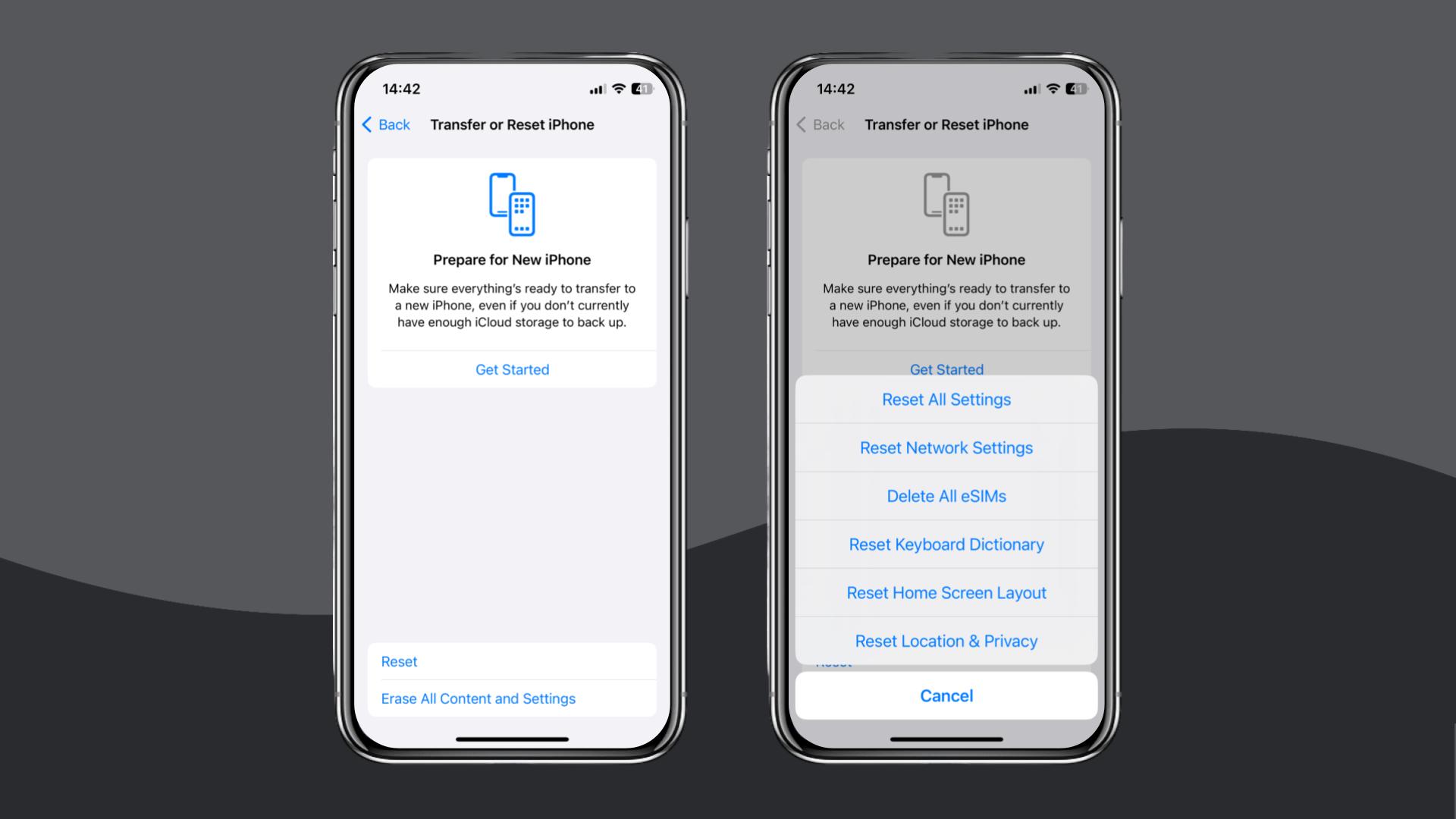
Reset your network settings
If you’re still having trouble, it might be time to reset your network settings completely. Please note that this action will remove all saved WiFi networks, Bluetooth pairings, and APN configurations, so you’ll need to set them up again after the reset.
- iPhone: Settings > General > Transfer or Reset iPhone > Reset > Reset Network Settings.
- Android: Settings > General Management > Reset > Reset Network Settings.
If you’ve tried all the steps and your eSIM still isn’t working, don’t hesitate to reach out to Vodafone (AU) support via live chat or email. They’ll be able to check your activation status or help you with a refund if needed.
However, if these solutions didn’t resolve your problem and you are looking for an alternative, Holafly (available on iOS and Android) can help you stay connected without the need for repeated troubleshooting.
Choose Holafly for peace of mind
If your Vodafone (AU) eSIM continues to struggle after troubleshooting, consider visiting the Holafly eSIM store.
With us, installation takes only a minute using a QR code, and iPhone users can install the eSIM directly through the Holafly app.

24/7 support, no matter what
When you're traveling, every question can be an urgent one. That's why we work around the clock.
For those looking for longer trips, Holafly Plans are a great option. They include Always On, ideal for occasional use; the Light Plan covers day-to-day browsing with 25GB of data; and Unlimited is suitable for those taking longer trips or working remotely.
All plans include 24/7 customer support, ensuring you have help whenever you need it.
Disclaimer: The data in this article is accurate as of December 04, 2025, and is subject to change.
Plans that may interest you


I am a Liverpool-based SEO content specialist with years of experience crafting content that connects. I combine my love for clear communication with a passion for travel and languages (currently diving into Japanese!). At Holafly, I'm here to help you understand everything about staying connected abroad, turning technical jargon into straightforward advice you can actually use.

