







 Language


 No results found
Telstra eSIM not working? Reasons and how to fix it
Telstra eSIM not working? See the key causes and simple fixes to get it connecting again.

A Telstra eSIM can stop working whether you’re at home or overseas.
Luckily, most of these failures come from small setup errors, and they’re usually quick to resolve once you know where to look.
That said, if none of the fixes discussed in this guide restore your connection, consider switching to a different provider, such as Holafly. We offer easy installation through a QR code or the app, unlimited data in many destinations, and round-the-clock support.

eSIMs for every destination
Get eSIMs for 200+ destinations with Holafly, keeping you connected wherever you go.
Why is my Telstra eSIM not working?
A Telstra eSIM can fail to connect for many reasons.
Below are the most common ones:
- The device doesn’t support eSIM or is still carrier-locked.
- Mobile data or international data roaming is off, which is required for an eSIM to work overseas.
- The local network doesn’t connect automatically and may need manual selection.
- APN (Access Point Name) settings are incorrect or outdated, preventing the phone from reaching the network.
In the next section, I’ll guide you through the steps to resolve each of these issues (and more) on iPhone and Android.
How to fix a Telstra eSIM
Below are the steps to resolve issues with a Telstra eSIM for tourists and locals who won’t activate or connect.
1. Reinstall the My Telstra app
If you transferred the app through a phone backup, the installation may be corrupted.
- Delete the My Telstra app from your device.
- Restart your phone.
- Download a fresh copy from the App Store or Google Play.
- Open the app and go to the Services tab.
- Select your mobile service, then choose ‘Transfer or restore eSIM’ to restart the transfer.
Important:
- Only the primary account holder can complete an eSIM transfer. If you aren’t the owner, you may need to visit a Telstra store with photo ID.
- If you see an error telling you to try again later, it might mean you’ve hit the limit of four transfer attempts within 24 hours. Wait for the cooldown or contact Telstra for help.
2. Ensure a stable internet connection
To ensure a proper activation process, it’s important to stay connected to a reliable WiFi network the whole time.
- iPhone: Settings > WiFi and connect to a reliable network (avoid hotspots and public WiFi networks).
- Android: Settings > Network & Internet > Internet and join a stable network.
3. Wait for activation
It can take up to four hours for the service to become fully operational. This means waiting might be necessary before attempting further troubleshooting.
4. Restart your phone after eSIM installation
A reboot can clear temporary glitches.
- Turn your phone off (iPhone: Press and hold the side button + volume button; Android: Press and hold the power button).
- Wait at least ten seconds.
- Turn it back on and allow the device to reconnect.
5. Check network settings
Turn off Airplane Mode
Ensure Airplane Mode is off, as it disables all mobile network connections and prevents the eSIM from functioning properly.
Ensure the eSIM line is toggled on
Confirm the Telstra eSIM line is switched on, as turning it off blocks the phone from registering on any mobile network.
iPhone:
- Settings > Mobile Data.
- Under SIMs or Mobile plans, tap ‘Telstra eSIM’.
- Verify that the line is active.
Android:
- Settings > Network & Internet.
- Tap SIM manager (or SIMs).
- Confirm that the Telstra eSIM is active.
6. Update to the latest software
Outdated system software can block proper eSIM activation.
- iPhone: Settings > General > Software Update.
- Android: Settings > Software update.
7. Check if your device supports eSIMs and isn’t carrier-locked
Your phone must support eSIMs and be unlocked, or the Telstra eSIM won’t activate or connect.
Check eSIM support
- iPhone XS, iPhone XR, and all newer models support eSIM.
- On Android, support depends on the device, so check our eSIM-compatible devices list to confirm whether yours is included.
Check for carrier lock
- iPhone: Settings > General > About. Carrier Lock should read ‘No SIM restrictions’.
- Android: Insert a SIM from another provider. If it fails to register, the device may be locked.
8. Turn on data roaming
International data roaming must be enabled for Telstra eSIMs to work overseas.
- iPhone: Settings > Mobile Data > your Telstra plan > Data Roaming > On.
- Android: Settings > Network & Internet > your Telstra plan > Data Roaming > On.
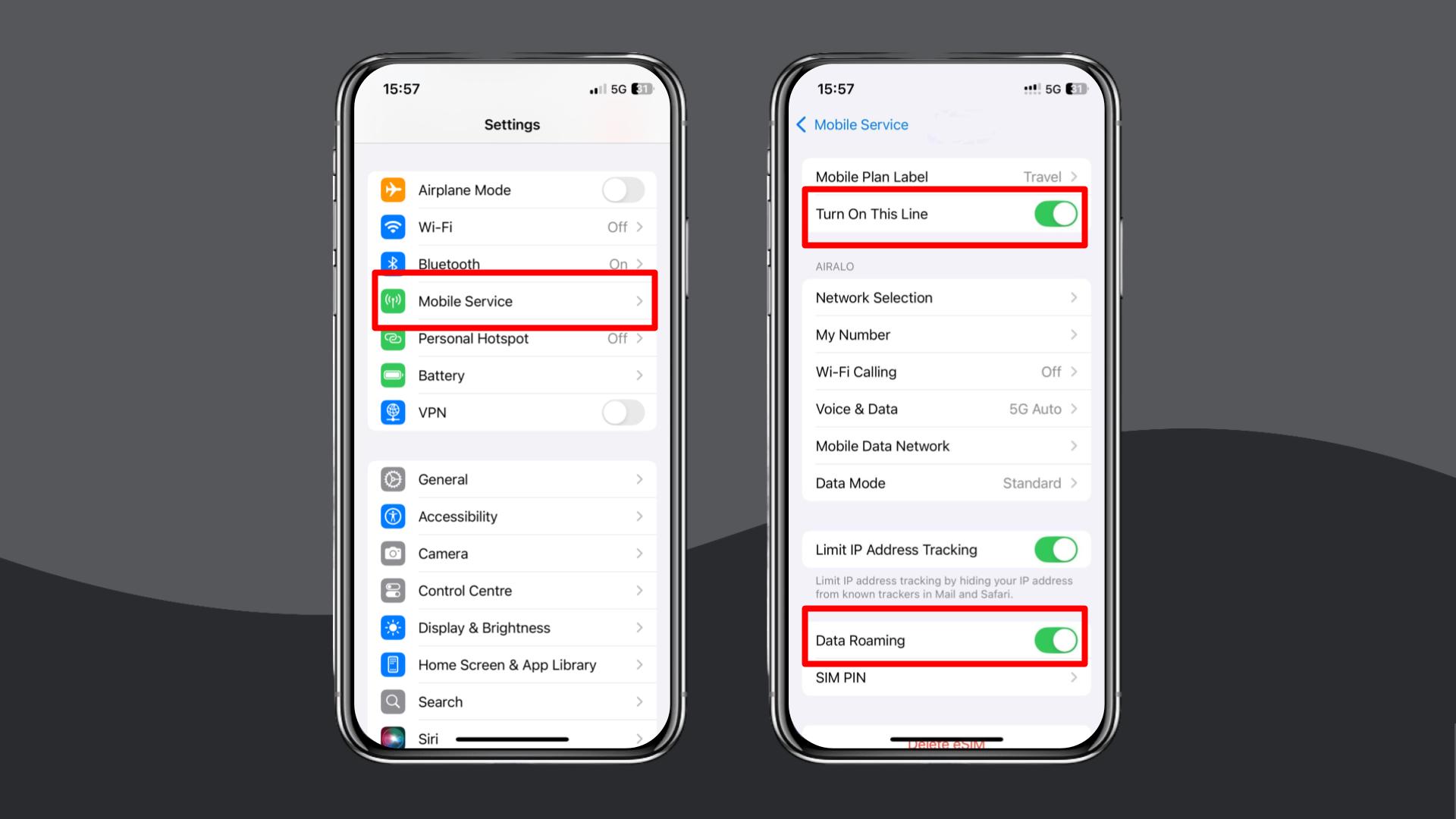
9. Manually select a local network in settings
If automatic network selection fails, choose a network manually.
- iPhone: Settings > Mobile Service > Network Selection > turn off Automatic > choose a local carrier.
- Android: Settings > Connections > Mobile Networks > Network Operators > turn off Automatic and choose an available network.
10. Update or reset your APN settings
Telstra usually configures APN settings automatically. Manual configuration is only needed when mobile data doesn’t work after activation, especially on older or imported devices.
- iPhone: Settings > Mobile Service > Mobile Data Network > enter the APN details below.
- Android: Settings > Connections > Mobile Networks > Access Point Names > enter the APN details below.
Telstra APN settings
| Setting | Value |
|---|---|
| Name | Telstra Internet |
| APN | telstra.wap or telstra.internet |
| Proxy | (Leave blank) |
| Port | (Leave blank) |
| Username | (Leave blank) |
| Password | (Leave blank) |
| Server | (Leave blank) |
| MCC | 505 |
| MNC | 01 |
| Authentication Type | None or PAP |
| APN type | default or default,supl |
After updating the APN, restart your phone and test your eSIM to ensure it is functioning correctly.
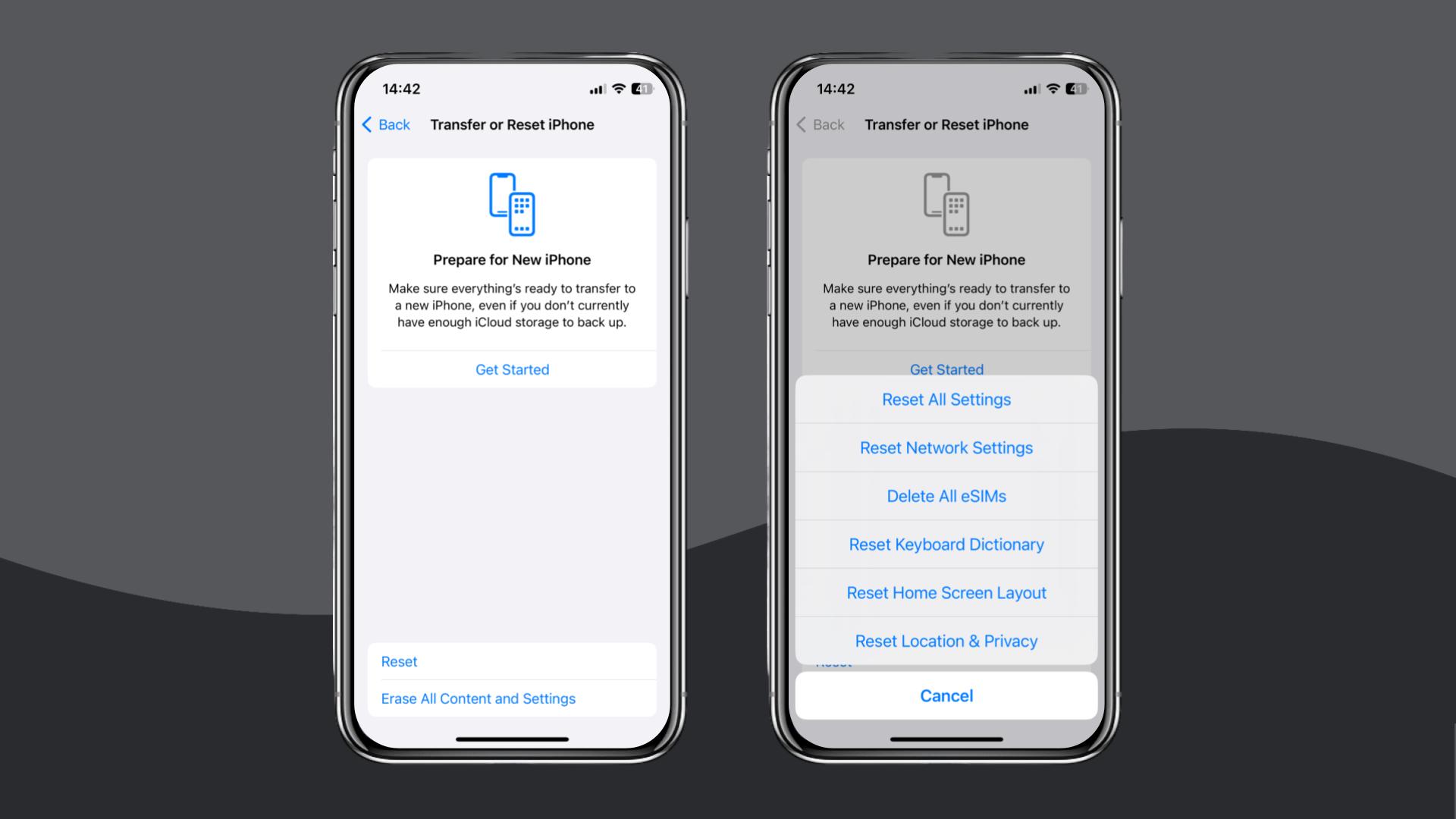
Reset your network settings
Resetting your network settings is the ultimate troubleshooting step. It removes all saved connections and profiles (so proceed with caution), which can clear conflicts that stop the eSIM from working.
- iPhone: Settings > General > Transfer or Reset iPhone > Reset > Reset Network Settings.
- Android: Settings > General Management > Reset > Reset Network Settings.
If you’ve tried all the steps mentioned and your eSIM still doesn’t work, don’t hesitate to reach out to Telstra support via live chat or email. They’re there to help you out, whether it’s with further assistance or even sorting out a possible refund.
Alternatively, consider switching to a different eSIM provider, such as Holafly (available on iOS and Android).
Choose Holafly for peace of mind
If your Telstra eSIM still isn’t working after completing all the steps above, switching to a Holafly eSIM (see Holafly eSIM Store) offers a simple way to avoid further troubleshooting, whether you’re abroad or in Australia.

24/7 support, no matter what
When you're traveling, every question can be an urgent one. That's why we work around the clock.
Setup takes only a minute using a QR code, and iPhone users can also install their eSIM directly through the Holafly app.
Our Holafly Plans service is perfect for those looking for a long-term solution, offering several options to match different needs.
The Unlimited Plan is ideal for those who want to use data freely without tracking usage. The Always On plan works well for lighter, everyday browsing and messaging. The Light Plan includes 25 GB of data and sits comfortably between the two.
Holafly also provides 24/7 customer support, which helps ensure a smoother experience when staying online matters most.
Disclaimer: The data in this article is accurate as of December 04, 2025, and is subject to change.
Plans that may interest you


I am a Liverpool-based SEO content specialist with years of experience crafting content that connects. I combine my love for clear communication with a passion for travel and languages (currently diving into Japanese!). At Holafly, I'm here to help you understand everything about staying connected abroad, turning technical jargon into straightforward advice you can actually use.

