Language


 No results found
Dodo eSIM not working? Quick fixes for iPhone & Android
What are the reasons Dodo eSIM not working? Find out how to fix this problem, including checking phone compatibility to changing APN or network settings.

Are you having trouble using your Dodo eSIM? There are very common reasons for the Dodo eSIM not working issue, from phone compatibility to activation error or APN settings, all of which can be fixed with a few quick taps on your screen.
This guide will help you identify and fix this issue with a few simple steps.
In the end, if you still have a problem with your Dodo eSIM, you will have an alternative like Holafly eSIM, with unlimited data and 24/7 customer support who are available to keep you connected in all your international trips.
Get connected from anywhere
Buy your eSIM no matter where you are. All you need is an internet connection.
Why is your Dodo eSIM not working?
There are very common reasons why eSIM may not be working, whether it’s Dodo eSIM or other providers. You can easily fix this problem without needing any technical knowledge.
Possible reasons include:
- Your phone doesn’t support eSIM.
- Dodo eSIM activation failed.
- Dodo eSIM QR code expired or already used.
- Mobile data is turned off.
- No network connection or incorrect network selection.
- APN settings are missing or incorrect.
- eSIM was deleted accidentally.
- iPhone software or carrier settings are not updated.
How to fix Dodo eSIM issues
Fixing Dodo eSIM not working issue is often very easy. Follow these steps to identify the issue and then use the troubleshooting guide specific to your device.
Check if your device supports eSIM
The most common problem why Dodo eSIM is not working is your device. Check if you have an eSIM-compatible phone.
For iPhone
eSIM is supported on all iPhone XS, iPhone XR, and all newer models. Even with a compatible device, you need to make sure your phone is unlocked. So, follow these steps:
- Go to Settings > General > About > Network Locks.
- You should see “No SIM restrictions”, which means your iPhone is unlocked and can use eSIMs.
- To make sure if your iPhone supports eSIM, go to Settings > Cellular > Add Cellular Plan and look for “Add eSIM”.
For Android
Settings options can vary by Android brand. While the exact names of these options might differ, the general procedures will apply to most devices.
- Go to Settings > Network & Internet or Connections.
- Select SIMs or SIM Card Manager.
- Look for an option like Add eSIM, Download SIM, or Add Mobile Plan.
- If you find this option, your phone supports eSIM.
Check if your Dodo eSIM QR code has expired
After purchasing a Dodo eSIM, you’ll receive its profile via a QR code, which becomes invalid after scanning. So, if you delete the eSIM, you can’t use the same QR code to activate it again.
How to fix:
- Request a new eSIM and QR code from Dodo customer support.
- Reinstall the new eSIM on your device.
Turn on mobile data and data roaming
Make sure the data roaming is enabled on the phone.
On iPhone:
- Go to Settings > Mobile Data.
- Select eSIM.
- Turn Data Roaming on.
On Android:
- Go to Settings > Connections or Network & Internet > Mobile Network.
- Select eSIM
- Turn Data Roaming on.

Enable and disable Airplane Mode
Sometimes the reason for a Dodo eSIM not working is a temporary network glitch. In this case, enabling and disabling Airplane Mode can fix your issue.
- Turn on Airplane Mode.
- Wait for 30 seconds.
- Turn it off.
- Restart your phone.
Manually select a local network
Some phones may not automatically connect to the best available partner network. In this case, you need to select a local network manually.
For iPhone:
- Go to Settings > Mobile Data > Network Selection.
- Turn Automatic network selection off.
- Let your phone scan available networks.
- Select a network from the list.
For Android:
- Go to Settings > Connections or Network & Internet > Mobile Network.
- Select Network Operators and turn off Select Automatically.
- Wait until your phone finds available networks.
- Select a network from the list.
Update or reset your APN settings
APN controls how your phone connects to your carrier’s network. Mobile data may not work if the APN setting is incorrect.
- The correct APN settings should be emailed to you together with the activation QR code for your eSIM. After setup, make sure the ones on your phone match the settings provided by Dodo.
Restart your phone after changing APN settings.
Reset your network settings
Resetting network settings can clear hidden misconfigurations and fix wrong settings. This should be a last-resort, as resetting network settings also resets all other connections, such as WiFi and Bluetooth.
iPhone:
- Go to Settings > General > Transfer or Reset iPhone.
- Select Reset Network Settings.
Android:
- Go to Settings > General Management or System.
- Select Reset Network Settings.
Contact customer support
If you find Dodo eSIM troubleshooting difficult or can’t fix the problem, you can contact Dodo customer support. They can help you discover the reason why your eSIM is not working and fix it.
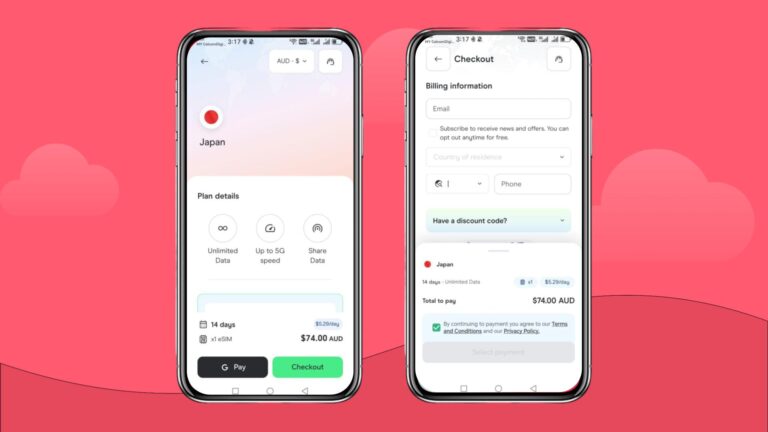
Can’t fix your Dodo eSIM? Stay connected with Holafly
If you’re still experiencing issues with Dodo eSIM not working, Holafly eSIM is a reliable alternative. With unlimited data, transparent pricing, flexible plans, and reliable coverage in 200+ destinations, Holafly helps you stay connected wherever you go.
The 24/7 customer support is always ready to assist you in activating and using your eSIM seamlessly.

eSIMs for every destination
Get eSIMs for 200+ destinations with Holafly, keeping you connected wherever you go.
Plans that may interest you


Formerly a travel journalist turned marketing copywriter, I found my way back to the travel world with Holafly—my dream company that made remote work possible. My motto? “Dream big and make it happen.” I’m passionate about writing, exploring the world, and staying active through walking, running, swimming, and hiking. I also love learning, reflecting, and connecting with inspiring minds.