Language

eSIM Xiaomi: How to install and activate it
Setting up an eSIM on your Xiaomi is a fast, fully digital process that can be completed in just a couple of minutes. Depending on your eSIM provider, you can install it automatically through their official app, or do it in your phone’s settings using a QR code or by entering the activation details manually. eSIM compatibility is available on many recent Xiaomi models worldwide, including devices like the Xiaomi 15, Xiaomi 14T Pro, and Redmi Note 14 Pro+, although compatibility may vary by region.
Below, you’ll find the steps to install and activate an eSIM on your Xiaomi, so you can enjoy a smooth and reliable mobile connection right away.
What you need before installing an eSIM on Xiaomi
Before starting the setup, make sure your device meets the basic requirements:
- Confirm your Xiaomi model supports eSIM, as availability can vary by region. Also, make sure your phone is unlocked so it can work with SIMs and eSIMs from different carriers.
- Connect to a stable Wi-Fi network for a smooth setup process.
- For Global or Regional (Europe, South America, Africa, etc.) eSIM plans, install it no earlier than 1 day before your trip to ensure your data starts when you need it. For single-country plans, install it at any time.

How to install an eSIM on Xiaomi
Installing your eSIM means adding your new line to your phone. You can complete this step using any of the 3 methods below. The Holafly app is usually the quickest and easiest option, but the other universal methods will also get your eSIM installed and ready for activation. Choose the one that works best for you.
1. Install your eSIM using the App
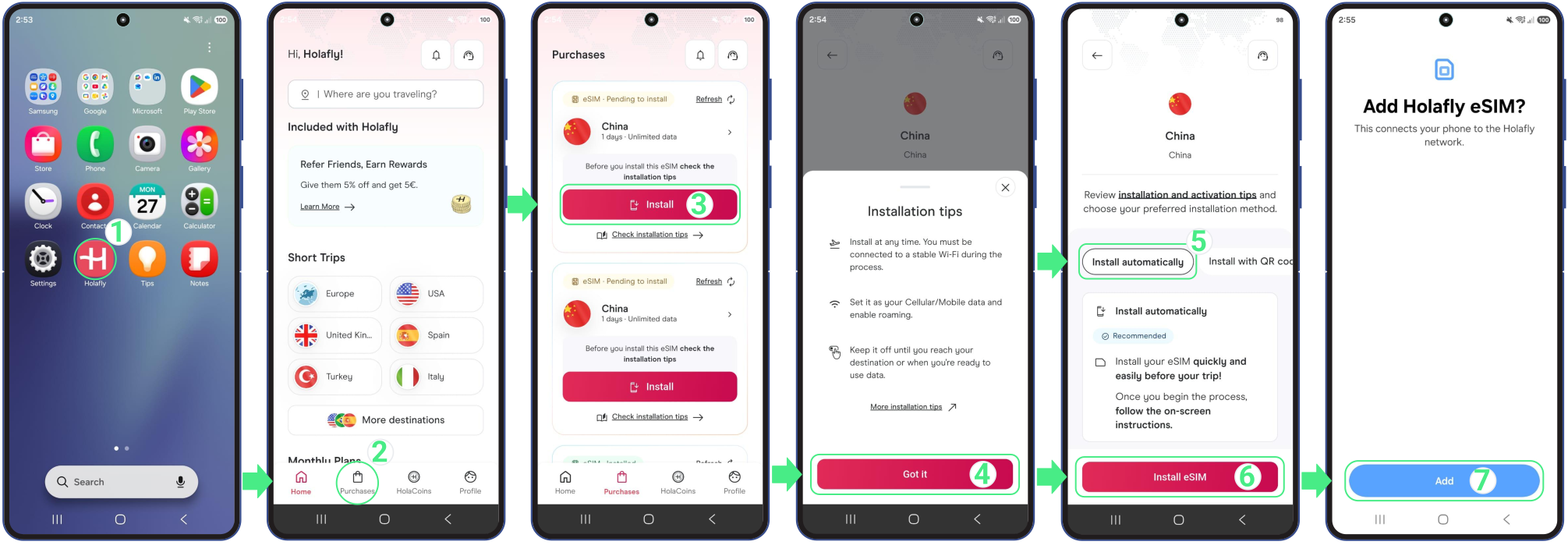
This is the fastest way to do it. If your eSIM provider has an official app, you can use it to install your line automatically with just a few taps.
To use the Holafly app, just download or open it here and follow these steps:
- Go to the app on your phone → Log in with the email associated with your purchase → Go to Purchases → TapInstall on the eSIM you want to add → Read the Installation tips and tapGot it to continue → Choose Install Automatically → Tap Install eSIM → Then, tap Add to save your new line to your phone’s Mobile networks settings.
2. Install an eSIM on Xiaomi using a QR code
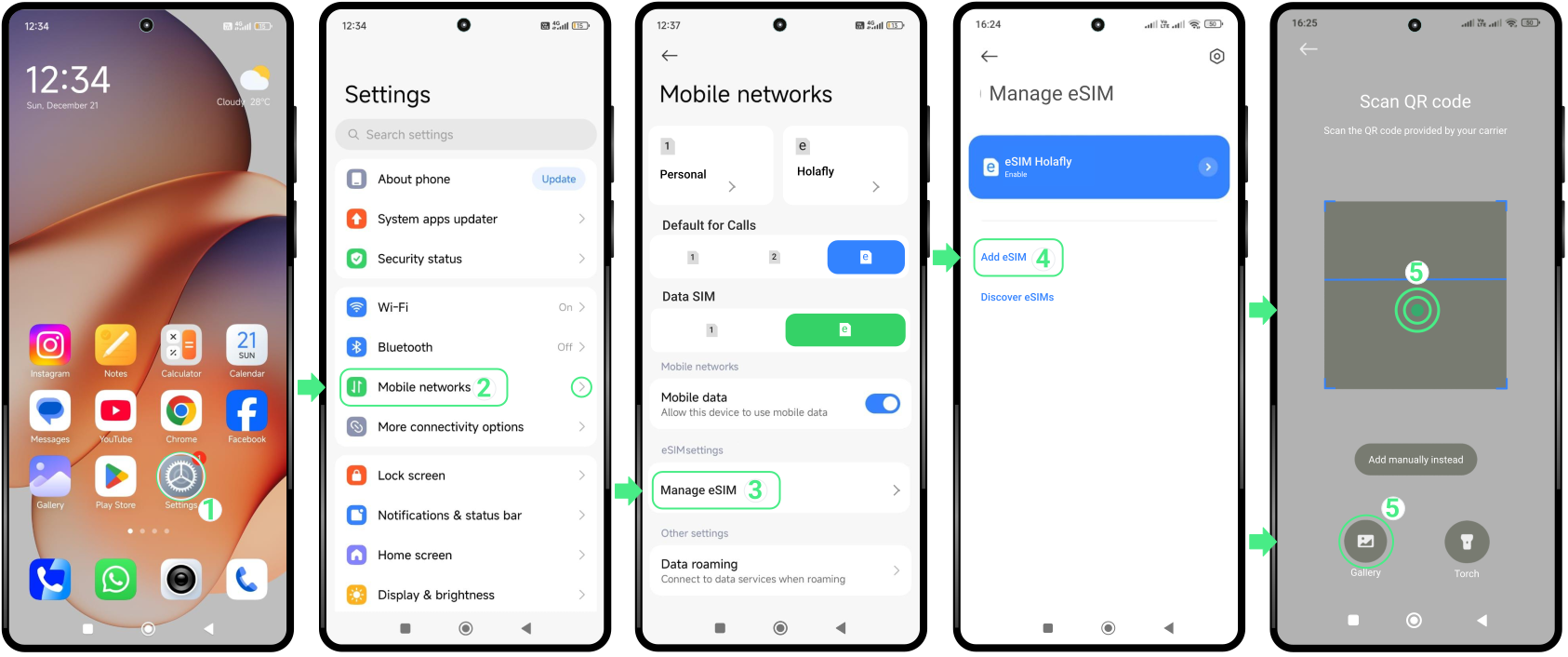
The QR code is the traditional method to install an eSIM on Xiaomi. This is the best option if your phone’s memory is full or if you don’t want to download anything extra right now.
To use it, you will open a special scanner inside your phone’s Settings. If you don’t have a second screen to scan the code, don’t worry! You can save the QR code as a photo and upload it directly from your gallery inside that same menu.
Follow these simple steps to start:
- Go to Settings → Select Mobile Networks → Tap Manage eSIM (if you don’t see it, turn on the “Use eSIM” switch first) → Then, tap Add eSIM → Scan the QR code (or tap the Gallery icon and select the QR image if you saved it as a photo) → Then, tap Add to allow the system to complete the download.
3. Install an eSIM on Xiaomi using manual codes
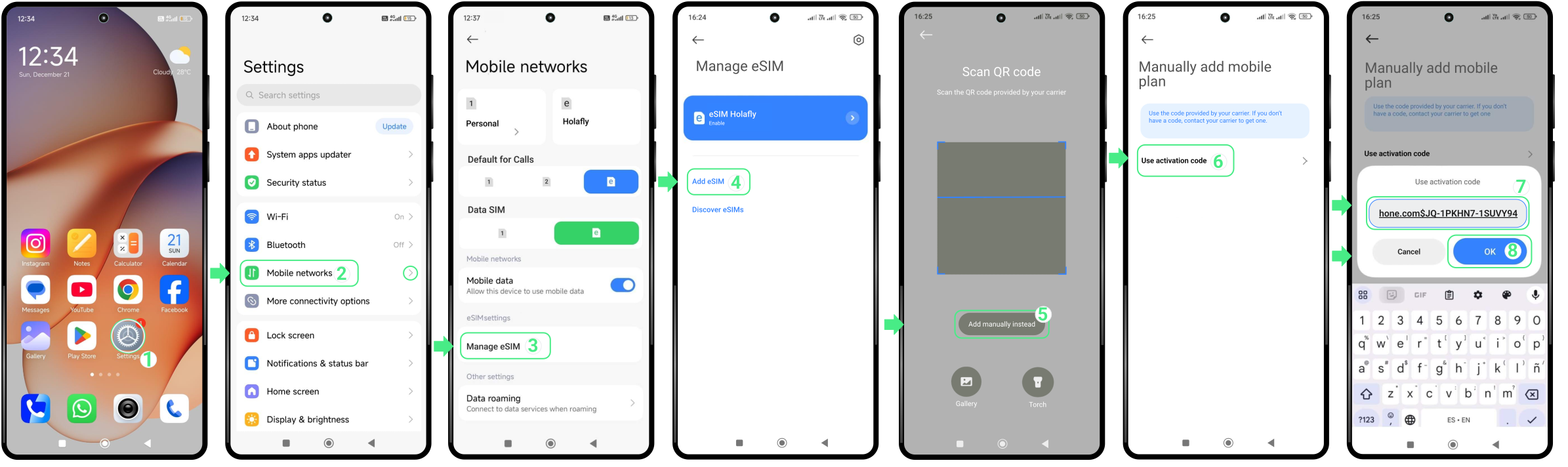
If the previous installation methods don’t work as expected, you can also install your eSIM on Xiaomi using the manual activation details received. Follow the steps below to complete the installation.
- Go to Settings → Select Mobile networks → Tap Manage eSIM (if you don’t see it, turn on the “Use eSIM” switch first) → Then, tap Add eSIM → Select Add manually instead → Tap on Use activation code → Copy and paste the full activation code exactly as provided (Including “LPA” and the colon “:”) → Tap OK → Tap Add to complete the installation process → Continue with the activation.
Note: Please keep in mind that this is a manual text code, not a clickable link.
How to activate an eSIM on Xiaomi
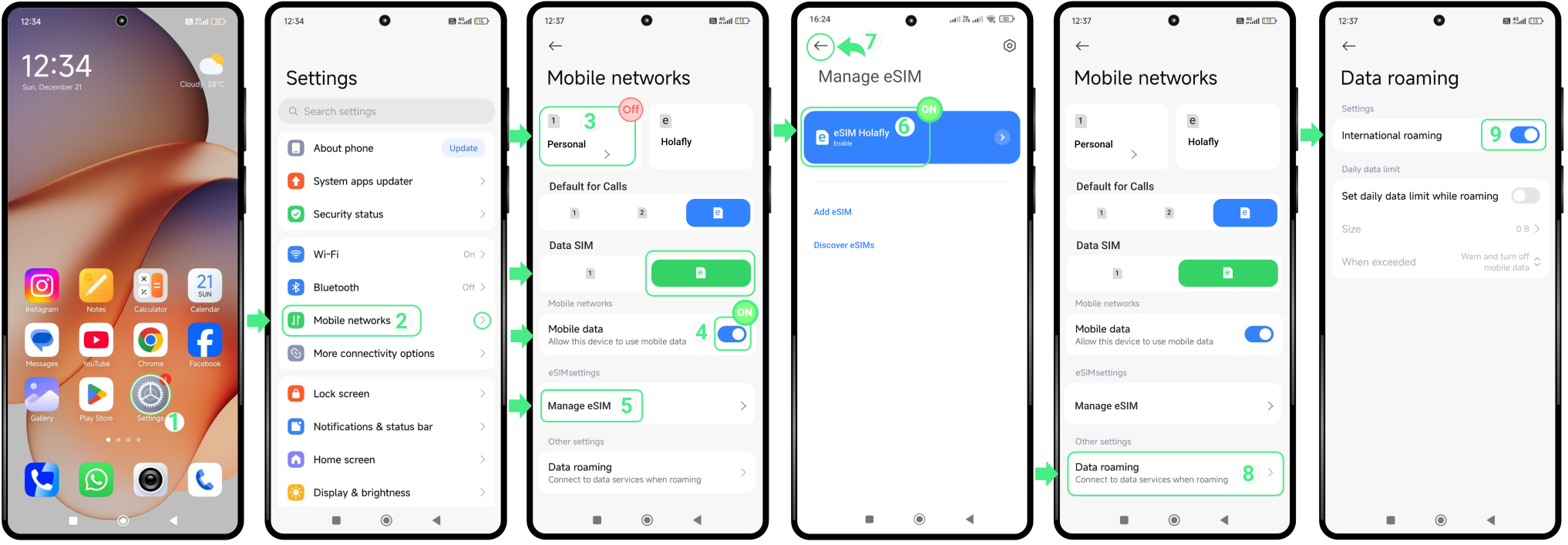
Activating an eSIM on Xiaomi is done directly from your phone settings and doesn’t require an internet connection. This step simply turns the eSIM on and sets it as the line used for mobile data.
For travel eSIMs, full activation may occur only once you reach your destination and enable Data Roaming. Follow these steps to activate your eSIM on Xiaomi:
- Go to Settings → Select Mobile networks → Turn OFF your Personal SIM → Verify that Mobile data is turned on and that the new eSIM is selected for Data SIM → Tap Manage eSIM → Turn ON your eSIM → Go back to Mobile networks → Tap Data roaming → Select International roaming.
To keep in mind
- Most modern Xiaomi phones support eSIM, but devices bought in China, Hong Kong, or Macao only work with physical SIMs.
- Depending on your software version, the menu path might slightly change. If you don’t see Mobile networks, look for SIM cards & mobile networks.
- You can use one physical SIM and one eSIM on your Xiaomi at the same time, but activating an eSIM may disable your second physical SIM slot.
- You can store multiple eSIM profiles on your phone, but only one can be active at a time for mobile data.

Troubleshooting tips
During installation
If your Xiaomi shows an error or gets stuck when starting or finishing the setup, don’t worry! This doesn’t mean it failed. Before trying again, check if the line was already successfully added:
- On your phone: Go to Settings → Mobile Networks. If a new card with your provider’s name, a generic label, or a custom name appears in this menu, your eSIM is already installed.
- In the App: Check your eSIM status. If it says “eSIM Installed – Ready to use,” you are all set!

Using mobile data
If your eSIM appears as Enabled but mobile data isn’t working, your phone is just completing a quick connection handshake with the local network. Simply restart your Xiaomi to fix this. If it still doesn’t work, go to your network settings and select the best local operator manually.
⚠️ Important: Never delete your eSIM to fix a connection issue. Removing the profile will permanently invalidate your plan, and it cannot be reinstalled.