



 Language

Can I reuse my eSIM for multiple trips?
Yes, all Holafly eSIMs are reusable. As long as you keep the eSIM installed on your device, you can add more days or use it across different destinations. To do this, purchase a new trip (daily package) or a monthly plan (subscription) without installing a new eSIM each time.
This means an easier setup before you leave and more peace of mind along the way. Read on below to discover how easy it is to manage your eSIM, add more data, and get ready for your next destination.
Important: Reusable eSIMs apply to purchases made on or after September 30, 2026. Earlier purchases, as well as trips to the Maldives, Monaco, Yemen, Guinea, and Saint Pierre and Miquelon, are single-use only.
Managing your reusable eSIM in the Holafly app
The Holafly app makes it easy to manage your reusable eSIM in one place. Keep it installed, and any new trip or monthly plan will be automatically added to your installed eSIM.
With the Holafly app, you can:
- Buy and add trips and monthly plans to the same eSIM.
- Track your trip or monthly plan status.
- Transfer inactive trips to another person.
How to add days and destinations to your reusable eSIM
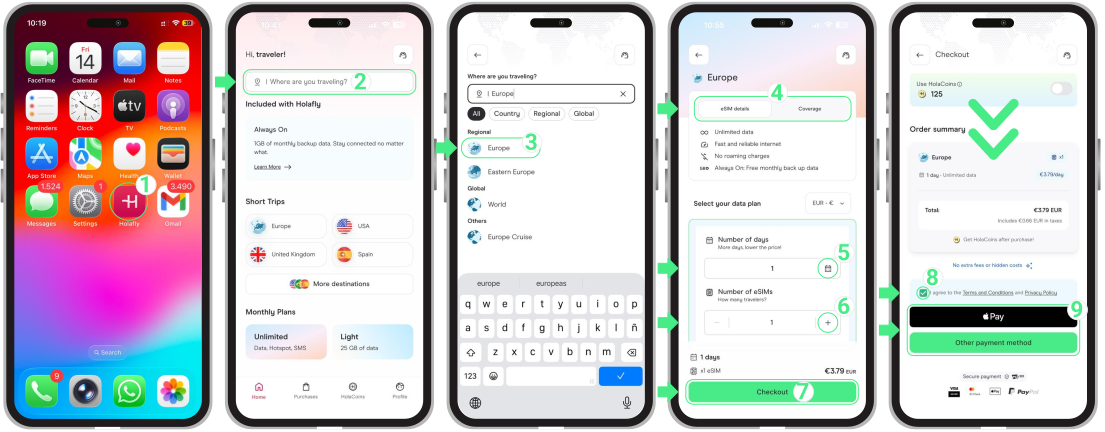
Once your reusable eSIM is installed, you can extend your current trip or purchase a package for a new destination, all while keeping the same eSIM. You can do both from the Holafly app:
- Open the App → Go to Home → Type your destination into the search bar labeled “Where are you traveling?” → Select your destination → Review your eSIM details and coverage → Choose the number of days and eSIMs you need → Under purchase information, make sure to enter the same email address you used for your first purchase → Tap Checkout → Scroll down and check the Terms and Conditions box → Select your preferred payment option → And that’s it! You’re ready to go.
Note: Regardless of whether you buy your new data in the app (from the Home tab) or on the website, it will automatically be linked and added to your active reusable eSIM, no extra setup required!
How to transfer a trip to someone else
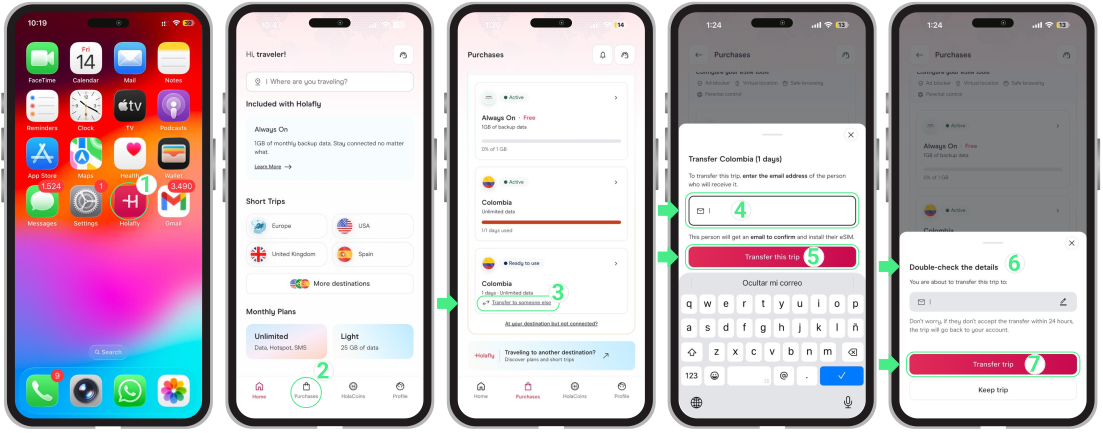
You can give a trip to someone else as long as you haven’t used it yet. It only takes a few taps in the Holafly app.
- Open the Holafly app → Go to Purchases → Find the Trip you want to transfer → Tap Transfer to someone else → Enter the recipient’s email address → Select Transfer this trip → Double-check the details and, once you confirm the email is correct, tap Transfer trip → We’ll notify you if your recipient accepts the transfer.
Important:
- Once the recipient accepts the transfer, you can’t undo it or get the trip back.
- The recipient’s device must be eSIM-compatible and unlocked by their mobile carrier.
- The recipient has 24 hours to use the link. If it expires, the transfer process is cancelled and the trip returns to your account.
- The recipient can’t transfer the bundle again.
- Monthly plans (subscriptions) can’t be transferred, only trips (daily packages).
- Review the transfer details before confirming. If you spot a typo or mistake, tap the pencil icon to make changes.
- The transfer feature is for giving an inactive trip to someone else. We will add new functionalities in the upcoming releases.
What happens when someone transfers a trip to you
When someone transfers a trip, you’ll receive an email with a 24-hour link to accept it. Opening the link will guide you to log in or create your Holafly account to claim the package.
Once accepted, the trip attaches directly to your account. If you already have a reusable eSIM installed, your new trip will be ready to use on your existing eSIM. If you do not have one yet, you will receive your reusable eSIM details to complete the installation. Keep in mind that once accepted, a trip cannot be transferred again to another person or account.
Note: If the accepted trip does not appear in the app right away, refresh the section or close and reopen the app.
Managing multi-destination itineraries
If you plan to visit several countries in one journey (for example: traveling to Europe, making a side trip to Turkey, and returning to Europe):
- Buy only the days you need for your first stop. Once activated, package days count down continuously on the calendar and do not pause when you leave a country.
- Buy packages in the order you want to use them. If you buy multiple packages for the same destination, they activate on your eSIM in the exact order you purchased them. If you want a specific package to activate first (for example, a 10-day package before a 3-day package), make sure to purchase that one first.
- Buy your next package before taking off. Open the app the day before or right before your flight/travel to your next country to purchase the new package.
- Keep the same eSIM installed. You don’t need to delete or install anything new. Your phone will connect automatically when you land at your new destination.
Following these steps prevents your active packages from running at the same time and helps you save money.
When does your reusable eSIM activate
Your reusable eSIM can be used for both trips and monthly plans, but each one follows a different activation process.
How trip activation works
- If your current trip (daily package) is active. You can add extra days, a new destination, or upgrade to a monthly plan (subscription) at any time without installing a new eSIM. Your new package will enter queued status and automatically activate the moment your purchased data expires or runs out.
- If your previous Trip (daily package) has ended, whether your eSIM is turned on or off, as long as you keep your reusable eSIM installed on your phone, you don’t need to set up a new one. Simply purchase a new package for your upcoming travel, whether it is for the same destination, a new country, or a monthly plan. Once you arrive, activate your eSIM in your phone settings, select it for mobile data, and enable Data Roaming to get connected.
How the monthly plan activation works
- A monthly plan (whether billed monthly, quarterly, or annually) begins its billing cycle immediately upon purchase. If you already have your reusable eSIM installed, you don’t need a new setup. Complete the standard line activation on your device (turn on your eSIM line, select it for mobile data, and enable Data Roaming) to start using your monthly plan.
- If you cancel your subscription, your plan will remain active until the end of your current billing period. Once it ends, keep your eSIM on your device so it’s ready for your next monthly plan or trip, and to enjoy Always On free backup data.
Troubleshooting tips
- Keep your reusable eSIM installed on your phone, even when you’re not traveling. When you’re not using it, simply turn off the eSIM line in your phone settings. Keeping it installed lets you reuse it for future travels and maintains your Always On backup data benefit available at no extra cost when your purchased data ends.
- If you don’t get connection right away after adding more days, a new destination, or a new monthly plan, please wait up to 5 minutes. If you’re still offline, turn Airplane Mode on and off, or restart your phone. Then, check your iPhone or Android settings to ensure your eSIM line is correctly activated.
- If you purchase a trip or monthly plan without logging into the Holafly app or website, make sure to enter the email address associated with your account at checkout. The system will automatically link the purchase to your profile and existing reusable eSIM.
- Need to move your eSIM to a new phone? Our Support team is here to help. While an installed eSIM stays linked to its original device, our team can quickly assist you in getting set up on your new phone. Please note that installing your eSIM on a new device under your account is different from transferring an unactivated trip to another person.
- If you purchase a trip for the wrong destination, you can request a refund to your original payment method directly from the Holafly app. If you received the trip through a transfer, contact Holafly Support, so an agent can process the request for you.
- To reuse your eSIM for future trips, make sure to keep it installed on your phone. If you accidentally delete your eSIM, you can install it up to 3 times in total using the Holafly app.
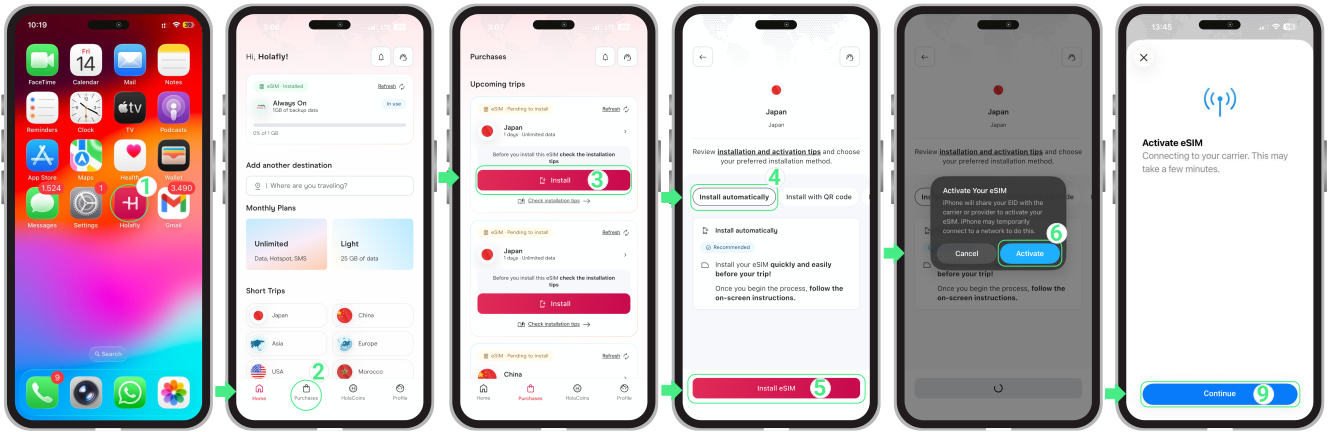
How to reinstall your eSIM using the Holafly app
- Open the app → Go to Purchases → Tap Install on the eSIM you want to add → Choose Install Automatically → Tap Install eSIM → Tap Activate to start the installation → Then, tap Continue when the Activate eSIM screen appears (this step only continues the setup; the eSIM will not activate yet).
Note: If the reinstallation button isn’t available in the app, you can install your eSIM using the QR code or manual codes sent to your purchase email.