Language

Does an eSIM for cruise ships work at sea?
No, a standard eSIM for cruise ships won’t work in the middle of the ocean. It relies on land-based cellular towers, which usually only reach about 10 to 12 miles from the coast. Once your ship moves beyond that range, your phone switches to the ship’s satellite network, which tends to be much more expensive. The good news is that your eSIM becomes your best option to stay connected and save money when you’re at port, sailing near the coast, or while exploring the destinations on your itinerary.
This way, you can avoid unexpected charges during your trip. Keep reading to see when your eSIM will work and how to use it during your cruise.
To keep in mind
- Keep Airplane Mode ON while at sea. This way, your phone won’t connect to cellular at sea or satellite networks, which may lead to extra charges.
- An eSIM for cruise ships is data-only. It doesn’t come with a phone number, but you can still use apps like WhatsApp, FaceTime, or Telegram as usual.
- Your phone must be unlocked. If it isn’t, it won’t be able to connect to another carrier while you travel.
- The signal may be weaker inside the ship. Cruise ships are large steel structures that can block signals. For a better connection, try using your phone near windows, balconies, or outdoor areas.
- Your eSIM works best when the ship is docked or close to land. That’s when your phone connects to land-based networks instead of relying on expensive cruise ship internet.
- You can share your connection. Use your phone as a hotspot to connect other devices, which is often more flexible than WiFi on cruise ships.
- If you use SMS for two-factor authentication on apps or banking, remember that a data-only eSIM will not receive those text messages. Make sure to set up an alternative verification method before your trip.

Where does your eSIM work on a cruise?
Your eSIM for cruise works when your phone connects to land-based networks, typically at port or near the coast. Remember that coverage is not available in open water.
These are the destinations covered by each plan:
- eSIM for Mediterranean Cruise: Spain, Italy, France, Greece, Malta, Tunisia, Croatia, Turkey, Montenegro.
- eSIM for Europe Cruise: Spain, Italy, France, Greece, Malta, Tunisia, Croatia, Norway, Sweden, Germany, Poland, Finland, Estonia, Lithuania, Latvia, Turkey, Montenegro.
- eSIM for Caribbean Cruise: USA, Mexico, Bahamas, Dominican Republic, Puerto Rico, Honduras, Jamaica, Saint Martin, Cayman Islands, Panama, Colombia.
- eSIM for Alaska Cruise: USA and Canada.

When to install and activate an eSIM for a cruise
Setting up your eSIM at the right time ensures your data starts when you actually need it and helps you avoid using it before your trip begins.
Install before your trip
Install your eSIM the day before your cruise while you have a stable WiFi connection, either at home or at your hotel.
Activate once you reach port
Your eSIM starts working when your phone connects to a supported network. Wait until you arrive at your first destination or when the ship is near the coast, then turn on your eSIM for cruise and enable data roaming.
Troubleshooting tips
If your eSIM for cruise ships is not working on your iPhone or Android when you’re at port or near the coast, try these quick checks:
- Turn Airplane Mode on and off to help your phone reconnect to a land-based network.
- Ensure your eSIM is turned ON and selected as the primary line for Cellular Data in your settings.
- Make sure data roaming is enabled on your eSIM so it can connect to local networks at your destination.
- Move to an open area if you’re inside the ship, as the signal may be blocked by the structure. Try using your phone on the deck, near a window, or in an outdoor area.
- If your connection feels slow or unstable, your phone may be connected to a weaker network. In this case, switching to another local network can improve your connection.
Manual network selection: how and when to use it
In some destinations, your phone may connect automatically to a network with weaker coverage. This can happen at ports, where multiple networks are available. Selecting a network manually helps you stay connected to the one with the best signal in that location.
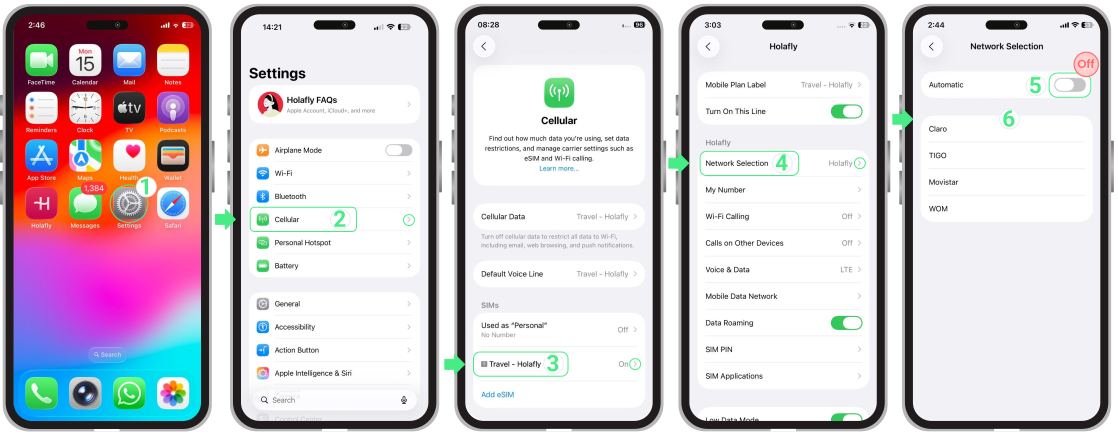
How to select a network manually on iPhone
- Go to Settings → Tap on Cellular or Mobile Service → Tap your eSIM line → Network Selection → Turn OFF Automatic → Wait for available networks to load → Select each network one by one, waiting about 30 seconds between attempts → Keep the network that provides the most stable signal.
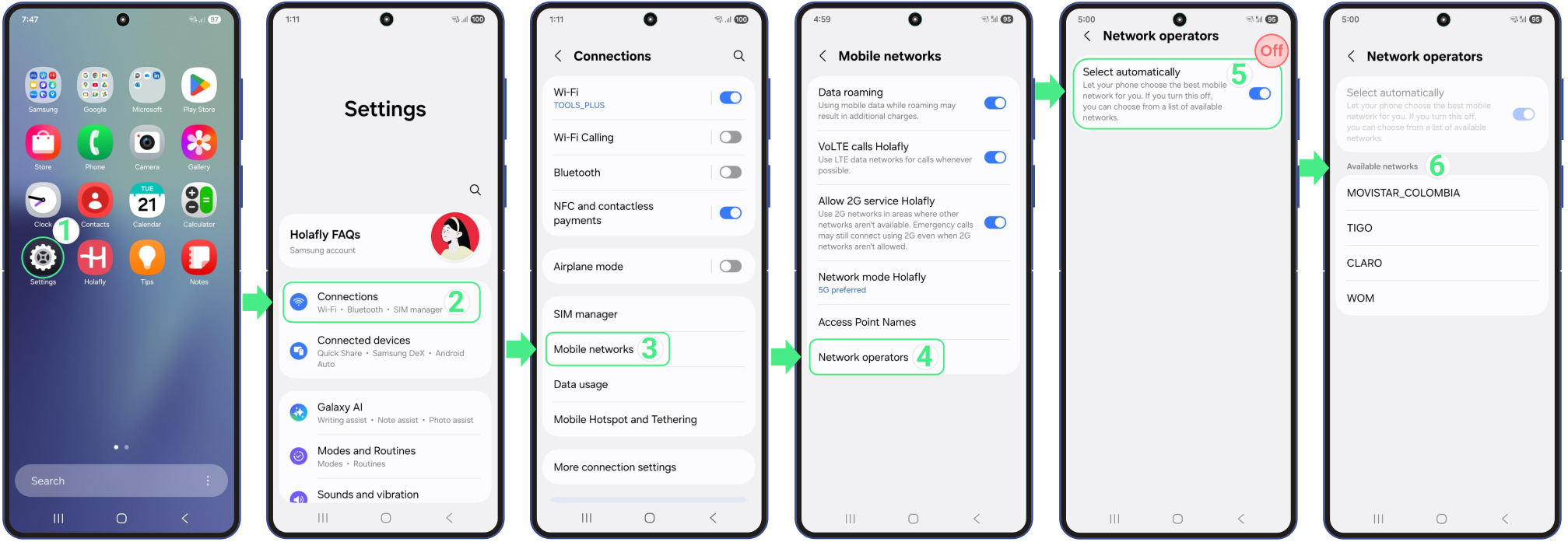
How to select a network manually on Android
- Go to Settings → Tap on Connections → Select Mobile Networks → Choose Network operators → Disable automatic network selection and wait for available operators to load → Then try one by one all the operators listed (each time you select one wait 30 seconds while it connects to the network) → Select the operator that generates the best signal for you → Test your network.