




 Language

How to install and activate an eSIM on OnePlus devices?
An eSIM on a OnePlus device allows you to set up a mobile data plan fully digitally, without the need for a physical SIM card. This technology is already available on the brand’s most recent phones, including the OnePlus 11, OnePlus 12, OnePlus 13, OnePlus 15, OnePlus Open, and OnePlus 15R.
To get started, the process consists of two simple steps, first, you must install the eSIM (which you can download to your device using three different methods, depending on your preference), and then activate it by turning on the line in your phone’s settings. In this guide, you will learn how to fully configure your eSIM in just a few minutes.
Before you start setting up your OnePlus with eSIM:
- Ensure your OnePlus device is compatible and unlocked to work with any network provider.
- Connect to a stable and secure Wi-Fi network.
- For Global or Regional (Europe, South America, Africa, etc)eSIM plans, install it no earlier than 1 day before your trip to ensure your data starts when you need it. For single-country plans, you can install it days or weeks ahead, as it won’t activate until you arrive.

How to add or install an eSIM on OnePlus
To get started, simply choose which of the three methods you prefer to use to install the eSIM on your phone. You can complete the process automatically through your provider’s app, by scanning a QR code, or by entering the installation details manually:
1. Install your eSIM using the app
This method is the ideal choice for a quick and automated installation. If you are using Holafly, download or open the app and follow these steps to add the eSIM to your OnePlus:
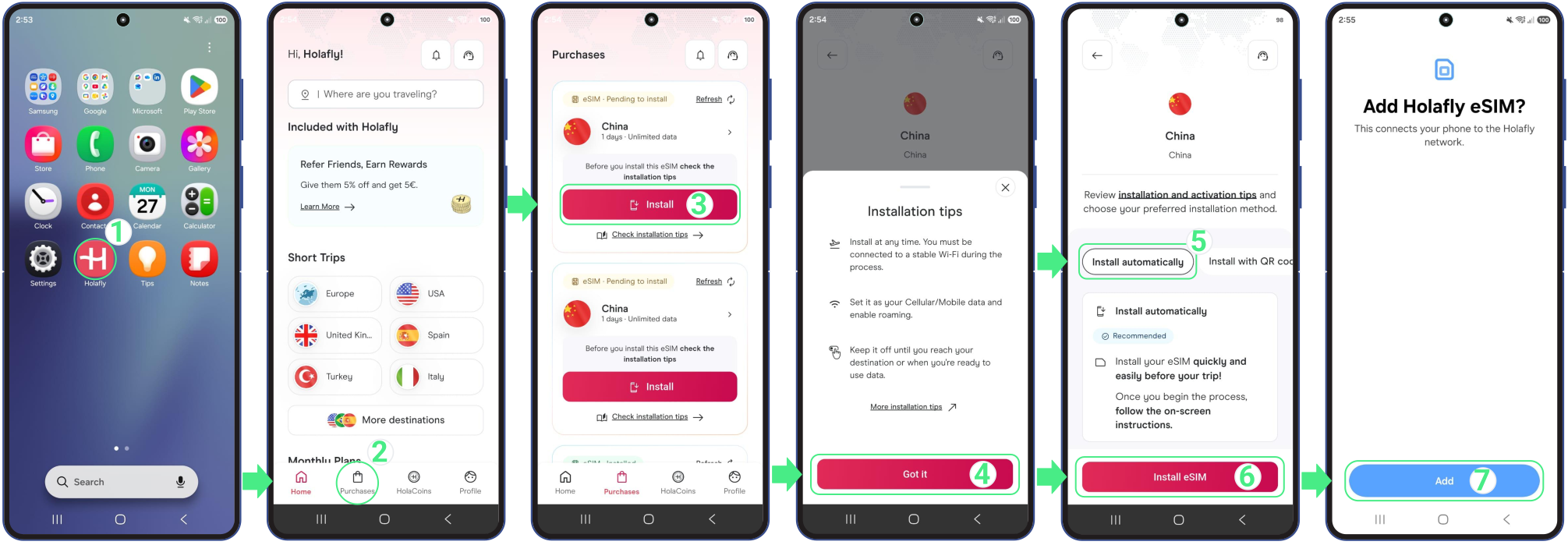
- Go to the app on your phone → Log in with the email associated with your purchase → Go to Purchases → Tap Install on the eSIM you want to add → Read the Installation tips and tap Got it to continue → Choose Install Automatically → Tap Install eSIM → Then, tap Add and Download to save your new line inside your OnePlus’s Mobile Network menu.
2. Install your eSIM on OnePlus with a QR code
The QR code method is another straightforward way to install an eSIM on your OnePlus. Since you will need to scan the QR code with your camera from the settings menu, make sure to open the QR code on another device (like a laptop, tablet, or another phone) or print it out before you begin.
Follow these steps to complete the installation correctly:
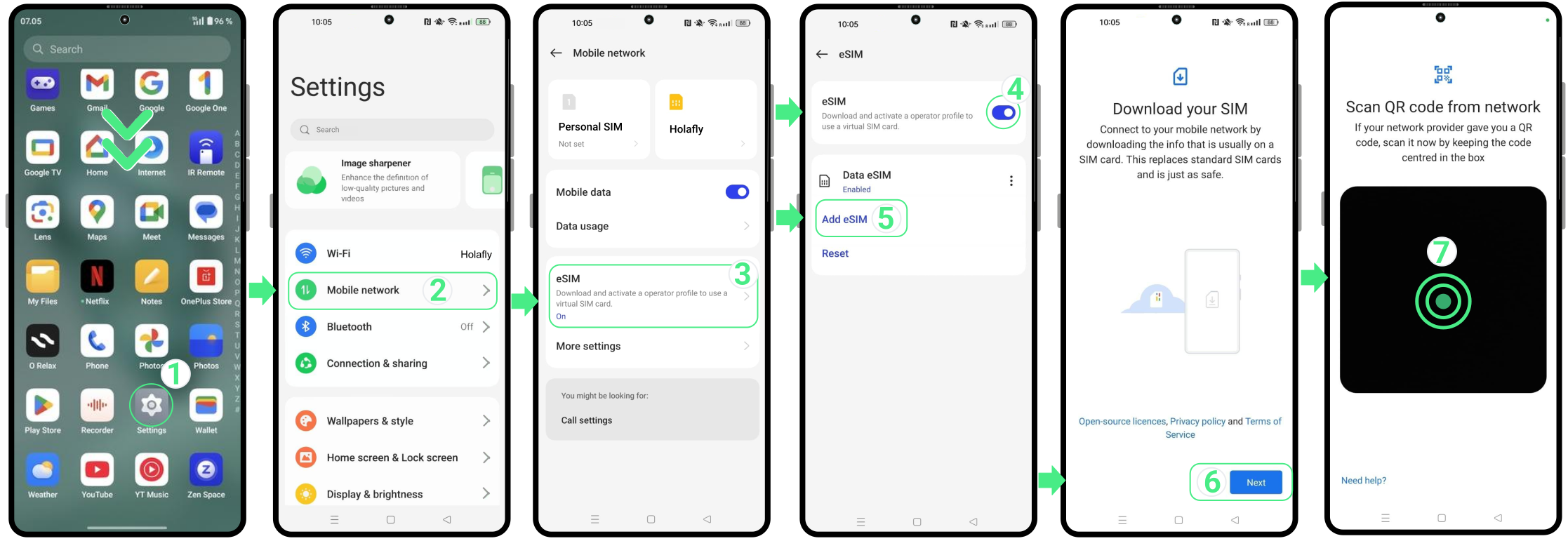
- Go to Settings → Mobile network → Tap on eSIM → Toggle on the eSIM switch → Tap Add eSIM → Select Next → Scan the QR code you received → Tap Download and wait for the installation to complete (keep this screen open until the process finishes) → Confirm that the eSIM has been added to your device.
3. Install your eSIM on OnePlus using manual codes
This method is a helpful alternative if you can’t use the app or scan a QR code.
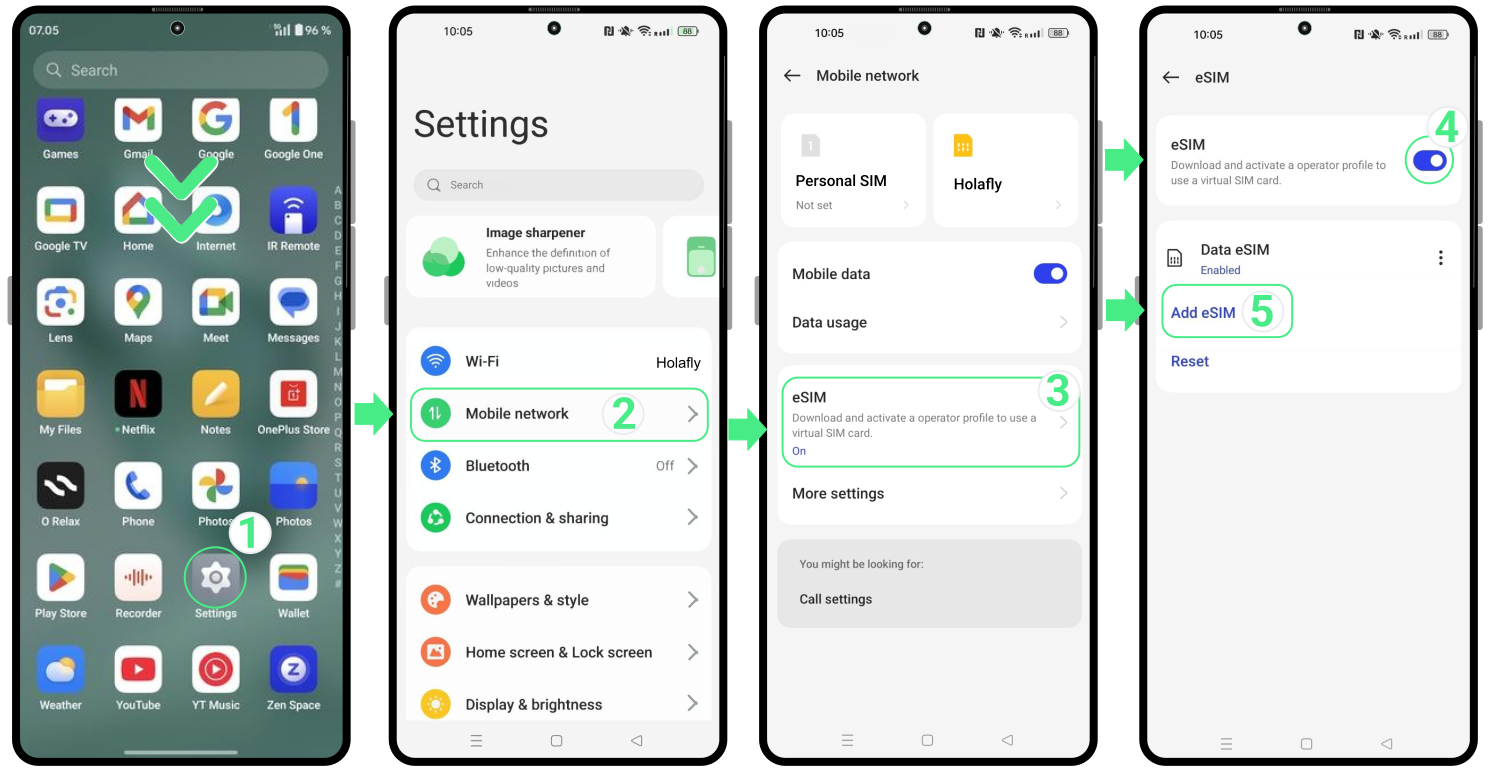
- Go to Settings → Select Mobile Network → Tap on eSIM → Toggle on the eSIM switch → Tap Add eSIM.
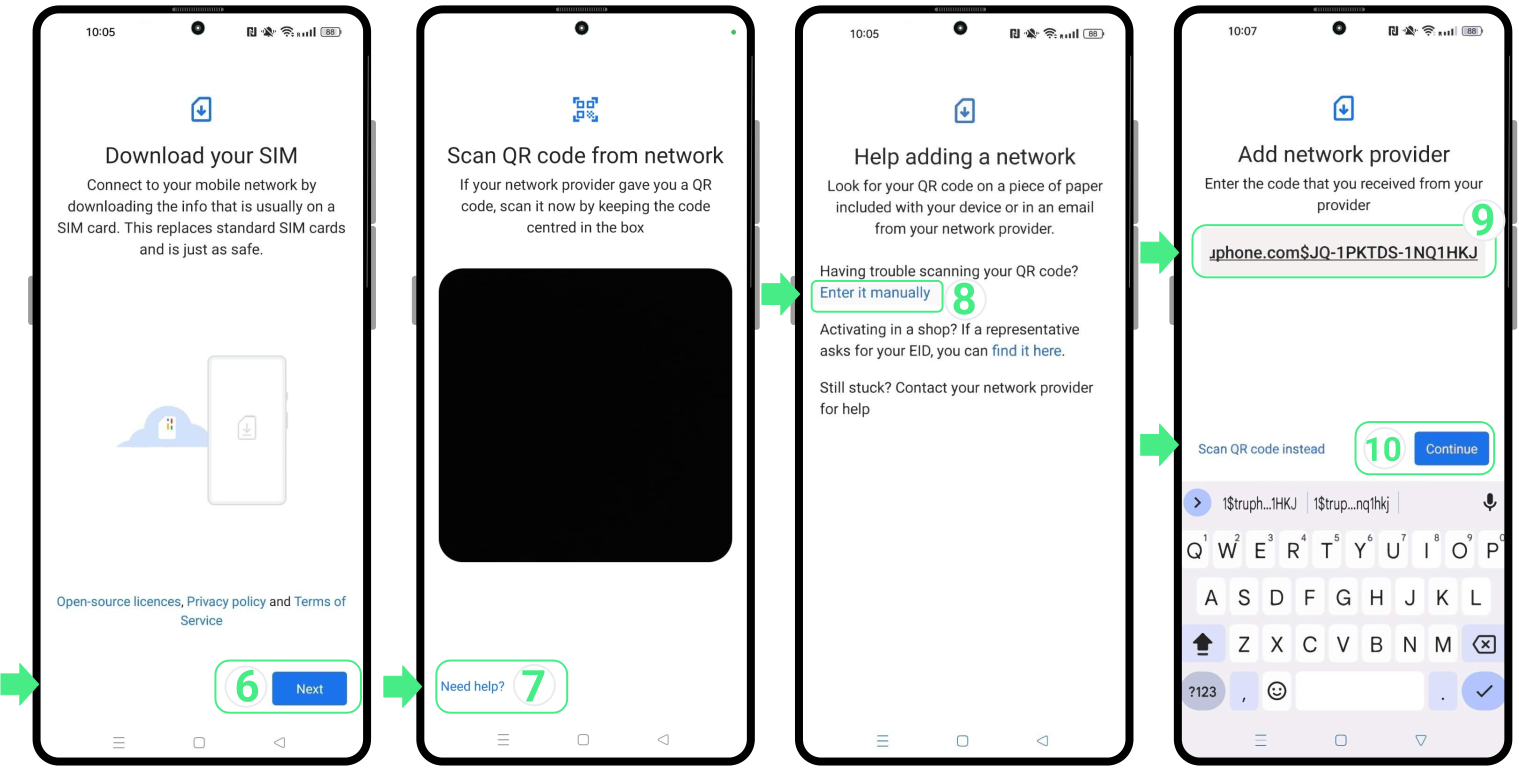
- Tap on Next → Select Need help? → Choose Enter it manually → Copy and paste the full installation details exactly as provided (including “LPA” and the colon “:”) → Tap Continue → Select Download and wait for the installation to finish (keep this screen open) → Confirm that the eSIM appears on your device.
Note: Please keep in mind that this is a manual text code, not a clickable link.
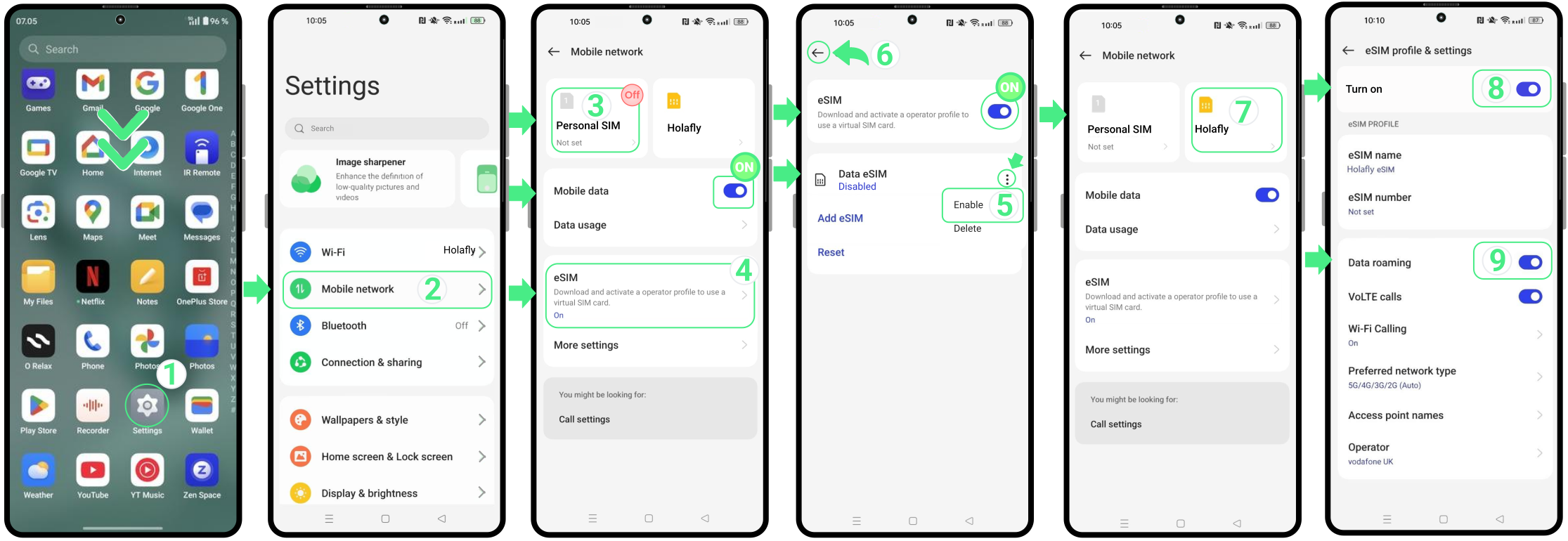
How to activate an eSIM on OnePlus
After installing your eSIM, the final step is to turn on the new line and select it for mobile data. You can do this directly from your OnePlus settings by following the steps below.
Note: If you’re using a travel eSIM, it’s best to turn on the line once you arrive at your destination to avoid starting your plan before your trip begins.
- Go to Settings → Select Mobile network → Disable your main SIM card/eSIM (optional, if you want to avoid extra charges with your home carrier) → Tap eSIM and make sure it’s enabled by turning on the switch → Tap the three dots next to the Data eSIM of the new installed eSIM and select Enable to confirm activation → Go back to Mobile network and select the New eSIM → Turn on the Enable switch → Toggle Data roaming switch (only if you are using an international travel eSIM).
To keep in mind
- eSIM support may vary depending on the carrier and the country of manufacture.
- Some OnePlus devices, like the OnePlus 11, support Dual SIM (physical + eSIM), allowing you to use two lines, but only one can be active for mobile data at a time.
- Remember that the OnePlus 9 and the Oneplus 9 Pro are not compatible with eSIM.
- The images, settings, and paths may differ depending on your device model and software version, but this will not impact the general instructions provided in this article.

Troubleshooting tips
During installation
If something unexpected appears on your screen while installing the eSIM, don’t start the process again just yet. In many cases, the eSIM has already been added successfully. Before trying again, check the following:
- On your phone: Go to Settings → Mobile network. Your new eSIM should appear there, usually with the name selected during setup.
- In the app: Review the status of your eSIM. If it shows “eSIM Installed – Ready to use”, you can proceed with activation.

Using your mobile data
If you’ve already turned on your eSIM and enabled Data Roaming, but mobile data still isn’t working, open your eSIM settings and select a network manually.
⚠️ Important: Don’t remove your eSIM. Once deleted, it couldn’t be installed again, and you won’t be able to use that data plan.