Language
FlexiRoam eSIM not working? Try these fixes
FlexiRoam not working? Here’s how to fix activation, APN, and network issues so you can get back online.

FlexiRoam not working can stop a trip in its tracks. The cause is usually one of a few common things: your phone won’t connect to a network, the APN is wrong, or roaming is disabled. Sometimes, your FlexiRoam eSIM is not working due to activation errors. Other times, FlexiRoam data not working comes down to one missed setting.
This guide walks you through troubleshooting steps to get your FlexiRoam eSIM up and running. And if the issues persist, you can always look for another eSIM provider, such as Holafly, which offers an unlimited-data travel eSIM.

An eSIM you can rely on
Join over 1 million customers and get connected with our trusted, global services.
What to do if my FlexiRoam eSIM is not working?
Common causes for your eSIM not working include device compatibility, incorrect FlexiRoam APN settings, or network configuration problems. Sometimes it’s a straightforward fix — data roaming is switched off, or your phone is locked to a carrier. Other times, FlexiRoam data not working comes down to a specific setting. Let’s walk through the fixes.
Disclaimer: The data in this article is accurate as of 21 April 2026, and is subject to change.
Check your device compatibility
First, check if you have an eSIM compatible phone.
For iPhone
- Open Settings > General > About.
- Scroll down to Carrier Lock. If it says “No SIM restrictions,” your iPhone is unlocked and can use eSIMs.
- Go to Settings > Cellular > Add Cellular Plan. If you see an “Add eSIM” option, your iPhone supports eSIM.
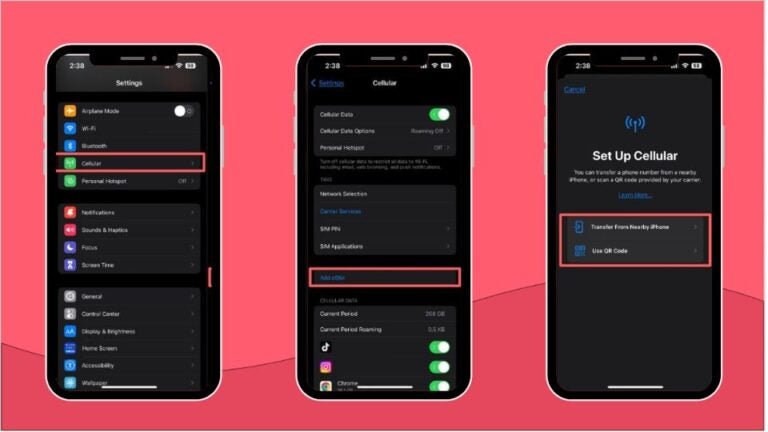
For Android devices (Samsung eSIM, Google Pixel eSIM, Huawei eSIM, Xiaomi eSIM, Motorola eSIM, Oppo eSIM, etc.)
Each brand has different steps, but a common method is:
- Open Settings > Mobile Network or SIM Management.
- Look for an option to Add an eSIM or eSIM profile.
- If you see an EID number (your eSIM’s unique identifier) in your device settings (under “About Phone”), your phone likely supports eSIM.
Ensure proper eSIM activation
Your FlexiRoam eSIM must be activated before it connects to a network. Once you’ve installed it, open the FlexiRoam app, go to Account > View My Plans, and tap Start Plan. If the plan still shows as inactive, refresh the app by rebooting your device, then try again.
If your phone has multiple SIMs or eSIMs installed and you see FlexiRoam data not working, the issue might be your active data line. Your phone could still be routing data through your physical SIM or another eSIM. To check this:
- On iPhone: Go to Settings > Cellular or Mobile Service and make sure FlexiRoam is selected as your active data plan.
- On Android: Go to Settings > Mobile Network > SIM Manager and set FlexiRoam as the active SIM for mobile data.
If your eSIM isn’t working despite activation, you may need to delete and reinstall it.
- Go to Settings > Cellular (iPhone) or Settings > Mobile Network (Android), select FlexiRoam, and tap Remove eSIM.
- Reinstall it by scanning the QR code from your FlexiRoam app or activation email.
Configure FlexiRoam APN settings
If your FlexiRoam eSIM is still not working after the activation steps, the cause is likely your FlexiRoam APN settings (APN stands for Access Point Name). It’s the gateway that lets your phone connect to the internet using mobile data.
Without the correct FlexiRoam APN settings, your device may show a signal but won’t be able to access the web, use apps, or send messages over data.
Some eSIMs automatically configure the APN when installed, but in many cases, you’ll need to enter it manually. FlexiRoam uses two different APNs depending on your plan:
- wbdata — for the FRX Global eSIM (used for most travel plans)
- flexiroam — for the MENA eSIM (Middle East and North Africa coverage)
Both should be entered in lowercase, with no spaces or punctuation. If you’re not sure which plan you have, check your plan information in the FlexiRoam app or activation email.
If your data isn’t working, check your APN settings and update them manually:
- On iPhone: Go to Settings > Cellular, tap your FlexiRoam eSIM in the SIMs section, then tap Cellular Data Network and enter the APN.
- On Android: Go to Settings > Network & internet > SIMs & Mobile network > Access Point Names. (The path varies slightly on Samsung — check Connections > Mobile networks > Access point names.)
Enter the FlexiRoam APN that matches your plan, leaving the username and password fields blank.
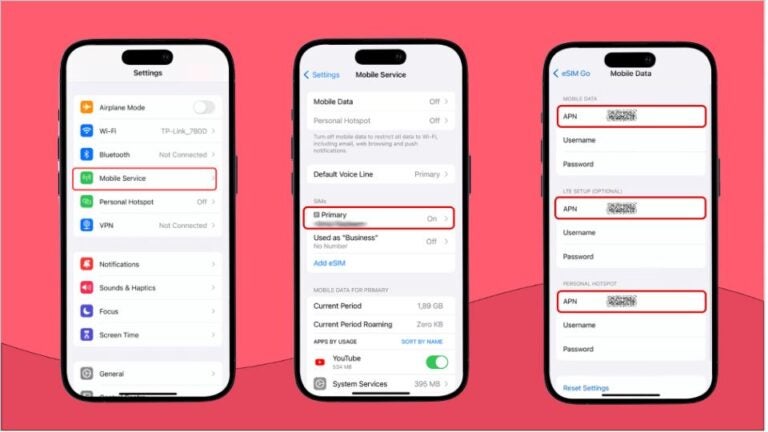
Resolve connectivity issues
If your FlexiRoam eSIM isn’t connecting even after activation and APN setup, there may be a network setting blocking the connection.
- Enable mobile data: eSIMs don’t connect automatically without mobile data turned on. Even if WiFi is available, your phone needs mobile data enabled for FlexiRoam to register with a network.
- Turn on data roaming: Unlike a local SIM, FlexiRoam relies on roaming to connect across different countries. If roaming is disabled, your phone won’t recognize the eSIM network. Some devices disable roaming by default, so it’s worth double-checking.
- Set FlexiRoam as the default mobile data provider: If you have multiple SIMs or eSIMs, your phone may still be using your primary SIM for data. Manually selecting FlexiRoam ensures your device is connected to the right provider.
- Update device software: Outdated software can cause compatibility issues with eSIM activation and network registration. Keeping your phone up to date helps prevent unexpected connectivity problems.
- Disable VPN: VPNs can interfere with eSIM connections by rerouting traffic through different servers. If you’re using a VPN, try turning it off to see if your eSIM connects properly.
Troubleshooting can only go so far. If your FlexiRoam eSIM is still not working, it may be time for a change. If your FlexiRoam eSIM is still not working, it may be time for a change.
Make the switch to Holafly: Peace of mind with unlimited data
Holafly offers hassle-free eSIMs with unlimited data in 200+ countries, so you never have to worry about running out of data while traveling.
Switching SIMs every time you cross a border? Not with Holafly. Regional plans like the eSIM for Asia, eSIM for Europe, and the eSIM for the Middle East keep you connected across multiple countries without having to change eSIMs or manage separate plans.
Plus, you can customize your data plan from 1 to 90 days, depending on how long you’re staying.
Purchase your Holafly eSIM directly from the website or via the Holafly app (available for iOS and Android). You can track your data usage, check remaining days, and access customer support in just a few taps.
Plus, Holafly’s customer support is available 24/7 in over 10 languages, so you can get help whenever you need it.
If your travels require uninterrupted internet connectivity across borders and across your devices, you should look into Holafly Plans. It’s a postpaid eSIM plan that offers hassle-free connectivity for long-term travels.

Your trip, your plan with Holafly
FAQ about FlexiRoam eSIM not working
If your phone shows signal but data isn’t loading, the APN is the most likely culprit. Go to your mobile network settings and check that the APN is set to flexiroam — all lowercase, no spaces or punctuation. If it’s correct and still nothing, toggle airplane mode on and off, or restart the device.
A FlexiRoam plan can pause if you’ve used up your data allowance, left the plan’s coverage area, or the validity period has expired. Open the FlexiRoam app to check the status — you may need to top up or buy a new plan to resume service.
Once your FlexiRoam eSIM is installed, go to Settings > Cellular (iPhone) or Settings > Mobile Network (Android) and select FlexiRoam as your active line for mobile data. Then turn on data roaming — without it, the eSIM can’t connect.
The two most common reasons are data roaming being switched off in your phone settings, or the eSIM not being set as the default line for mobile data. Open your cellular settings, turn on data roaming for the eSIM line, and confirm it’s selected for mobile data.
Plans that may interest you

Based in Mumbai, Sharan Kaur Phillora has 6+ years of experience in the B2B writing industry. She has written for brands like Pocket52, Nexweave, Maze, NaNLABS, and Userpilot. When she's not working, Sharan can be found immersed in murder mystery novels or exploring Mumbai's streets on her bicycle in search of the perfect slice of pizza.