Language

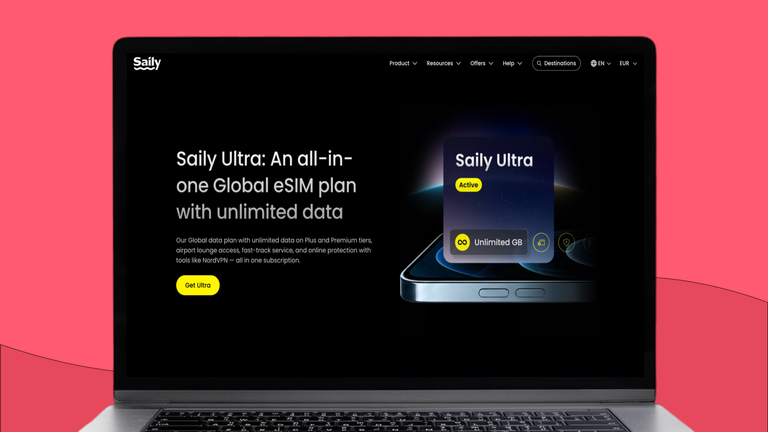
Saily Ultra eSIM not working: Causes and fixes by tier
Fix Saily Ultra install errors, no internet, slow data and hotspot issues, plus what to do if nothing works.

Your Saily Ultra eSIM may not be working because of device incompatibility, installation errors, local network issues, or a destination outside its coverage.
This guide explains how to troubleshoot your connection by symptom and subscription tier, from missing data and slow speeds to hotspot problems and benefits that won’t activate.
If the fixes don’t resolve your issue, we’ll cover how to contact support, cancel your subscription, and explore alternatives such as Holafly Plans, a monthly eSIM subscription for staying connected abroad.
Disclaimer: The data in this article is accurate as of November 2, 2026, and is subject to change.
Saily Ultra eSIM not working: Quick fixes to try first
If your Saily Ultra eSIM isn’t connecting, start with these five checks. Most take under two minutes and can help you get back online before trying the fixes for your specific symptom or tier.
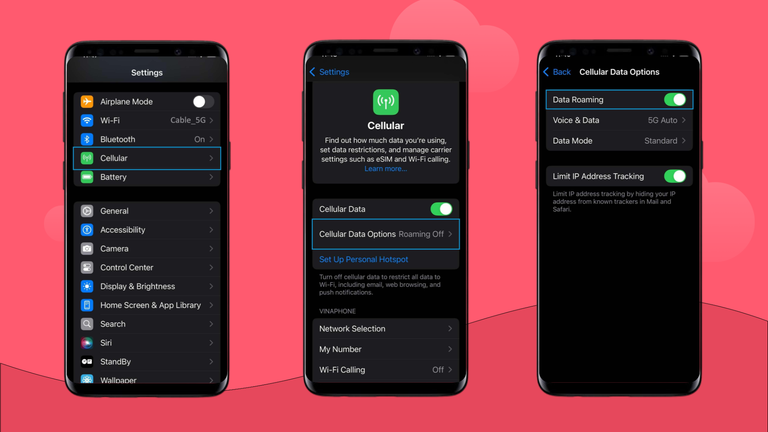
- Turn on data roaming for the Saily line. Open your phone’s mobile network settings, select your Saily eSIM, and enable data roaming. Keep roaming off for your home line to avoid unexpected charges.
- Set Saily as your mobile data line. If you have two SIMs active, check that your phone uses Saily for mobile data rather than your home SIM.
- Toggle airplane mode. Turn it on, wait about 30 seconds, then turn it off to reconnect to the network.
- Restart your phone. Switch it off and back on, then test your connection.
- Check your remaining data in the Saily app. Review your plan’s status and high-speed data allowance to see whether you’ve reached your tier’s limit.
Saily Ultra problems at a glance
Find your Saily Ultra issue below and jump to the relevant troubleshooting section.
| Symptom | Likely cause | Section to read |
|---|---|---|
| Won’t install | Incompatible or carrier-locked phone, an installation error, or an unstable internet connection | Saily Ultra eSIM won’t install or activate |
| “No service” | Destination outside coverage, weak local reception, or a network registration issue | Destination coverage and local networks |
| Signal but no internet | Incorrect mobile data, roaming, or APN settings | Data roaming and APN settings |
| Slow data | High-speed data limit reached, weak signal, or network congestion | Saily Ultra data is slow or has stopped |
| Hotspot not working | Device tethering settings or hotspot configuration | Hotspot troubleshooting |
| Premium number not working | Number activation, account eligibility, or calling configuration | Premium phone number troubleshooting |
Saily Ultra eSIM won’t install or activate
Check your phone is compatible and unlocked
Not every phone supports eSIM technology. Before troubleshooting installation, make sure your device is:
- eSIM-compatible: A physical SIM slot alone doesn’t confirm compatibility.
- Unlocked: Your phone must accept service from other carriers.
- Compatible with local networks: Supported network bands can vary by model and destination.
Check Saily’s compatible device list for your exact model and region. You can also look for the option to add an eSIM:
- iPhone: Settings > Cellular (or Mobile Data) > Add eSIM.
- Samsung: Settings > Connections > SIM manager > Add eSIM.
- Google Pixel: Settings > Network & internet > SIMs > Add SIM > Set up an eSIM.
Menu names may vary by software version. On iPhone, check Settings > General > About > Carrier Lock: “No SIM restrictions” means it’s unlocked. For Samsung or Pixel, confirm with your original carrier.
Check the installation and activation
Even a compatible phone can have installation or activation problems. Use this three-question checklist:
- Has the installation process been completed? Check whether the Saily eSIM profile appears in your phone’s network settings.
- Is the plan activated? Check its status in the Saily app. Installation alone doesn’t confirm that your subscription is active.
- Is there a signal, or does it say “No service”? This message can indicate that the eSIM hasn’t connected to a local network.
If installation failed, connect to reliable WiFi, remove the Saily eSIM, and reinstall it through the Saily app. For full setup guidance, see our Saily eSIM troubleshooting guide.
Saily Ultra connected but no internet
Check data roaming and APN settings
If Saily shows a signal but websites won’t load, check that data roaming is enabled for your Saily line:
- iPhone: Settings > Cellular (or Mobile Data) > Saily > Data Roaming.
- Samsung: Settings > Connections > Mobile networks > Data roaming. Confirm Saily is selected for mobile data.
- Google Pixel: Settings > Network & internet > SIMs > Saily > Roaming.
Next, check the APN, which controls how your phone connects to mobile internet. On Samsung, look under Connections > Mobile networks > Access Point Names; on Pixel, under Network & internet > SIMs > Saily > Access Point Names.
If the Saily APN is missing on Android, open the Saily app over WiFi and leave it open for up to five minutes for automatic configuration. On iPhone, contact Saily support if the APN is missing or you need manual settings. Refer to Saily’s Help Center for the correct APN settings rather than entering unverified details.
Check your destination is covered
Saily Ultra covers 121 destinations across all tiers, but your subscription won’t work outside its coverage area.
- Open the Saily app and check the destinations included in your active plan.
- Confirm your current destination is listed and review any local restrictions.
If it isn’t covered, check whether Saily offers a separate destination plan or arrange another connection.
Check for local network problems
Local network issues can cause slow speeds or intermittent internet, even in a covered destination. Congestion and weak reception may affect airports, busy tourist areas, and rural locations.
- Open Network Selection on iPhone or Network operators on Android.
- Disable automatic selection and search for available networks.
- Try another supported network. Your eSIM may not connect to every listed operator.
Saily Ultra data is slow or has stopped
If your Saily Ultra data slows down or stops, check whether you’ve used your tier’s monthly allowance before changing your phone settings:
- Standard: Includes 10 GB of high-speed data, with no data included after that.
- Plus and Premium: Include 30 GB of high-speed data each month, followed by unlimited data at up to 1 Mbps.
At reduced speeds, messaging and basic browsing may still work, but video calls, streaming, and large downloads can take longer or struggle to load. “Up to” describes the maximum reduced speed; actual performance depends on network conditions.
To check your remaining data:
- Open the Saily app.
- Select the eSIM associated with your Ultra subscription.
- Check the remaining data displayed under that eSIM and review your active plan.
Can you top up? Saily’s Help Center allows you to purchase an additional data plan through Add data, choosing a destination and an available package. This is a separate purchase, rather than a reset of your Ultra high-speed allowance. Check the options available for your eSIM before paying.
The options available for a Saily top-up depend on your destination and the data packages offered in the app.
Saily Ultra hotspot or phone number not working
Hotspot not working
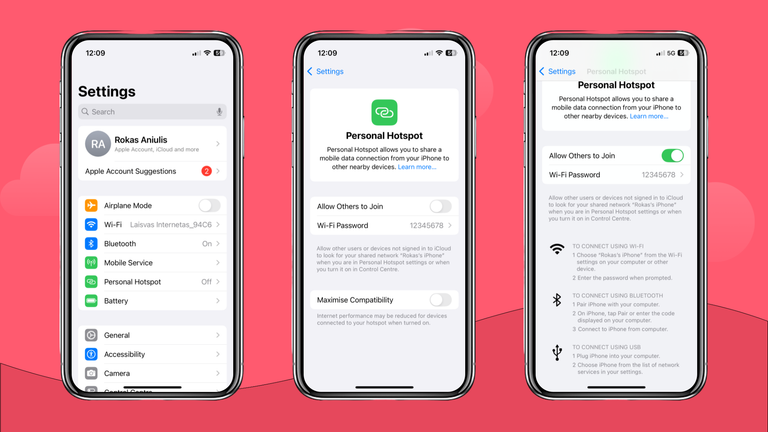
If your Saily hotspot is not working, confirm that mobile data works on your phone and Saily is the selected data line. Then check:
- iPhone: Settings > Cellular > Personal Hotspot > Allow Others to Join.
- Android (Samsung): Settings > Connections > Mobile Hotspot and Tethering > Mobile Hotspot.
Check the hotspot password on the connecting device. Hotspot usage draws from your plan’s data allowance. On Plus and Premium, the up to 1 Mbps limit also affects shared data after you use 30 GB.
Premium phone number not working
Only Premium includes a US number with 50 minutes and 50 texts per month. In the Saily app, check your number’s activation status and remaining minutes and texts. Complete identity verification if it’s pending.
Check the number’s setup settings in the app and confirm your intended call or text is covered. If activation or allowance details are unclear, contact Saily support.
Saily Ultra benefits not working
If your Ultra benefits aren’t available, contact Saily support through the app for help with the specific service.
- NordVPN, NordPass, NordLocker, and Incogni: Saily lists these tools as included benefits. If you cannot activate one, tell support which service is affected and share the error message so they can check your access.
- Lounge access: Check Saily’s Help Center list of supported lounges, including the airport and terminal. Access is available at selected locations.
- Flight-delay lounge access: If your flight is delayed by at least two hours, contact Saily support with your flight details and boarding pass. The name on your boarding pass must match your account information. Saily issues the pass after verifying your details, and only participating lounges are included.
How to contact Saily support, cancel or get a refund
If troubleshooting hasn’t restored your connection, contact Saily support to check your account and discuss your options.
Contact support: Open the Saily app and start a live chat. Have these details ready to help the team investigate:
- Your phone model and operating system version.
- Your current country and city.
- Your Ultra tier and remaining data.
- Screenshots of error messages and relevant network settings.
- A list of the fixes you’ve already tried.
Cancel your subscription: Cancel at least two days before your next payment to prevent renewal:
- Open the Saily app and go to Profile > Your plans.
- Select your Ultra subscription.
- Choose cancel and confirm the cancellation.
Contact support if you cannot complete the process. Canceling stops future renewal but doesn’t automatically request a refund. The steps to cancel Saily Ultra explain the process.
Request a refund: Saily may consider a full subscription refund if:
- You submit your request within 14 calendar days of purchase or recurring payment.
- Data usage doesn’t exceed 5% of your monthly or quarterly allowance.
- No included extras have been activated or used.
Partial refunds may apply under other usage conditions. Contact support to confirm your Saily refund eligibility and submit your request.
If the service no longer fits your travel needs, Saily Ultra alternatives include other subscriptions worth considering.
Holafly Plans: Stay connected without the troubleshooting
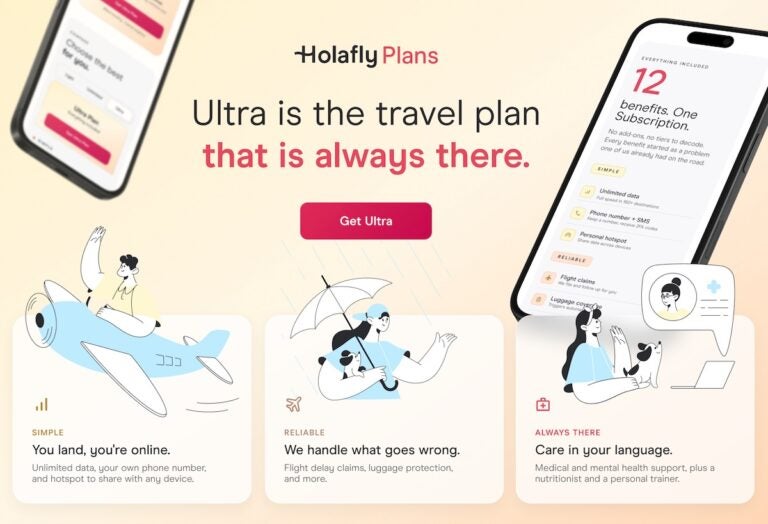
When you’re living or working abroad, finding a mobile plan that fits your stay is part of getting settled. Holafly Plans offers monthly subscriptions for 160+ destinations, with three options to suit your needs:
- Light Plan: 25 GB a month with hotspot.
- Unlimited Plan: unlimited data and hotspot, plus a US, Canadian or UK number for receiving SMS.
- Ultra Plan: everything in Unlimited, plus doctor chat, mental wellbeing support, flight claim and luggage protection.
You can cancel renewal anytime, and 24/7 support is available whenever you need help. For a single trip, a Holafly Trips eSIM lets you choose coverage for the days you’ll be away.
For a closer look at both subscriptions, the Holafly Plans vs. Saily Ultra comparison breaks down their features and costs.
Each option also includes Always On: 1 GB of backup data every 30 days in 150+ destinations after your plan ends, at no extra cost, as long as you keep the eSIM installed.
FAQs about Saily Ultra not working
Does deleting my Saily eSIM cancel my Ultra subscription?
No, deleting your Saily eSIM does not cancel your Ultra subscription or stop recurring payments. You must cancel renewal separately in the Saily app at least two days before your next payment.
What if I deleted my Saily eSIM by mistake?
Connect to reliable WiFi and reinstall the eSIM through the Saily app. If you cannot reinstall it or see an error message, contact Saily support to check your installation and plan status.
Why is my Saily Ultra data so slow?
Plus and Premium reduce speeds to up to 1 Mbps after you use your monthly 30 GB high-speed allowance. Check your remaining data in the app. If you haven’t reached the limit, weak reception or local network congestion could explain the slowdown.
Can I get a refund if Saily Ultra doesn’t work?
You may qualify, but a refund isn’t automatic. Saily may consider a full subscription refund within 14 days of purchase or recurring payment if data usage doesn’t exceed 5% of the monthly or quarterly allowance and no included extras have been activated or used. Contact support to confirm your eligibility.
Plans that may interest you

Hi! I'm a Spanish-English copywriter working with Holafly, helping bring travel content to life for curious travelers. As a digital nomad with a passion for exploring, I'm always adding new spots to my bucket list. If you love to travel like me, stick around because you're in the right place to find inspiration for your next trip! ✈️🌍