Language
MobiMatter eSIM not working? Here’s how to fix it
Having trouble with your MobiMatter eSIM? This guide covers the most common causes and step-by-step fixes for activation, data, and APN issues on iPhone and Android.

Can’t get your MobiMatter eSIM to work, or has it stopped working after some time? You can often fix the issue yourself in just a few minutes.
This guide covers the most common reasons a MobiMatter eSIM stops working and how to troubleshoot them step by step, whether you’re on iPhone or Android.
From checking your settings to restarting your phone, you’ll find quick fixes to get your eSIM working again. Consider a Holafly eSIM for your next trip and enjoy instant, hassle-free data abroad.

An eSIM you can rely on
Join over 10 million Holafly customers and get connected with our trusted, global services.
Why is my MobiMatter eSIM not working on Android or iOS?
There are several reasons why a MobiMatter eSIM isn’t working. It usually comes down to a few common issues:
- Incomplete activation: A missed step during setup can prevent the eSIM from connecting.
- Data roaming is off: Travel eSIMs require data roaming to connect to local networks. Without it, you will have no mobile data.
- Incorrect APN settings: Some Android devices require manual APN configuration for the eSIM to work.
- Carrier lock: If your device is locked to another carrier, it may not support a third-party eSIM.
- Poor coverage: A weak signal in your current location can prevent the eSIM from connecting to a local network.
Now, let’s walk through some troubleshooting steps to help you resolve these problems and get your eSIM working again.
If you’re unfamiliar with how MobiMatter works as a provider, our MobiMatter review covers plans, pricing, and coverage in full.
Disclaimer: The data in this article is accurate as of October 13, 2026, and is subject to change.
What to do if your MobiMatter eSIM is not working
Whether it’s an activation hiccup, connection drop, or settings issue, these steps to troubleshoot will help you pinpoint the problem and fix it quickly.
Check your device compatibility
First things first — make sure your phone supports eSIM. Here are some popular eSIM-compatible devices:
- iPhone: XS, XR, 11, 12, 13, 14, and 15 series, iPhone SE (2nd and 3rd generation), and iPhone 16 series.
- Samsung: Galaxy S20, S21, S22, S23, S24, and S25 series, Note 20, Z Fold 2, 3, 4, 5, and 6, Z Flip 3, 4, 5, and 6, and select A-series models in certain regions.
- eSIM on Google Pixel: Pixel 3 and newer, including the Pixel 9 series.
- Huawei: P40, P40 Pro, P50, Mate 40, and Mate 50. eSIM functionality may be limited in some regions, including China, Hong Kong, and Macao.
- eSIM on Xiaomi: 12T Pro, 13, 13 Pro, 14 e 14 Pro.
- Sony: Xperia 1 IV, 1 V, and 1 VI.
- Motorola: Razr 5G, Razr 2022, and Razr 2023.
If your phone doesn’t support eSIM, your MobiMatter eSIM won’t be able to connect. To be sure, check your device settings or our eSIM-compatible phone list to see whether your mobile is eSIM-ready.
Check your activation
If your MobiMatter eSIM is not connecting, start by checking your activation. After purchasing, you should receive an email with a QR code and an activation code. You can also find these on the confirmation page after purchase.
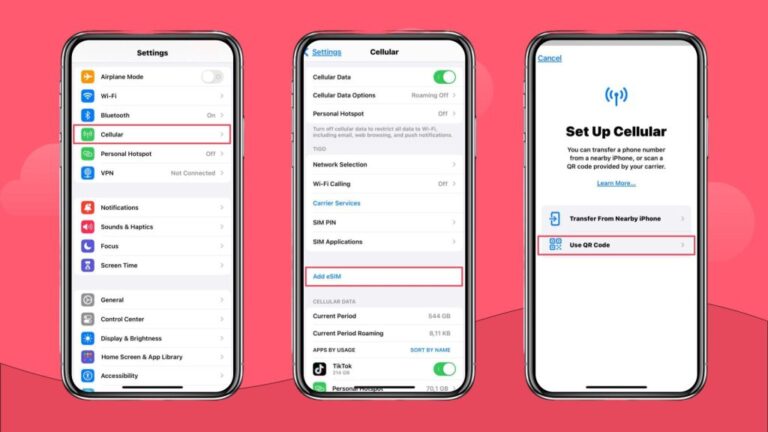
On iPhone: go to Settings > Cellular > Add eSIM and scan the QR code. If that does not work, enter the activation code manually.
On Android: go to Settings > Network & Internet > Mobile Network > Add Carrier and scan the QR code or enter the code manually.
After installing, restart your phone and check whether the eSIM is showing as active in your cellular settings.
Fix installation errors
“eSIM Cannot Be Added” error: This usually means the eSIM profile is already installed on your device. Go to your phone’s cellular settings to check whether the profile is already listed and ready to configure.
“Unsupported eSIM” error: Your device may be carrier locked. On iPhone, go to Settings > General > About > Carrier Lock. It must say “No SIM restrictions” for the eSIM to work. Contact your carrier to unlock your device if needed.
Turn on data roaming
This is the most commonly missed step. Travel eSIMs connect to local partner networks, and data roaming must be enabled for this to work.
On iPhone: go to Settings > Cellular > select your MobiMatter eSIM > enable Data Roaming.
On Android: go to Settings > Network & Internet > Mobile Network > select your MobiMatter eSIM > enable Roaming.
Restart your phone
Restarting your phone resets the network connection and clears any temporary software errors. After restarting, check whether the eSIM connects automatically.
Check your coverage
Poor or no signal can prevent your eSIM from connecting. Check the signal bars at the top of your screen. If coverage is weak, move to a different location and try again before troubleshooting further.
Update your APN settings
APN settings tell your device how to connect to the mobile network. They should be set up automatically during activation, but on some Android devices, you may need to enter them manually.
Check your MobiMatter confirmation email or the MobiMatter help center for the correct APN values for your destination.
- Go to your phone’s settings:
- On iPhone, go to Settings > Cellular > Cellular Data Network
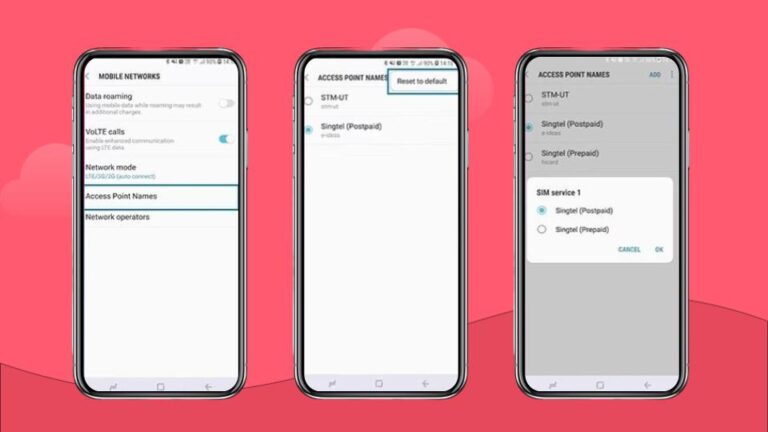
- On Android, go to Settings > Network & Internet > Mobile Network > Access Point Names
- Save and restart: After updating the APN, save the changes and restart your phone to apply them.
If your APN settings are correct and you still don’t have mobile data, try switching off airplane mode, toggling data roaming, or manually selecting a different network under your mobile network settings.
Manually select a network
If your eSIM is struggling to find a signal, try selecting a network manually. Go to your mobile network settings, turn off Automatic network selection, and choose a supported network from the list provided in your MobiMatter activation instructions.
Note: If none of the steps above work, get in contact with Mobimatter directly, as you cannot attempt to reinstall the same eSIM profile once it has been deleted from your device.
If you’re considering your options more broadly, our Holafly vs MobiMatter comparison breaks down how the two providers differ on plans, pricing, and support.
MobiMatter eSIM still not working? Try Holafly
If you have worked through these steps and your MobiMatter eSIM is still not connecting, it may be worth trying a different provider. Holafly offers travel eSIMs in 200+ destinations with unlimited data, 5G speeds, and 24/7 customer support included in every plan.
Holafly also offers Holafly Plans, a pay-monthly eSIM subscription covering 170+ destinations on a single eSIM. Cancel anytime, no long-term commitment.
And with Holafly’s Always On 1 GB backup data included with every eSIM purchase, you can enjoy instant internet access for emergencies, like calling an Uber or booking a last-minute flight. Simply keep the Holafly eSIM installed on your device to stay connected whenever travel gets difficult.
An eSIM you can rely on
Join over 10 million customers and get connected with our trusted, global services.
Plans that may interest you

I am a Liverpool-based SEO content specialist with years of experience crafting content that connects. I combine my love for clear communication with a passion for travel and languages (currently diving into Japanese!). At Holafly, I'm here to help you understand everything about staying connected abroad, turning technical jargon into straightforward advice you can actually use.