

 Language
Saily eSIM not working: Causes and how to fix it
Saily eSIM not working? The issue may lie within your software, hardware, or an error on the provider's end. Here’s how you can fix it or get a new eSIM.
Got yourself an eSIM from Saily but struggling to get it to work? There are a number of possible causes, from your device settings and eSIM configuration to an issue with Saily’s service. Some common issues are easy to fix, while others can take a little longer.
Follow along for a detailed guide on why your Saily eSIM is not working, how you can solve it, and what to do when you’ve tried every option.
If you can’t get your Saily eSIM to work, there are reliable Saily alternatives on the market. Consider Holafly, a global eSIM provider with years in the business that offers unlimited data and 24/7 customer support with every plan.

Peace of mind before you fly
Set up your eSIM before travel and get unlimited data on arrival.
Can’t activate Saily eSIM
If you’re new to using eSIMs or if it’s simply your first time using Saily, you might have missed a step in the activation process. This is one of the main reasons why users can’t get their eSIM to work. Here are the steps you should follow to ensure a successful activation of your Saily eSIM:
Check device compatibility
Not all devices support eSIM technology. Before buying any eSIM plan, make sure you have an eSIM-compatible phone. Most newer devices are, but some older or cheaper models may not work with eSIMs.
Activate eSIM on iPhone and Android
If you’ve purchased your eSIM through the Saily app, the setup process is similar on both iOS and Android devices. Here’s what you need to do:
- Buy your eSIM and install your Saily eSIM through the Saily app before travelling.
- Make sure the eSIM is enabled and data roaming is turned on before you depart.
- The plan activates automatically when you arrive at your destination.
- Once you arrive, select Saily as your mobile data line.
- On iPhone, disable Mobile Data Switching to ensure your device uses the Saily eSIM for mobile data.
- Disable your primary SIM to avoid unexpected roaming charges from your Australian mobile provider.
Error message when activating eSIM
You may get an error message when trying to activate your Saily eSIM. Thankfully, there aren’t that many possible reasons for this error. Check for the following, then try again:
- Make sure you’re connected to WiFi or mobile internet.
- Check if you have free eSIM slots. Delete any slots you don’t use if full.
- If the eSIM is already installed, you don’t need to install it again. If you deleted it, Saily currently allows you to reinstall the eSIM through the Saily app.
If neither of the above applies to you, yet you’re still receiving the error message, contact Saily’s customer support team for help.
Saily eSIM not working after activation
Managed to successfully activate your plan, but the eSIM is not working? The issue lies either within your settings or the Saily service itself. There are several things you can do to try to solve the issues on your end.
If none of these help, the issue might be on Saily’s end. To resolve the problem, you can reach out to the customer support team. Keep in mind that Saily doesn’t have a WhatsApp number, so you will need to use the live chat in the app or submit an email form.
Still no resolution? You’ll need to request a refund. Refund eligibility depends on the circumstances. Uninstalled or unactivated plans may be eligible for a full refund within the applicable refund period, while activated plans may qualify for a partial or full refund in certain situations. Check Saily’s current refund policy before submitting a request.
Disconnect from WiFi
If you’re troubleshooting your Saily eSIM, temporarily turn off Wi-Fi and check whether your phone can connect to the internet using mobile data. This helps you determine whether the issue is with your eSIM connection or the Wi-Fi network.
Check if your eSIM and data roaming are enabled
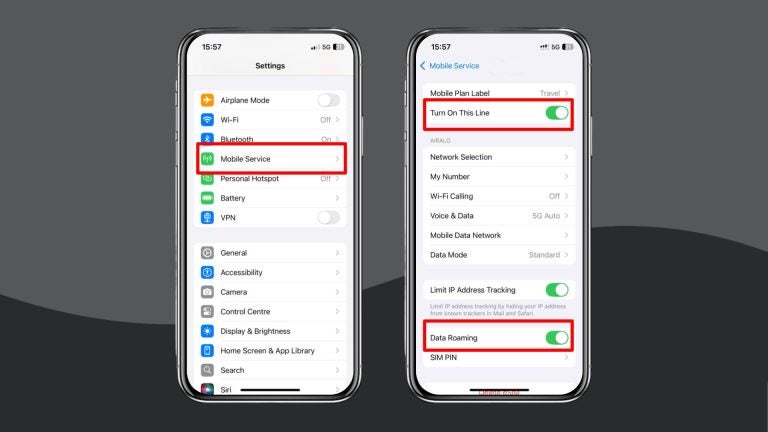
Both your eSIM profile and data roaming need to be enabled in order for the eSIM to work. If you have your Australian SIM installed, turn off mobile data and data roaming on that line to avoid unexpected international roaming charges.
- On iPhone, go to Settings -> Mobile Service (or Cellular) -> tap on your eSIM line -> make sure that the line is turned on and Data Roaming is enabled.
- On Android, go to Settings -> tap Network & Internet settings -> select your eSIM line -> make sure that both the eSIM line and data roaming are turned on.
Check your APN settings
Incorrect APN settings can prevent your Saily eSIM from connecting to mobile data. Check the APN settings recommended for your Saily plan.
If you’re using an Android phone and the APN is missing, open the Saily app and leave it open for a few minutes to allow the settings to configure automatically.
If you’re using an iPhone and still can’t connect, contact Saily support for help with your APN settings.
Restart your device
If you haven’t restarted your phone in a while, there may be some bugs or glitches in the system that need to be reset in order for it to work again. You can try turning airplane mode on and off, which restarts just the network settings. If that doesn’t work, turn off your device completely and turn it back on again.
Check your data usage
If you were able to use Saily’s eSIM for a while and it stopped working, you may have simply run out of data on your plan. Open your Saily app and check if you have any data remaining. If not, you’ll have to get a top-up or a new eSIM plan altogether.
Reset your network settings
If nothing else works, you might need to perform a hard reset of your network settings. This wipes all previous network connections clean and leaves you with an empty set of settings, ready to be used again.
- On iOS, select Settings > General > Transfer or Reset iPhone > Reset > Reset Network Settings
- On Android, select Settings > System > Reset options and look for the option to reset Wi-Fi, mobile and Bluetooth settings. The exact wording may vary by device.

What if I accidentally deleted my Saily eSIM?
If you accidentally delete your Saily eSIM, you can reinstall it through the Saily app. Open the app, go to eSIMs, select the relevant eSIM, and follow the installation instructions. Saily also allows an eSIM to be reinstalled on another device when you use the same account.
What to do when you’ve already tried everything
Talking to Saily’s customer agents on live chat or trying quick fixes in your phone’s settings isn’t how anyone wants to spend their time away from home.
If you’ve tried all the fixes and your Saily eSIM still won’t work, or you simply want a different solution, here’s what you can do:
- Request a Saily refund through Saily’s refund request process.
- Delete your Saily eSIM to free up space in your settings for a new profile*
- Run a quick comparison against other eSIM providers. Here is our Holafly vs. Saily match-up.
- Choose the eSIM that makes your next trip stress-free.
*You may need your Saily eSIM during the refund process. So it is best to wait until your case is closed before deleting the eSIM profile.
For stress-free travel, Holafly has your back
After all that troubleshooting, the last thing you need is connection issues while you travel. Get any Holafly eSIM and enjoy unlimited data, 5G speeds, and 24/7 customer support across 200+ destinations, with plans to match any trip length.
From long layovers to unexpected stops in a country your plan doesn’t cover, simply keep your Holafly eSIM installed and use Always On to stay connected across 150+ global destinations. Journey with peace of mind, knowing Holafly has your back.
Disclaimer: The data in this comparison is accurate as of September 24, 2026 and is subject to change.
Got a Saily Ultra subscription? Your process may look a little different. See here what to do when Saily Ultra isn’t working for you.

Connect to the fastest networks
International eSIMs, local networks. Enjoy the best of both worlds with Holafly.
Plans that may interest you


Formerly a travel journalist turned marketing copywriter, I found my way back to the travel world with Holafly—my dream company that made remote work possible. My motto? “Dream big and make it happen.” I’m passionate about writing, exploring the world, and staying active through walking, running, swimming, and hiking. I also love learning, reflecting, and connecting with inspiring minds.