


 Language

eSIM not working: How to troubleshoot and fix common issues
If your eSIM is not working, you can troubleshoot and fix most common problems by restarting your phone, updating software, or resetting network settings.
If your eSIM is not working, you can troubleshoot common problems by checking your mobile data and roaming settings, restarting your phone, updating software, or resetting network settings.
Below are the reasons an eSIM stops working and the steps that fix each one, on both iPhone and Android. If you want a reliable travel eSIM, Holafly offers unlimited data plans with 24/7 customer support to help you stay connected throughout your trip.

An eSIM you can rely on
Why is my eSIM not working?
There are a few reasons why your eSIM may not be working. First of all, you need three things for your eSIM card to work: a compatible device, network coverage, and an eSIM data plan.
Let’s look at these one by one.
1. eSIM compatibility
First things first: ensure you have an eSIM-compatible phone.
Most newer smartphones support eSIMs, including iPhone XS/XR and later models, Google Pixel 7 and newer models, and selected Samsung Galaxy S20 and newer devices. However, compatibility can vary by model and region, so double-check that your phone supports eSIM before buying a plan.
2. Network coverage
eSIMs work on the same cellular networks as regular SIM cards. So, if you have good cell coverage, your eSIM should work well, too. But if you aren’t seeing any coverage bars, your eSIM won’t work well, or won’t work at all.
To check for coverage, visit your service provider’s website and look for a coverage map. While not all eSIM carriers have detailed maps, most will offer some kind of coverage overview.
3. An eSIM plan
Just having a compatible phone won’t automatically give you eSIM coverage. Whether it’s a monthly plan or a data-only travel eSIM, you need to ensure you have an active eSIM plan.
Much like with physical SIM cards, you can have an eSIM that isn’t connected to an active data plan. Make sure you have a valid eSIM plan and follow your provider’s activation instructions. Some travel eSIMs only connect to a supported network once you arrive at your destination.
How to fix eSIM not working
Have all of the things above, but the eSIM is still not working? Let’s take a look at some of the main issues eSIM users face and how to fix them.
Check if your phone is unlocked
If you bought your device from your cell service provider, it may be locked to the provider’s mobile network. As a result, the eSIM may not work with travel eSIMs or plans from other providers.
Make sure to check if your phone is unlocked before buying your eSIM plan to avoid unexpected issues.
Restart your phone
A glitch in the network settings can sometimes cause connection issues. Restarting your phone — yes, the classic turn it off and on again trick — forces your phone to reconnect to the mobile network and can often solve minor glitches immediately.
Turn airplane mode on and off
Turning airplane mode on and off works similarly to restarting your phone. It disconnects your phone from the mobile network, then reconnects when airplane mode is turned off. This eliminates minor connectivity glitches and can get your eSIM working in seconds.
Make sure data roaming is turned on
If you have coverage but your mobile internet isn’t working, your data roaming might be turned off in your eSIM profile settings.
Make sure your data roaming is switched on. To do this, open your device’s Settings > Mobile/Cellular Data > Mobile/Cellular Data options > Data Roaming. Then go to your eSIM profile and make sure data roaming is turned on there as well.
Update your software
Outdated software often causes connection issues. Make sure your operating system is up-to-date. If not, install the latest version. Here’s how to do this on different devices:
- For Apple or iOS: Connect to WiFi and a power source, then go to Settings > General > Software Update > Choose the update you want to install.
- For Android: Go to Settings > System > System update > Select the pending update and follow the steps indicated on the screen.
- For Google Pixel: Open the Settings app > System > System update > Check for update > If an update is available, follow the on-screen instructions to download and install it.
Update APN settings
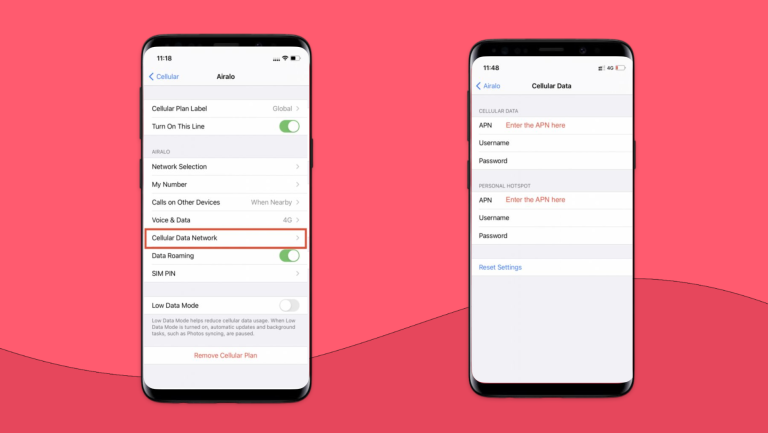
If your eSIM is connected to a mobile network but mobile data still isn’t working, check the Access Point Name (APN) settings. APN details are usually configured automatically when you install an eSIM, but some providers require manual setup. Incorrect APN settings can prevent mobile data from working on both iPhone and Android devices.
You’ll receive the correct APN settings via email with your activation QR code.
If it’s missing or incorrect, enter the correct APN details.
Go to your device’s network settings and check the APN configuration.
Manually select a network
Sometimes automatic network selection doesn’t connect to the best available network. If your eSIM isn’t working, try manually selecting a compatible local network supported by your eSIM provider to see if the connection improves.
The process for doing so differs depending on your device:
On iOS, go to Settings > Cellular/Mobile Data > Network Selection > turn off Automatic > Select a network manually.
On Android, go to Settings > Connections/Network & Internet > Mobile Networks > Network Operators > Turn off Automatic > Select a network manually.
eSIM network not available
If your phone shows eSIM network not available, the line is installed but isn’t registering on a network. This is different from having no data, and it usually points to one of three things.
Your plan hasn’t started yet. Travel eSIMs often activate on arrival rather than at purchase, so the line stays unregistered until you land and connect to a local network.
The eSIM isn’t switched on. Check that the line is enabled and set as your data source in Settings > Cellular/Mobile Data, since an installed eSIM can sit there turned off.
There’s no coverage where you are. Registration needs a signal, so move outdoors or away from thick walls and give the phone a minute to search.
If none of these steps work, try resetting your network settings as a last resort. This may resolve configuration issues, but it won’t fix problems caused by an expired plan, carrier restrictions, or unavailable network coverage. Keep in mind that resetting network settings removes saved Wi-Fi networks and certain connection preferences.
Reset the network settings
If all else fails, resetting your network settings often solves glitches and bugs that restarting doesn’t fix. Here’s how:
On iOS, select Settings > General > Reset > Reset Network Settings.
On Android, select Settings > System > Reset Options > Reset WiFi, Mobile, and Bluetooth.
Doing so will completely refresh all your network connections, including WiFi and Bluetooth. As a result, you may need to manually reconnect to your home WiFi network and pair any Bluetooth devices you use. That said, it sure beats not being able to use your eSIM.
Contact customer support
If none of the troubleshooting steps work, there might be an issue with your service provider instead. Make sure to contact your provider’s customer support, and they should be able to answer your questions and get you back online.
To make things smoother, there are a few things you can prepare before contacting customer support:
- Your eSIM activation confirmation email
- Device model and software version
- Error messages or screenshots
- Steps you’ve already tried
eSIM still not working? Get one you can trust
Dealing with eSIM connectivity issues can be frustrating, especially when you’re travelling. Choosing a reliable travel eSIM with dedicated customer support can give you greater peace of mind. That’s where Holafly comes in.
Every Holafly travel eSIM comes with:
- Unlimited data to browse, navigate, and stay connected throughout your trip.
- 24/7 customer support to help troubleshoot connectivity issues whenever you need assistance.
- Always On with 1 GB of monthly backup data in supported destinations.
- Reusable eSIM — install once and add new data plans for future trips without reinstalling your eSIM.
Planning a longer stay or travelling frequently? Check out Holafly Plans for global monthly data or Ultra Plan for a comprehensive travel solution with digital and real-life protection.
An eSIM you can rely on
eSIM not working FAQs
Why is my eSIM suddenly not working?
An eSIM that suddenly stops working may have run out of data, reached the end of its validity period, or lost network coverage. Check your plan status with your provider first. If the plan is still active, try restarting your phone, checking your mobile data settings, or resetting your network settings as a last resort.
Why is my eSIM getting no service?
Your eSIM may show “No Service” if you’re outside your provider’s coverage area, your phone can’t connect to a supported network, or your eSIM isn’t properly activated. Try restarting your phone, toggling Airplane Mode, and manually selecting a compatible network.
How do I fix my eSIM if it’s not working?
Start by restarting your phone and checking that your eSIM is enabled and selected as your mobile data line. If you’re using a travel eSIM, turn on data roaming if required by your provider. If that doesn’t work, verify your APN settings and try resetting your network settings as a last resort.
Why is data not working on my eSIM?
Your eSIM data may not work if the wrong SIM is selected for mobile data, data roaming is disabled, or your APN settings are incorrect. Check that your eSIM plan is active, mobile data is enabled, and you’re connected to a supported network.
Why is my eSIM suddenly not working?
An eSIM that suddenly stops working may have run out of data, reached the end of its validity period, or lost network coverage. Check your plan status with your provider first. If the plan is still active, try restarting your phone, checking your mobile data settings, or resetting your network settings as a last resort.
Plans that may interest you


Formerly a travel journalist turned marketing copywriter, I found my way back to the travel world with Holafly—my dream company that made remote work possible. My motto? “Dream big and make it happen.” I’m passionate about writing, exploring the world, and staying active through walking, running, swimming, and hiking. I also love learning, reflecting, and connecting with inspiring minds.


