





 Language
Sydney Airport WiFi: How to connect to free WiFi
Learn how to connect to free Wi-Fi at Sydney Airport. Troubleshoot login issues, check network safety, and explore mobile data alternatives.
Sydney Airport offers free Wi-Fi across all terminals, including the International Terminal (T1) and Domestic Terminals (T2 and T3). To get online, turn on Wi-Fi on your device, select Sydney Airport Free WiFi from the available networks, and complete the brief login prompt by accepting the terms and conditions in your browser.
This guide covers everything you need to know about Sydney Airport Wi-Fi, including network availability, connection steps, troubleshooting login issues, Wi-Fi safety recommendations, and alternative mobile data options.
Airport Wi-Fi is only available within the airport area. International travellers can use a Holafly eSIM to stay connected during their trip.It offers unlimited data, 5G speeds, and 24/7 customer support.

Keep your passport in its hiding place
Save your passport for the airport, our eSIMs don't need it.
Does Sydney Airport have free WiFi?
Yes, Sydney Airport provides free Wi-Fi for passengers across its terminals.
Wi-Fi is available in both public landside areas and airside departures/arrivals sections across the terminals:
- T1 International Terminal: Fully covered throughout the departures and arrivals concourses.
- T2 Domestic Terminal: Covered throughout the terminal for domestic operations.
- T3 Domestic Terminal: Covered across public and boarding area zones.
Sydney Airport’s free Wi-Fi has conditions, bandwidth management, and restrictions.
- Time limit: There is no hard time limit. You can stay connected as long as you are inside the terminal areas.
- Data caps: The airport provides unlimited overall sessions. But high-volume, sustained data transfers, like 4K video streaming or large file downloads, may experience buffering or reduced speeds. This ensures that all passengers receive a fair share of the available bandwidth.
- Prohibited activities: Under the network’s Acceptable Use Policy, users must not use the Wi-Fi for sustained bulk data transfers or hosting server operations. Illegal, malicious, or offensive activities are also prohibited.
Note: The public network is unencrypted. It is strongly advised to avoid accessing sensitive personal banking or transmitting unencrypted passwords unless using a secure connection (HTTPS) or a VPN.
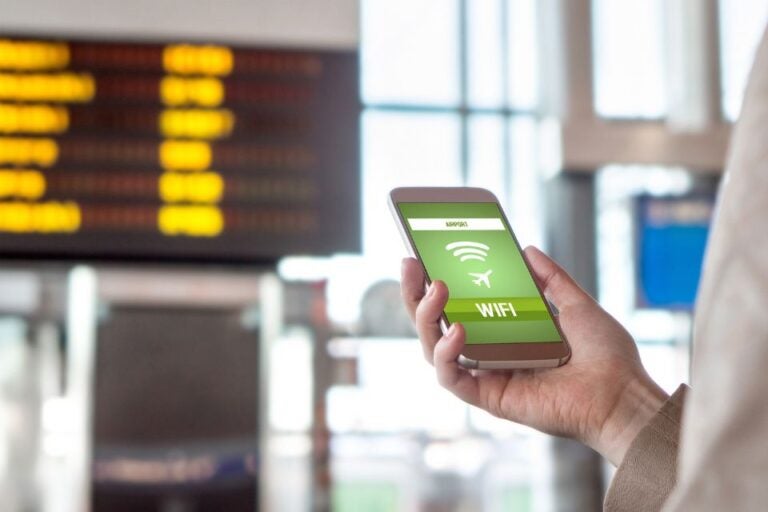
How to connect to WiFi at Sydney Airport
Sydney Airport Wi-Fi doesn’t need any pre-registration or a password. It’s public and free. So, you can easily connect to the network following these steps:
iPhone or iPad (iOS / iPadOS devices):
- Open Settings and tap Wi-Fi.
- Ensure Wi-Fi is toggled On.
- Select Sydney Airport Free WiFi under available networks.
- Wait for the login screen to pop up automatically (or open Safari and navigate to any page).
- Accept the Terms and Conditions and tap Connect / Proceed.
Verification: Check the Wi-Fi icon in the top-right status bar, then open a web page to confirm internet access.
Android phones and tablets:
- Swipe down from the top of your screen and select Wi-Fi (or go to Settings > Network & Internet > Wi-Fi).
- Look for Sydney Airport Free WiFi and select it from the list.
- Tap the notification that says “Tap to sign in to network” if it appears.
- On the browser page that opens, accept the Terms and Conditions.
Verification: Ensure the notification status changes to “Connected” and test loading a web page in Chrome.
Laptop (macOS / Windows)
- Click the Wi-Fi / Network icon in your menu bar (macOS) or taskbar (Windows).
- Select Sydney Airport Free WiFi and click Connect.
- A portal page should open automatically in your default browser. If it doesn’t, open a browser and navigate to [http://neverssl.com](http://neverssl.com).
- Tick the checkbox to accept the Terms & Conditions and click Proceed.
Verification: Look for the connected Wi-Fi status icon and try accessing a website.
Sydney Airport WiFi not working? Try these fixes
If Sydney Airport Wi-Fi is not working on your device, follow these practical troubleshooting steps organised by common issues.
The WiFi network is not appearing
You may be in a signal dead zone created by heavy airport infrastructure, or your device’s network adapter hasn’t refreshed the list of available nearby access points.
Steps to fix:
- Relocate to main passenger areas like departure gates, central food courts, or main concourses where coverage is strongest.
- Toggle Aeroplane Mode on for 5 seconds and turn it back off to force your device to rescan for network signals.
- Ensure Wi-Fi is enabled in your device settings, then manually tap Refresh/Scan.
The Login page is not loading
Modern web browsers block unencrypted redirects to captive portals when opening secure HTTPS sites. Active VPNs, iCloud Private Relay, or custom DNS services also intercept the connection process.
1. Force the portal with a plain HTTP site (most reliable quick fix)
While connected to the Sydney Wi-Fi (even if it says “connected, no internet”), open a browser and go to one of these:
- http://neverssl.com
- http://captive.apple.com
- http://8.8.8.8 (recommended)
This should trigger the redirect to the login/terms page.
2. Other quick fixes
- Clear browser cache/cookies or use an Incognito/Private window.
- Try a different browser.
- Restart your device.
- Make sure Mobile Data is not on (on phones), so it doesn’t interfere.
Connected, but no internet
Your device has linked to the airport router, but access remains blocked because the splash page terms were not accepted, or the network assigned a stale IP address.
Steps to fix:
- Open your Wi-Fi settings, locate Sydney Airport Free WiFi, and select Forget This Network.
- Re-select Sydney Airport Free WiFi from the list to start a fresh connection session.
- Ensure you check the terms and conditions box and tap Connect/Proceed on the landing page.
- Disable any active VPN running in the background and check again.
Slow or unstable WiFi
High passenger traffic overloads specific access points, or background app updates and cloud syncs are consuming your device’s available bandwidth.
Steps to fix:
- Move away from dense crowds near packed gates toward quieter seating areas near information desks or central hallways.
- Pause background downloads, automated cloud backups (e.g., Photos, iCloud, Google Drive), and app updates.
- Turn Wi-Fi off and back on to force your device to connect to a nearer, less congested access point.
The airport speed is sufficient for checking flight updates, messaging, loading web pages, social media, and checking emails. Heavy tasks like 4K video streaming, large file downloads, or video calling may experience lag or throttling as part of the airport’s network bandwidth management.
If high-speed, unlimited internet is required for remote work or HD video calls, an eSIM like Holafly eSIM for Sydney can deliver faster, more consistent speeds.
iPhone or Android is unable to connect
Modern mobile security features, specifically randomised MAC addresses (Private Wi-Fi Addresses), can conflict with public network authentication and session management.
Steps to fix:
- On iPhone (iOS): Go to Settings > Wi-Fi, tap the (i) info icon next to the Wi-Fi name, and temporarily toggle Private Wi-Fi Address to Off before reconnecting.
- On Android: Go to Settings > Network & Internet > Wi-Fi, tap the Wi-Fi name (Sydney Airport Free WiFi) > Advanced > Privacy, and switch the setting from “Use Randomised MAC” to Use Device MAC.
- Restart your phone to clear lingering network configuration errors.

Is Sydney Airport WiFi safe to use?
Sydney Airport’s public Wi-Fi network is unencrypted and open, which makes it suitable for general web browsing. But like most open public hotspots, it is not inherently secure.
Sydney Airport’s standard public Wi-Fi network is unencrypted. Because the connection between your device and the Wi-Fi access point doesn’t use a shared encryption password, others on the same network can theoretically intercept data transmitted over the open airwaves.
This may introduce security risks, including:
- Interception of Unsecured Data (Eavesdropping): Unencrypted network traffic can be monitored using packet-sniffing software. If you visit unencrypted websites (HTTP instead of HTTPS), unauthorised parties could potentially view the content you send or receive.
- Rogue hotspots and “Evil Twin” attacks: Cybercriminals can set up malicious Wi-Fi access points with names similar to official networks (e.g., Sydney_Airport_Free_WiFi) to trick travellers into connecting directly to their rogue hardware.
- Man-in-the-Middle (MitM) attacks: Attackers can position themselves between your device and the network router to intercept, alter, or log communication without your knowledge.
So, it is recommended that all network users:
- Confirm the official network name: Always double-check that you are connecting strictly to the official network, and reject unexpected secondary pop-ups or unofficial network names.
- Avoid sensitive online activities: Do not access online banking, perform financial transactions, or log into critical accounts containing sensitive personal information while connected to an unsecured public hotspot.
- Use a virtual private network (VPN): If you must check work emails or log into accounts, use a reputable VPN. A VPN encrypts all data leaving your device, protecting your traffic even on open networks.
- Stick to secure websites (HTTPS): Ensure any site you visit displays the padlock icon in the browser address bar, indicating end-to-end HTTPS encryption.
- Disable auto-connect: Turn off the setting on your phone or laptop that automatically connects your device to open Wi-Fi networks when in transit.
Sydney Airport WiFi alternatives
Sydney Airport WiFi is a great option for checking flight details or sending messages inside the terminal. However, because it is unencrypted and restricted to airport premises, it is best kept for basic terminal use. Additionally, it is not recommended for sensitive tasks like online banking.
For a secure and seamless travel experience across Sydney, you should either purchase a local SIM card, count on your SIM card roaming, or use a travel eSIM. The most convenient and cost-effective option is Holafly Australia eSIM, with unlimited data, flexible plan durations, 5G speeds where available, and 24/7 customer support.
Holafly’s Always On feature provides 1GB of backup data with every eSIM, ensuring you remain connected even after your main plan expires. It is available for up to one month as long as the eSIM stays installed.

Limitless data, endless adventures
Stream, scroll, and share as you please. With Holafly, your data is always unlimited.
Plans that may interest you

Formerly a travel journalist turned marketing copywriter, I found my way back to the travel world with Holafly—my dream company that made remote work possible. My motto? “Dream big and make it happen.” I’m passionate about writing, exploring the world, and staying active through walking, running, swimming, and hiking. I also love learning, reflecting, and connecting with inspiring minds.


