


 Language
Singapore Airlines WiFi: How to connect, cost, and free WiFi
Discover how to connect to Singapore Airlines inflight Wi-Fi, who gets free access, current plan pricing, speeds, and quick troubleshooting tips.
Singapore Airlines offers in-flight Wi-Fi across its entire fleet, making it easy to stay connected while travelling. Free Wi-Fi is available to passengers in higher-tier classes, including Business and First Class. General passengers and non-members will need to pay for access.
This guide covers everything you need to know about Singapore Airlines Wi-Fi, including general availability, who qualifies for free access, and how options differ between Economy and Business Class.
We will also help you stay connected when you land at your destination using Holafly eSIM, with unlimited data, 5G speeds, and 24/7 customer support.

Connect to the fastest networks
International eSIMs, local networks. Enjoy the best of both worlds with Holafly.
Does Singapore Airlines have WiFi?
Every aircraft in Singapore Airlines’ current active passenger fleet is equipped with Wi-Fi functionality. Wi-Fi access is available to all passengers on board, though the cost depends on cabin class and membership status.
While connectivity is standard on these aircraft, service remains subject to operational factors, network coverage, and technical availability on any given flight. Passengers can check specific flight details or consult Singapore Airlines’ official digital channels before departure to confirm status and access requirements.
Wi-Fi typically becomes available once the aircraft climbs past 10,000 feet and reaches cruising altitude, which is generally about 15 minutes after takeoff. Connectivity remains active for most of the flight until the aircraft descends below 10,000 feet, approximately 15 minutes before landing.
Additionally, disruptions or temporary blackouts can occur throughout the flight. That’s due to restrictions over specific airspace or national territories, gaps in satellite coverage, such as over polar regions, adverse weather conditions, or unexpected system issues on board.
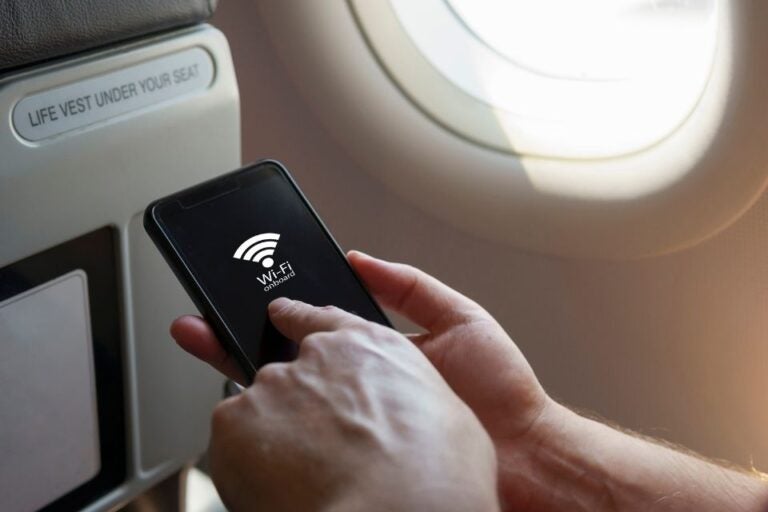
Is Singapore Airlines WiFi free?
Yes, Singapore Airlines offers free WiFi to its members and passengers in specific cabin classes. It breaks down the free and paid access as follows:
- Complimentary (free) access: Passengers travelling in Suites, First Class, or Business Class automatically receive unlimited complimentary Wi-Fi. Passengers in Premium Economy and Economy Class also receive unlimited complimentary Wi-Fi, provided they are KrisFlyer members and have linked their membership number to their booking before or during the flight.
- Paid access: Non-KrisFlyer members flying in Premium Economy or Economy Class can still access Wi-Fi by purchasing a time-based paid plan on board. Passengers can also join KrisFlyer for free while in-flight to unlock complimentary access.
How much does Singapore Airlines WiFi cost?
Singapore Airlines offers three time-based paid Wi-Fi plans for non-KrisFlyer members travelling in Premium Economy or Economy Class, as well as passengers who prefer not to link a KrisFlyer account.
| Plan | Official price (USD) | Approx. price (AUD)* | Access and duration details |
|---|---|---|---|
| 1-hour surf plan | $3.99 | ~$6.00 | 1 hour of continuous Wi-Fi access. The countdown starts immediately upon payment. |
| 3-hour surf plan | $8.99 | ~$13.50 | 3 hours of continuous Wi-Fi access. The countdown starts immediately upon payment. |
| Full flight surf plan | S$15.99 | ~$24.00 | Unlimited Wi-Fi access for the entire duration of the flight. |
*AUD estimates may vary due to exchange rates and foreign credit card transaction fees.
Here are the rules for using Singapore Airlines paid plans:
- Continuous countdown: Time-based packages (1-hour and 3-hour) run continuously from the moment of purchase. They cannot be paused or stopped once activated, even if you disconnect your device.
- Data usage: All plans offer unlimited data usage within the purchased time window. There are no data limits or overage charges.
- Free alternative: Any non-member can sign up for a complimentary KrisFlyer account in-flight through the connection portal to bypass these fees and unlock unlimited free Wi-Fi immediately.
There are no sign-up fees, hidden application costs, or recurring membership dues required to create and maintain a standard KrisFlyer account.
However, the free KrisFlyer allowance in Premium Economy and Economy Class allows only one active device at a time. If you need to keep your laptop connected for work while using your smartphone for messaging at the same time, you must buy a paid plan for the second device.
How to connect to Singapore Airlines WiFi
Connecting to the in-flight Wi-Fi network requires a few basic steps once the aircraft reaches cruising altitude (above 10,000 feet).
- Turn on Flight Mode: Enable Flight Mode (Aeroplane Mode) on your device to turn off cellular data.
- Turn on Wi-Fi: Enable Wi-Fi in your device settings while keeping Flight Mode active.
- Connect to the network: Select “KrisWorld” from the list of available Wi-Fi networks.
- Open the onboard Wi-Fi portal: The portal page should automatically launch in your browser. If it does not open automatically, open your web browser manually and enter kw.sq.com or https://krisworld.singaporeair.com into the address bar.
- Log in or select a plan: Select the complimentary option and enter your seat number, last name, and KrisFlyer/PPS Club membership details, or choose a paid time-based plan to complete payment.
Here is the step-by-step guide to connecting to each device:
- iPhone / iPad (iOS): Go to Settings > Wi-Fi, turn Wi-Fi on, and select KrisWorld. If the landing page does not pop up automatically, open Safari and type kw.sq.com into the address bar. Ensure the Private Wi-Fi Address is not blocking local network redirects if the browser fails to load.
- Android devices: Open Settings > Network & internet > Wi-Fi, connect to KrisWorld, and tap the network notification if prompted to sign in. If the login page fails to load, open Chrome or your default browser and enter kw.sq.com manually. Select “Keep Connection” if Android alerts you that the network has no internet access prior to logging in.
- Laptops (macOS / Windows): Click the Wi-Fi icon on your taskbar or menu bar, select KrisWorld, and connect. Open a web browser such as Chrome, Safari, or Edge and navigate to kw.sq.com to access the login page. Ensure any active VPN software is turned off, as VPNs can block the login page from loading.
How good is Singapore Airlines WiFi?
Singapore Airlines’ in-flight Wi-Fi provides reliable connectivity for basic internet tasks, but its speed is based on satellite technology, not the faster speeds of ground-based broadband.
Connection speeds typically range between 2 Mbps and 10 Mbps, depending on the setup, and are shared among connected passengers. Wi-Fi speed is identical regardless of cabin class. It allows the following activities:
- Text messaging: Instant messaging platforms (WhatsApp, iMessage, WeChat, Telegram, Signal) for text-based chats and basic images work reliably.
- Email and work: Reading, drafting, and sending standard emails, as well as accessing light workplace messaging tools (Slack, Teams text chats).
- General web browsing: Reading news articles, checking flight details, or browsing standard websites.
- Social media: Text and image browsing on platforms like X, LinkedIn, and Facebook (short video playback may lag or take a long time to buffer).
Some restrictions are also applied to Singapore Airlines WiFi usage, including:
- Video and music streaming: Bandwidth-heavy streaming services (such as Netflix, YouTube, Disney+, Spotify, or Apple Music) are not supported and are blocked on the network.
- Voice and video calls: VoIP calls (via WhatsApp, Zoom, Skype, FaceTime, or Microsoft Teams) are strictly prohibited across the fleet to maintain cabin quietness.
- Heavy downloads and cloud syncing: Downloading large files, app updates, or running background cloud backups (e.g., iCloud, Google Drive) will consume heavy bandwidth and often fail or time out.
Additionally, performance can fluctuate during a journey and depends on factors such as:
- Satellite coverage and route: Brief dead zones occur over remote areas like polar regions or specific flight corridors with regulatory airspace restrictions.
- Passenger load: Speeds slow down during peak usage times, such as right after takeoff or on high-capacity long-haul flights where many passengers connect at once.
- Weather and technical conditions: Dense cloud cover or severe atmospheric conditions can cause temporary drops in signal.
Singapore Airlines WiFi not working? Try these fixes
If you encounter connection issues with KrisWorld Wi-Fi during your flight, try these targeted troubleshooting steps to restore your connection.
1. Wi-Fi network not appearing
The aircraft may not have reached cruising altitude (10,000 feet) yet, or your device’s Wi-Fi scanner is stuck.
Fixes:
- Verify that Flight Mode is enabled, then turn your device’s Wi-Fi off, wait 5 seconds, and turn it back on to refresh the network list.
- Wait until the aircraft passes 10,000 feet (typically indicated by the seatbelt sign turning off or a crew announcement).
2. Login page not loading
Your browser failed to automatically open the captive portal page after connecting to the KrisWorld network.
Fixes:
- Open your web browser manually (Safari for iOS, Chrome for Android) and type kw.sq.com or https://krisworld.singaporeair.com directly into the address bar.
- Try typing a standard non-secure address, like [http://neverssl.com](http://neverssl.com) to force the network portal to trigger.
- Clear your browser’s cache and history, or open an Incognito / Private browsing window.
3. Connected to Wi-Fi, but no internet access
Active security software, VPN configurations, or an unauthenticated session block traffic.
Fixes:
- Disable VPNs and firewalls: Virtual Private Networks (VPNs) block local network redirects required by in-flight Wi-Fi systems. Turn off all VPN apps or security profiles.
- Re-open kw.sq.com to verify that your session has not expired or logged out.
- Ensure your seat number, last name, or KrisFlyer details exactly match your booking information.
4. Slow or unstable connection
High passenger usage, background app syncs, or signal fluctuations due to satellite positioning.
Fixes:
- Pause background updates, cloud synchronisation (iCloud, Google Photos, OneDrive), and automated app downloads.
- Close bandwidth-heavy apps and limit usage to basic web pages and text messaging.
- Restart your web browser or switch to a different browser app.
5. Wi-Fi frequently disconnects
Device battery-saver settings, dropped idle network connections, or temporary satellite signal interruptions.
Fixes:
- Go to your device’s Wi-Fi settings for KrisWorld and ensure Auto-Join (iOS) or Auto-reconnect (Android) is enabled.
- Go to Wi-Fi settings, select Forget This Network, and reconnect to KrisWorld from scratch.
- Restart your device entirely to clear temporary network stack glitches.
Issues outside passenger control
In some instances, Wi-Fi issues cannot be resolved on your device:
- Satellite blackouts: Flight paths crossing polar regions, remote oceanic stretches, or unapproved airspace territories will experience temporary coverage gaps.
- Severe weather: Thunderstorms and extreme atmospheric interference can block signals between the aircraft antenna and the satellite.
- System outages: Onboard satellite hardware or routers may experience technical failures during the flight.
If these basic fixes do not resolve the problem, inform a cabin crew member to check if the overall in-flight Wi-Fi system is active.
Stay connected before and after your Singapore Airlines flight
Singapore Airlines’ in-flight Wi-Fi is designed to keep you connected during the flight, operating from the moment the aircraft reaches cruising altitude until descent. Once your flight lands, an eSIM ensures you stay connected on the ground, making it easy to book an online rideshare to your accommodation or use maps to navigate to different locations.
Holafly eSIM offers a convenient solution for staying connected in over 200 destinations. Users benefit from unlimited data, 5G speeds where available, hotspot sharing, and 24/7 customer support.
The Always On feature on Holafly’s eSIMs includes 1GB of backup data for emergency use. It continues to work for up to one month after your eSIM plan expires, as long as the eSIM remains installed on your device.

Keep your passport in its hiding place
Save your passport for the airport, our eSIMs don't need it.
Plans that may interest you

Formerly a travel journalist turned marketing copywriter, I found my way back to the travel world with Holafly—my dream company that made remote work possible. My motto? “Dream big and make it happen.” I’m passionate about writing, exploring the world, and staying active through walking, running, swimming, and hiking. I also love learning, reflecting, and connecting with inspiring minds.