


 Language
Qantas in-flight WiFi: How to connect and check availability
Learn how to connect to free Qantas inflight Wi-Fi, view fleet availability, and troubleshoot connectivity issues to stay connected throughout your journey.
Qantas offers high-speed inflight Wi-Fi entirely free across all cabin classes. But the availability depends on the specific aircraft, route, and active satellite coverage.
This guide explains everything about Qantas inflight WiFi, covering its availability on different aircraft and routes, associated costs, and information on which domestic and international flights offer this service.
When the flight lands, consider using Holafly eSIM to stay connected during your trip with unlimited data, 5G speeds, and 24/7 customer support.

Keep your passport in its hiding place
Save your passport for the airport, our eSIMs don't need it.
Does Qantas have in-flight WiFi?
Yes, Qantas offers free in-flight Wi-Fi across all cabin classes. However, service availability varies depending on the specific aircraft, the flight route, and satellite coverage along the flight path.
Last-minute aircraft swaps for operational reasons can also result in an unequipped plane operating a route that usually has Wi-Fi.
- Domestic flights: Wi-Fi is widely available across mainland Australian domestic routes operated on Airbus A220-300, Airbus A321XLR, Airbus A330-200, and Boeing 737-800. Coverage is strongest within the footprint of Australia’s domestic satellite network.
- International flights: International Wi-Fi operates via Viasat’s global satellite network. Connectivity is available on Boeing 787 Dreamliners and select Airbus A330s, while retrofits for the Airbus A380 fleet remain in progress.
- New Zealand trans-Tasman flights: Service availability on routes between Australia and New Zealand is expanding across the Boeing 737, Airbus A330, and Airbus A220 fleets as satellite network handovers and fleet modifications continue.
Passengers can typically find out if Wi-Fi will be available on their flight by checking the scheduled aircraft type at the time of booking.
Because aircraft assignments can change due to maintenance or operational swaps, Qantas recommends confirming Wi-Fi status via the Qantas App 24 to 48 hours before departure.
- Go to the Qantas App.
- Tap “My Trips”.
- Select “View onboard experience”.
- Here you can check the aircraft type and whether it has WiFi.
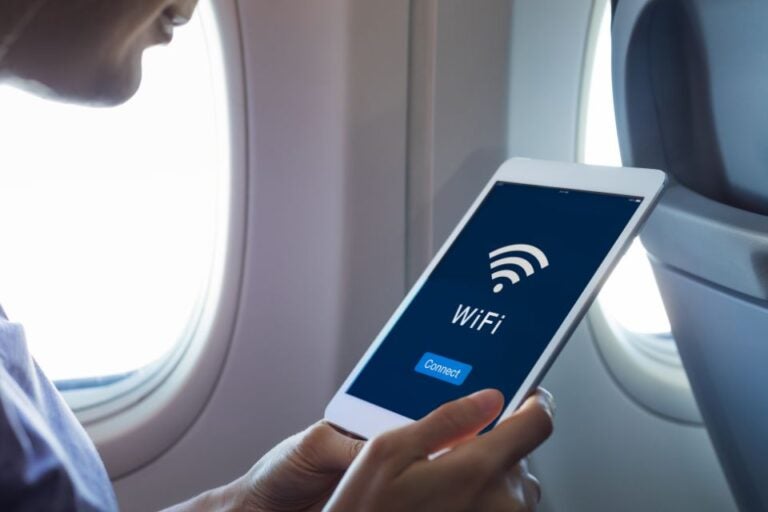
Is Qantas in-flight WiFi free?
Yes, Qantas inflight Wi-Fi is completely free across all cabin classes on eligible Wi-Fi–equipped aircraft. There are no tier-based fees, hidden costs, time limits, or password requirements.
Connecting to the onboard wireless network gives passengers access to two distinct services:
- In-flight Wi-Fi: Provides access to the broader internet. It allows passengers to browse websites, send emails, use messaging apps, and stream external online content on their personal devices.
- In-flight entertainment (IFE): Consists of a pre-selected media library, such as movies, TV series, audiobooks, and music, stored locally onboard. Access to this library is always free, either via seatback screens or streamed locally to personal devices via the Qantas Entertainment App.
How to connect to Qantas in-flight WiFi?
Connecting to Qantas in-flight WiFi is straightforward with the following steps:
- Switch your device to Flight Mode (Aeroplane Mode).
- Turn Wi-Fi on in your settings.
- Select the network named “Qantas Free Wi-Fi”.
- Follow the on-screen prompts on the welcome page to complete the connection.
- If the connection or login page does not load automatically, open a web browser and go to wifi.qantas.com.
Here is the step-by-step guide for connecting across different devices:
iPhone (iOS)
- Go to Settings > Wi-Fi, ensure Wi-Fi is toggled on,
- Select “Qantas Free Wi-Fi”.
- A captive portal window will pop up automatically to accept the terms.
Android phones
- Go to Settings > Network and Internet (or Connections) > Wi-Fi.
- Select “Qantas Free Wi-Fi”.
- Tap the notification asking you to “Sign in to network” if the browser page doesn’t open immediately.
Laptop (Mac / Windows)
- Click the Wi-Fi icon in your system menu bar or taskbar.
- Join “Qantas Free Wi-Fi”.
- Open any web browser (Safari, Chrome, Edge).
- Navigate to wifi.qantas.com if you aren’t automatically redirected.
Note: Passengers do not need the Qantas app to connect to the Wi-Fi. It functions like any standard public Wi-Fi hotspot. The app is only useful before boarding if you want to check whether your upcoming flight is scheduled to have Wi-Fi.
What can you do with Qantas in-flight WiFi?
Qantas inflight Wi-Fi supports general online activities across all connected devices. Passengers can use the connection to:
- Browse websites and search the web.
- Send and receive emails, including downloading standard attachments.
- Use text messaging and chat apps such as WhatsApp, Apple iMessage, and Facebook Messenger.
- Check and post on social media platforms.
- Access cloud-based work applications, internal systems, and remote corporate networks.
- Stream video and audio content via popular services like YouTube, Netflix, Spotify, and local streaming partners.
The following activities are prohibited on Qantas in-flight WiFi:
- Voice and video calls: In the interest of passenger comfort and cabin quiet, VoIP cellular calling, FaceTime, WhatsApp voice/video calls, Zoom, and Teams meetings are strictly forbidden.
- Audio courtesy: Passengers must use headphones when streaming video, listening to music, or playing games with sound.
Connection speeds typically range between 10 and 15 Mbps on standard routes. Higher bandwidths are available on updated Viasat satellite connections. But the actual internet performance can fluctuate depending on satellite coverage, network load, flight path, and weather.
Qantas in-flight WiFi not working? Try these fixes
In-flight Wi-Fi is generally stable, but connectivity issues may occur due to several factors, including:
- Device configuration errors: Active VPNs, custom DNS, ad-blockers, or power-saving modes blocking connections.
- Redirection failures: Browsers failing to automatically load the wifi.qantas.com login page.
- Satellite coverage gaps: Temporary drops when moving between satellite beams or over uncovered ocean sectors.
- Aircraft capability: The plane is notequipped with Wi-Fi, and the system remains off below cruising altitude.
Here are the common in-flight Wi-Fi issues:
Wi-Fi network not appearing
If you don’t find Qantas free Wi-Fi on the network list, it may mean the aircraft is not equipped with in-flight Wi-Fi or the network isn’t active yet. The other reason might be your phone’s WiFi settings, which are usually fixed with a refresh.
- Check the Qantas App under “View onboard experience” or look for the Wi-Fi symbol near the aircraft door to confirm the plane is equipped with Wi-Fi.
- Verify that your device is above 10,000 feet, as in-flight Wi-Fi is often turned on only after reaching cruising altitude.
- Toggle Aeroplane Mode off for 10 seconds, then turn Wi-Fi back on to force your device to search for local signals.
The Login page is not loading
Automatic captive portal redirects can fail on modern devices due to security settings or cached data.
- Open a browser (such as Safari, Chrome, or Edge) and manually type wifi.qantas.com into the URL address bar.
- Try opening a non-secure site like [http://neverssl.com](http://neverssl.com) to force the network login prompt to load.
- Disable active VPNs, custom DNS configurations, or ad-blockers, as these often block local landing pages.
Connected to Wi-Fi but no internet access
Your device might be connected to the onboard router, but without completing the captive portal authentication. So, you won’t have internet access.
- Forget the “Qantas Free Wi-Fi” network in your device’s Wi-Fi settings, then reconnect from scratch.
- Ensure you completed all prompts and clicked “Accept” on the terms and conditions screen after opening the portal.
- Clear your web browser’s cache and cookies before re-attempting access.
Slow or unstable connection
Bandwidth can fluctuate depending on active satellite coverage, weather, or high network demand from other passengers onboard.
- Close background applications, automatic cloud backups, and photo syncing software that consume bandwidth in the background.
- Switch off high-data tasks such as 1080p/4K video streaming and stick to text-based web browsing or messaging.
- Wait a few minutes if the plane is currently transitioning between satellite spot-beams or flying through extreme weather.
Wi-Fi frequently disconnecting
Power-saving modes or satellite coverage gaps along the flight path can interrupt the connection.
- Turn off Low Power Mode (iOS) or Battery Saver (Android), as these settings automatically disconnect from Wi-Fi to conserve battery.
- Disable cellular data assistance features, such as Wi-Fi Assist on iOS, which forcibly disconnects Wi-Fi when internet speeds drop.
- Verify whether the flight path is currently traversing a known satellite coverage dead zone (e.g., deep oceanic or high-latitude routes).
If you are unable to resolve the issue using basic troubleshooting steps, ask a cabin crew member for assistance.
Stay connected before and after your Qantas flight
Qantas in-flight Wi-Fi keeps passengers connected mid-flight. Stable mobile data is essential on the ground for activities like using social media and messaging apps, navigating with maps, and booking rideshares to your accommodation.
Travel eSIMs can provide mobile data on the ground, allowing travellers to connect before take-off, after landing, and when travelling overseas.
Holafly eSIM is a convenient option for travellers, with unlimited data, 5G speeds where available, hotspot sharing, and 24/7 customer support.
Additionally, Holafly includes 1GB of backup data on every eSIM as an Always On feature, allowing users to stay connected even after their plan expires. It is available for up to one month as long as the eSIM remains installed.
Holafly is supported in 200+ destinations, so you can use in-flight WiFi while on Qantas and then switch to the eSIM when you land in your destination. Visit the Holafly eSIM store for more plans and availability.

Limitless data, endless adventures
Stream, scroll, and share as you please. With Holafly, your data is always unlimited.
Plans that may interest you

Formerly a travel journalist turned marketing copywriter, I found my way back to the travel world with Holafly—my dream company that made remote work possible. My motto? “Dream big and make it happen.” I’m passionate about writing, exploring the world, and staying active through walking, running, swimming, and hiking. I also love learning, reflecting, and connecting with inspiring minds.