


 Language
Melbourne Airport WiFi: How to connect to free WiFi
Discover how to connect to free Melbourne Airport Wi-Fi. Learn about session limits, safety tips, troubleshooting, and eSIM alternatives.
Melbourne Airport offers free Wi-Fi in Terminals 2,3, and 4, including public areas and aircraft lounges. Passengers looking to get online can easily connect to the Airport Free Wi-Fi by enabling Wi-Fi on their device and agreeing to the terms on the splash page.
This guide covers everything travellers need to know about Melbourne Airport Wi-Fi, including coverage availability, step-by-step instructions for connecting, and troubleshooting common connection issues.
We will also introduce Holafly Melbourne eSIM, with unlimited data, 5G speeds, and 24/7 customer support for seamless, secure data coverage throughout your journey.
Get connected from anywhere
Buy your eSIM no matter where you are. All you need is an internet connection.
Does Melbourne Airport have free WiFi?
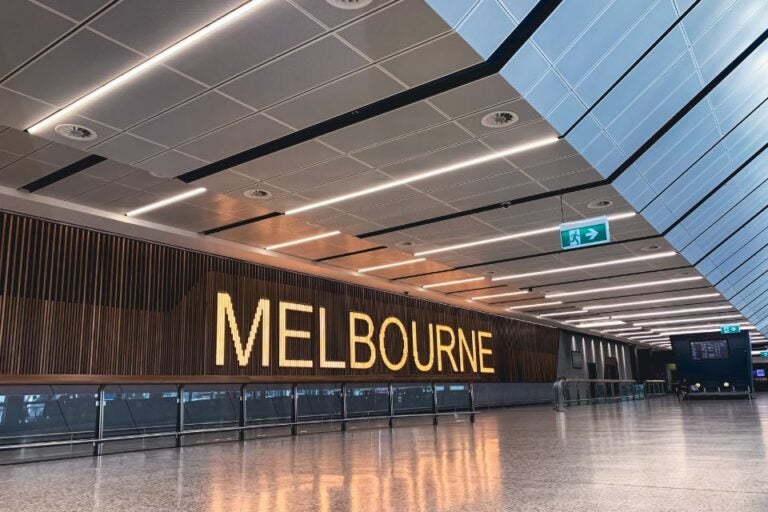
Yes, free WiFi is available at Melbourne Airport. Coverage is available throughout Terminals 2, 3, and 4, covering public areas, departure gates, and aircraft lounges. There are a few session limits and key operational restrictions to keep in mind when using the free Wi-Fi at Melbourne Airport:
- Terminal 1 exception: Terminal 1 (operated by Qantas) does not currently offer the official airport Wi-Fi network.
- Session duration limit: Continuous access is typically capped at 3 hours per session. Once the 3-hour limit expires, you will be automatically logged out. However, you can reconnect immediately by returning to the welcome splash page to start a new session.
- Network security limits: The network is unencrypted. Because it is an open public network, it lacks native encryption for transferred data, making it unsuitable for accessing sensitive financial accounts or completing online banking without a Virtual Private Network (VPN).
Melbourne Airport Wi-Fi handles the following tasks easily:
- Web browsing and social media: Fast loading for news, flight tracking, map downloads, and social feeds.
- Messaging and email: Instant sending for messages, voice and video calls, emails, and small file attachments.
- Standard video streaming: Adequate for watching YouTube or Netflix in standard HD.
You may encounter problems with the following tasks:
- 4K/Ultra-HD streaming: High-bandwidth streaming may buffer during peak airport hours.
- Large file downloads or transfers: Uploading or downloading multi-gigabyte files can take considerable time due to per-user bandwidth management.
- Competitive online gaming: Variable latency makes real-time multiplayer gaming unreliable.
How to connect to WiFi at Melbourne Airport
Connecting to the Melbourne Airport official WiFi network is quick and requires no password.
Follow these steps:
- Enable Wi-Fi on your device.
- Select Airport Free Wi-Fi (or MEL Free Wi-Fi) from the list of available networks.
- Wait for the welcome splash page to pop up automatically. Accept the network’s terms and conditions to establish your connection.
- To verify access, open a browser tab and load a new webpage (e.g., a news site) to confirm internet access.
Note: The airport Wi-Fi name does not regularly change. The airport maintains Airport Free Wi-Fi as its official standard SSID.
Here is the step-by-step guide to connect to the Melbourne Airport Wi-Fi with different devices:
- iPhone / iPad (iOS):
- Open Settings > Wi-Fi.
- Tap Airport Free Wi-Fi.
- The captive portal window will overlay on your screen. Tap Agree / Connect.
- Android:
- Open Settings > Network & internet (or Connections) > Wi-Fi.
- Select Airport Free Wi-Fi.
- A notification stating “Tap here to sign in to the network” will appear.
- Tap it to open the login page and accept the terms.
- Laptops (macOS & Windows):
- Click the Wi-Fi icon in your menu bar or system tray.
- Select Airport Free Wi-Fi.
- A browser window should launch automatically. If it doesn’t, launch your default web browser and try navigating to any webpage to trigger the splash screen.
Security tip: Avoid connecting to networks with slight variations, extra words (e.g., “Free_Melbourne_Airport_HighSpeed”), or open networks that do not prompt you with an official Melbourne Airport login splash page.

Melbourne Airport WiFi not working? Try these fixes
If you are having trouble connecting or staying online at Melbourne Airport, a quick setting adjustment usually fixes the issue. Below are solutions for common network drops, missing login pages, and slow speeds across all devices.
1. Wi-Fi network not appearing
If you turn on WiFi but don’t find the Melbourne WiFi on the list:
- Check your location: Official Wi-Fi is only available in Terminals 2, 3, and 4. If you are in Terminal 1 (Qantas), the official airport network will not show up.
- Toggle Wi-Fi/Aeroplane Mode: Turn your device’s Wi-Fi off for 5 seconds and back on to force a refresh of available networks.
- Confirm correct SSID: Look for Airport Free Wi-Fi (or MEL Free Wi-Fi). If you see nearby shops or café Wi-Fi networks, keep searching for the official airport SSID.
2. Login page not loading
If you connect to the WiFi but don’t automatically redirect to the login page:
- Force the landing page: Open Safari, Chrome, or your default browser and manually enter 1.1.1.1 or 8.8.8.8 in the address bar to load the login portal.
- Turn off Private Browsing / Incognito mode: Captive portals frequently fail to open in private windows. Switch to a standard browser tab.
- Disable active VPNs or custom DNS: VPNs block network redirect pages. Disable your VPN or custom DNS settings (like Cloudflare or Private DNS) until you have authenticated via the landing page.
- Enable cookies: Ensure your browser settings allow cookies from the websites you visit, as the splash page needs them to log your session.
3. Connected to Wi-Fi, but no internet access
If WiFi is connected, but you still can’t open any websites:
- Re-authenticate via browser: Open a web browser and navigate to an unencrypted site (e.g., neverssl.com) to check if your 3-hour session has expired and needs a simple re-login.
- Forget the network and reconnect:
- Go to your device’s Wi-Fi settings.
- Select Forget Network on Airport Free Wi-Fi.
- Re-select the network and accept the splash page terms again.
- Set IP Settings to Automatic (DHCP): Ensure your Wi-Fi configuration is not set to a static IP address.
4. Slow or unstable Wi-Fi
Melbourne Airport Wi-Fi generally provides moderate to high speeds suitable for basic online tasks. Expect average speeds between 20 Mbps and 50 Mbps under standard conditions. During off-peak hours or in less crowded areas, speeds can reach higher, but busy periods can slow connection rates.
- Change location in the terminal: Public network speeds vary depending on foot traffic and distance from access points. Moving away from crowded departure gates or dense seating areas often improves signal quality.
- Disable heavy background updates: Pause background app downloads, cloud syncs, or automatic software updates that consume limited bandwidth.
5. Device-specific connection issues
Mobile operating systems rely on automated features to streamline public network connections, but privacy features or disabled portal prompts can occasionally block access. Adjusting network-specific settings on iOS and Android can quickly resolve missing login pages and recurring disconnects.
iPhone / iPad (iOS)
- Disable “Private Wi-Fi Address”: Go to Settings > Wi-Fi > tap the (i) icon next to Airport Free Wi-Fi > toggle Private Wi-Fi Address to Off, then reconnect.
- Auto-Login: Ensure Auto-Login is turned ON in the network’s details tab so that iOS automatically opens the captive portal.
Android
- Check system notifications: Tap the notification stating “Tap here to sign in to network” to open the authentication page.
- Disable “Randomised MAC”: Go to Settings > Network & Internet > Wi-Fi > tap Airport Free Wi-Fi details > change MAC Address Type from “Randomised” to “Phone MAC” and retry.
Is Melbourne Airport WiFi safe to use?
Melbourne Airport’s public Wi-Fi is fine for casual browsing, such as checking flight schedules, reading news, or messaging friends.
However, it is an unencrypted public network. Because the connection lacks native encryption, data transmitted over the network can theoretically be monitored or intercepted by third parties on the same network. This can lead to the following risks:
- Unencrypted data transfer: Without encryption, information sent between your device and the Wi-Fi router is accessible to eavesdropping or “packet sniffing”.
- Man-in-the-middle attacks: Cybercriminals can position themselves between your device and the connection point to intercept sensitive information, such as passwords and session tokens.
- Rogue hotspots: Bad actors sometimes create fake Wi-Fi networks with names identical or similar to the airport’s official network to trick travellers into connecting.
These concerns don’t mean such things happen in the airport. But it’s recommended to be aware when using any public and unencrypted network.
To protect your personal information, avoid performing high-risk or sensitive transactions over the free airport Wi-Fi:
- Online banking and financial transactions: Never log into bank accounts or send payments over an open public network.
- Accessing confidential work data: Avoid opening company portals, work emails, or sensitive cloud documents without protection.
- Entering credit card information: Postpone online purchases or flight updates that require payment details.
- When handling sensitive activities or making online payments, always use a Virtual Private Network (VPN) to encrypt your connection, or use your mobile data or eSIM.
Melbourne Airport WiFi alternatives
Melbourne Airport offers free WiFi in eligible terminals. But as soon as you leave the airport, you will need a stable connection to explore the city. You can either use your SIM card roaming or purchase a travel eSIM.
Reliable mobile data is required to use maps to find tourist attractions in Melbourne and stay in touch with family and friends while on a trip. Using an eSIM can be a more cost-effective way to avoid roaming charges when you’re in Australia.
Holafly Australia eSIM is a convenient option for international travellers in Australia. It offers unlimited data, 5G speeds where available, hotspot sharing, and 24/7 support.
Additionally, every eSIM includes the Always On feature, with 1GB of backup data for emergency use. So, if your eSIM plan expires, you can still stay connected for a month as long as your eSIM is installed.

Skip the line, get online
Breeze through arrivals with instant connection as your plane lands.
Plans that may interest you

Formerly a travel journalist turned marketing copywriter, I found my way back to the travel world with Holafly—my dream company that made remote work possible. My motto? “Dream big and make it happen.” I’m passionate about writing, exploring the world, and staying active through walking, running, swimming, and hiking. I also love learning, reflecting, and connecting with inspiring minds.